
This article explains the technical requirements for joining a virtual interview, including supported browsers, operating systems, webcam access, and microphone permissions. It also includes troubleshooting steps for common camera and microphone issues.
The application supports all major web browsers and operating systems. Google Chrome is recommended for the best performance and compatibility.
The application is designed for desktop and laptop devices. Mobile phones and tablets are not recommended.
Camera and Microphone Access
Before starting the interview, make sure camera and microphone permissions are enabled. These permissions are required to record video and audio responses.
Using Google Chrome
If you are using Google Chrome and need to allow webcam/microphone access manually, follow these steps:
- Click the site information icon on the left side of the address bar.
- Make sure camera and microphone permissions are enabled. If access is blocked, enable both permissions.

- If you changed the permissions, click Reload to apply the updated settings.
- Click Continue to proceed to the interview.
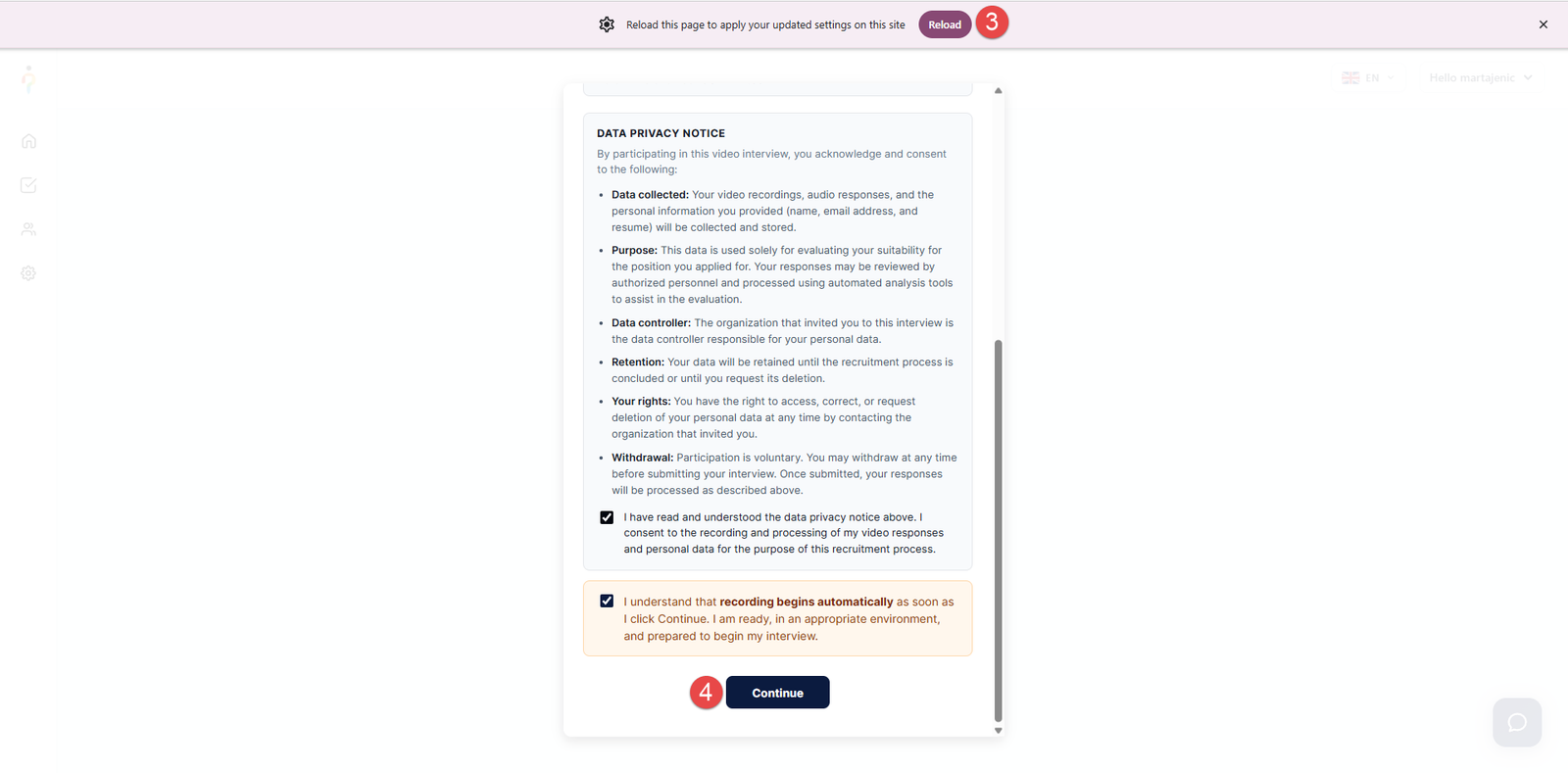
If you are using a USB Webcam/microphone, you may need to change the default camera/microphone in your browser. To select the camera/microphone Google Chrome should use, follow these steps:
- Click the three-dot menu in the top-right corner of the browser window.
- Navigate to Settings.
- In the left panel, select Privacy and Security.

- Select Site Settings.

- Navigate to the permissions section and select Camera/Microphone.
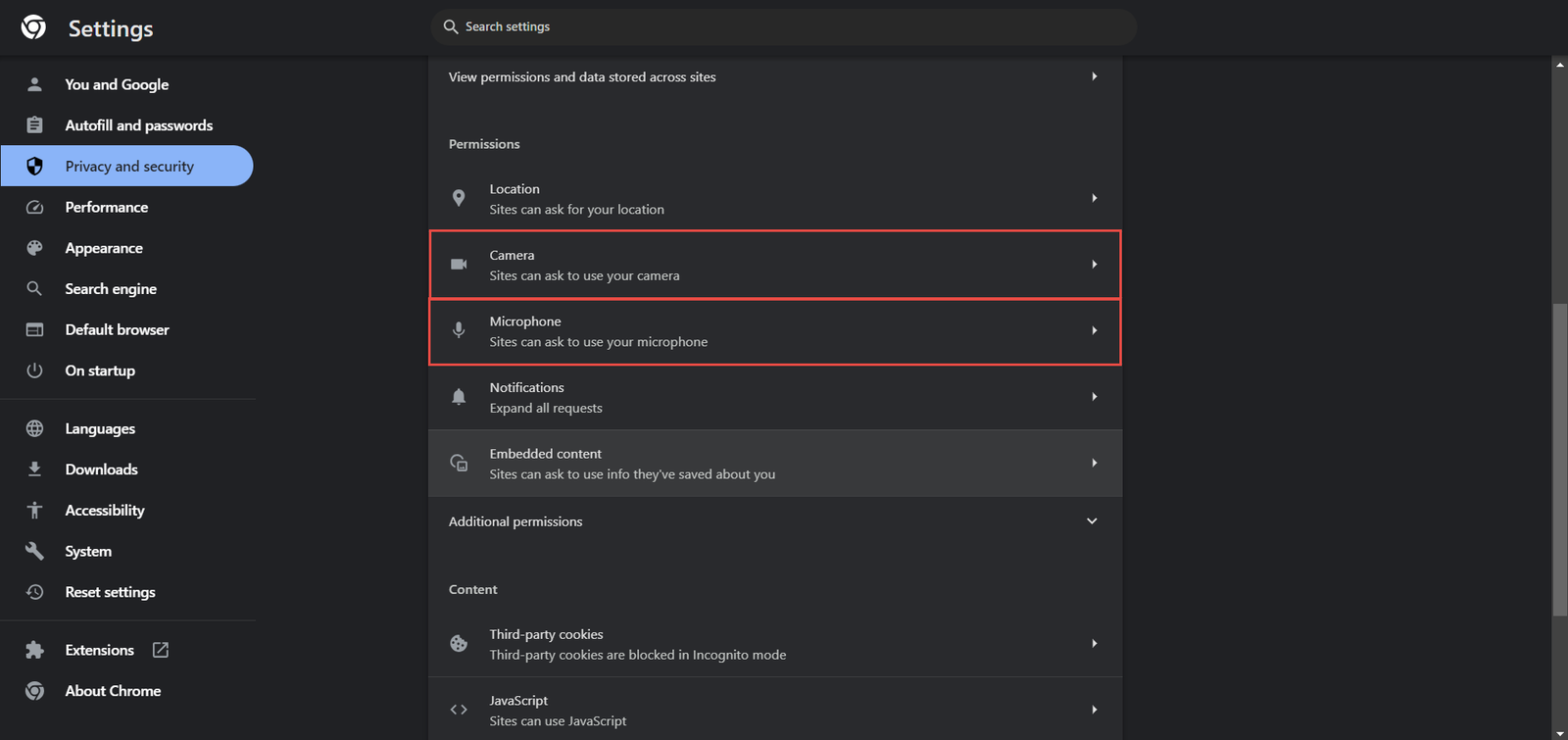
- Select the camera/microphone you want to use from the drop-down menu.

Using Mozilla Firefox
When starting the interview in Mozilla Firefox, the browser will prompt you to allow access to your camera and microphone after clicking Continue.
Click Allow to grant access and proceed with the interview. If necessary, select the camera and microphone you want to use.
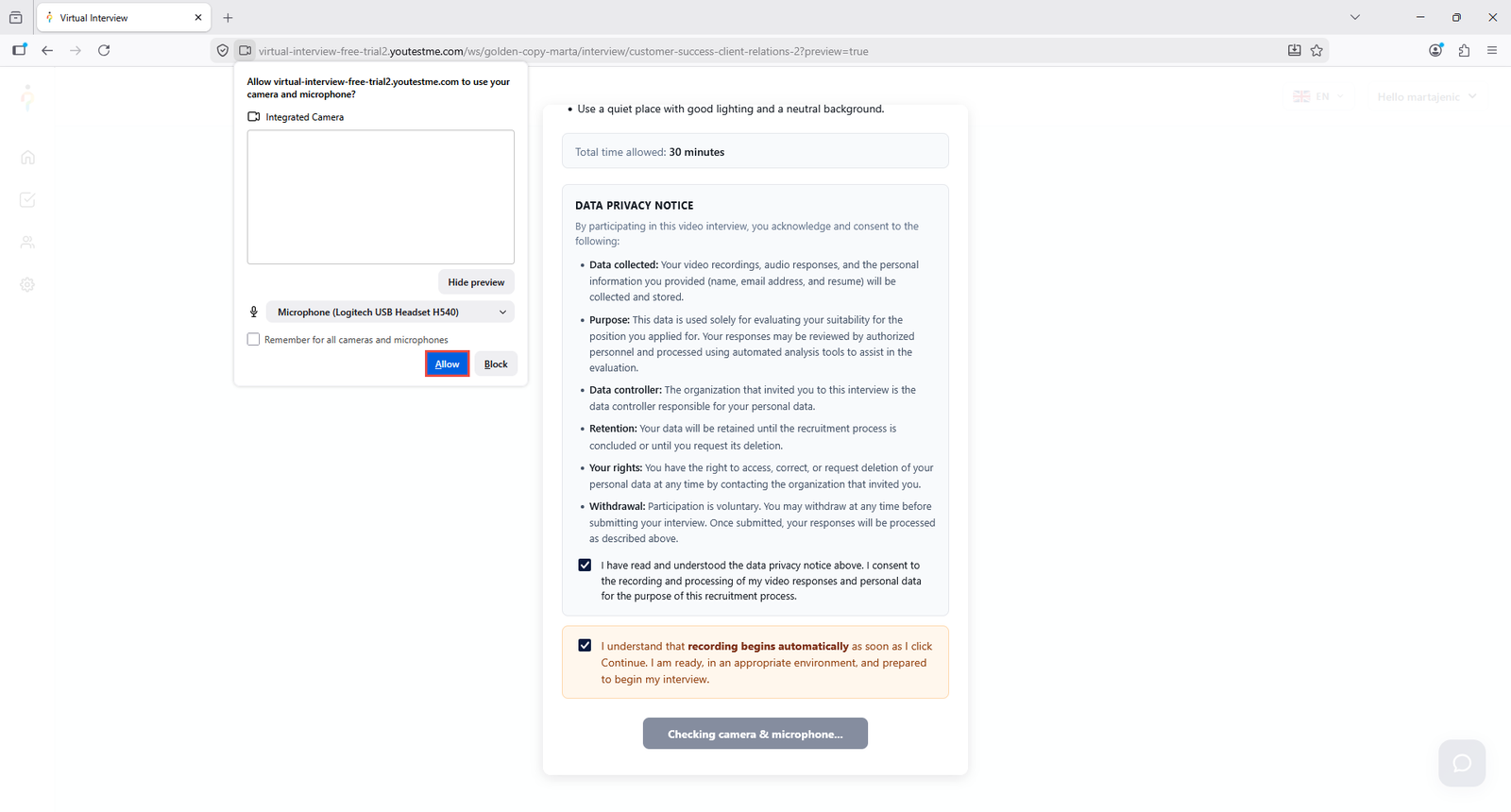 If camera or microphone access was blocked, you can enable access by following these steps:
- Click the menu button
 in the top right corner.
 - Select .
- Select Privacy and Security
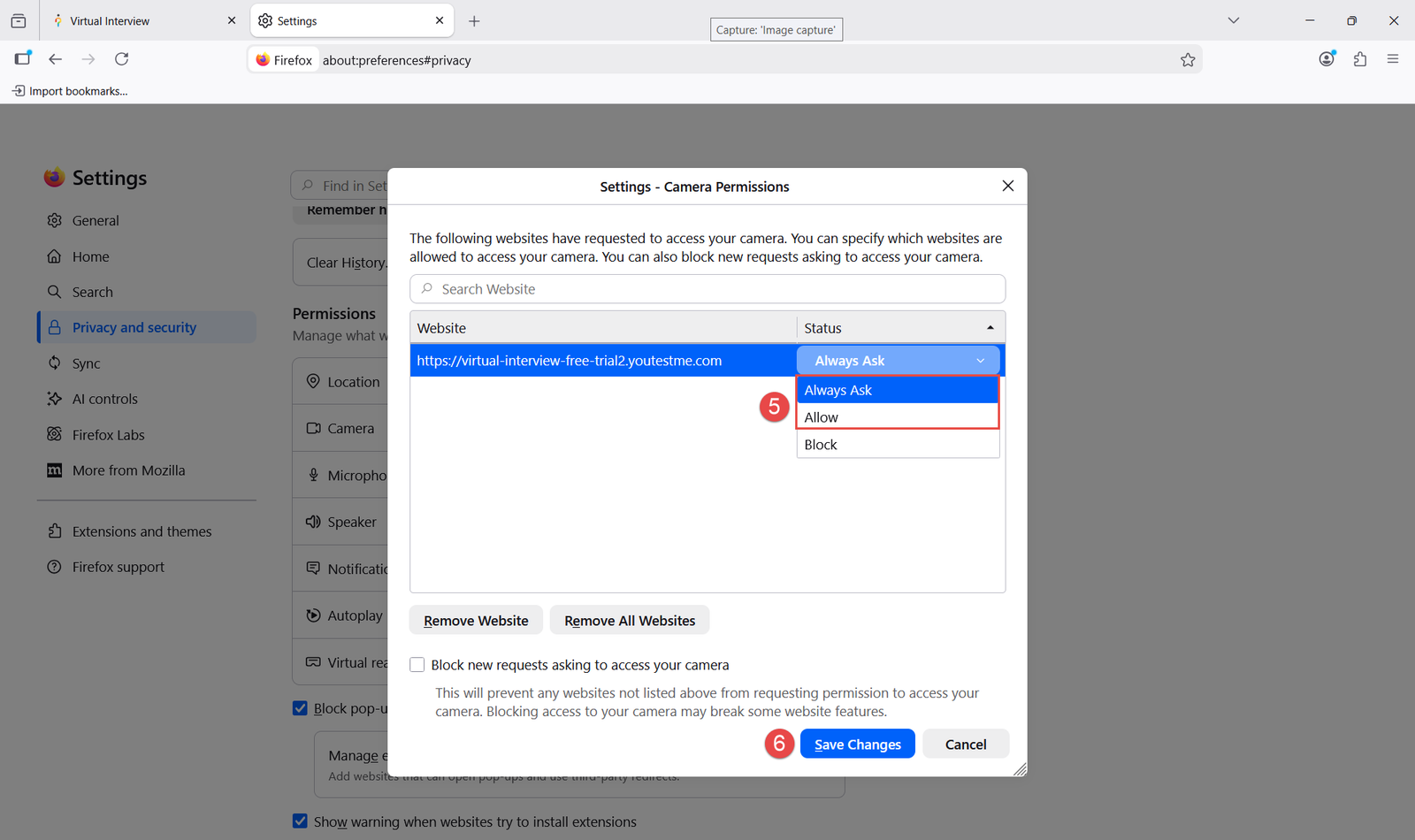
- Scroll to the Permissions section and select Camera or Microphone, depending on which permission is blocked.
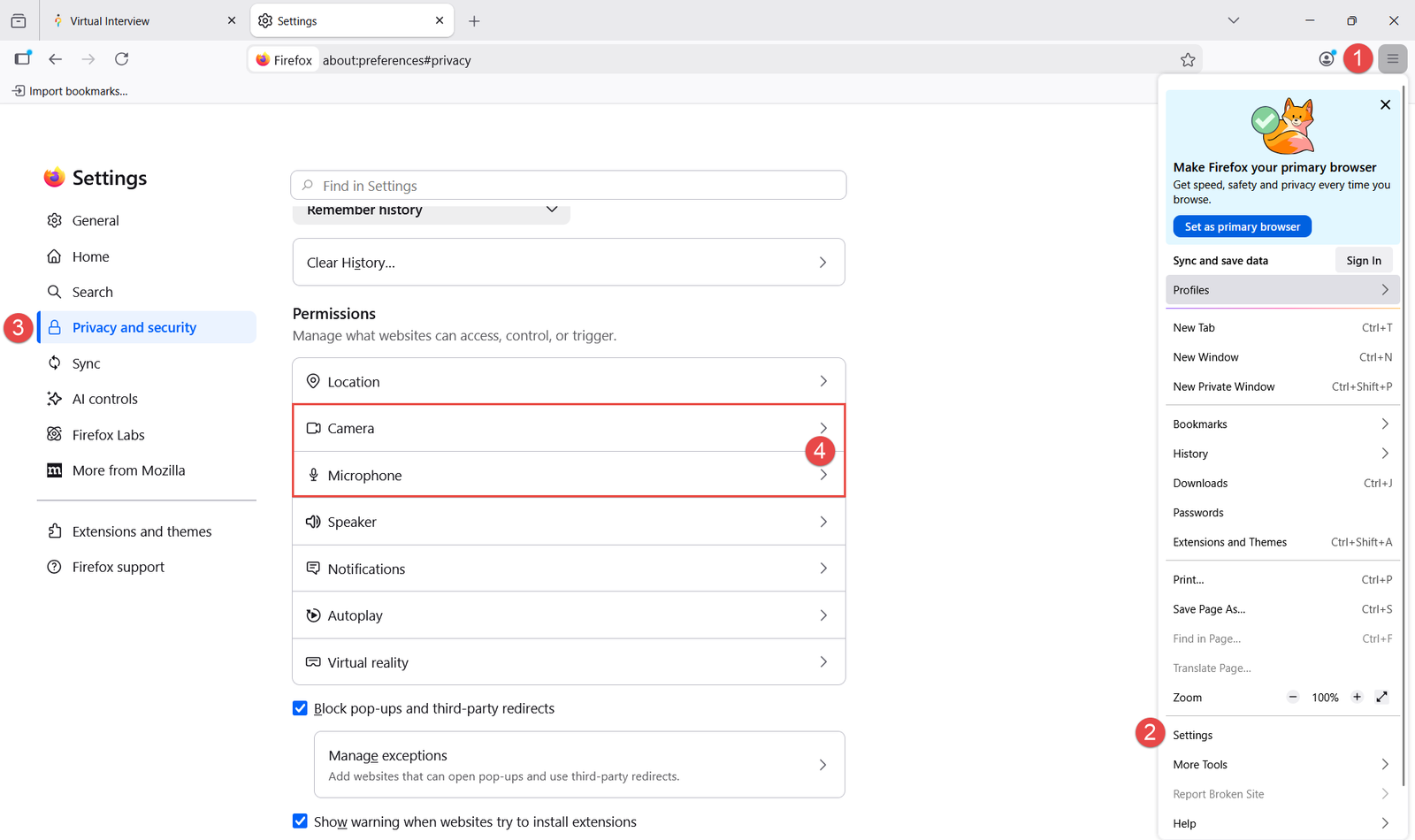
- Find the website in the permission dialog and select Allow or Always Ask.
- Save the changes.
Troubleshooting camera and microphone issues
Below are common issues that may prevent the webcam and microphone check from completing successfully, along with possible solutions:
- Camera or microphone permissions are disabled – Please make sure the browser can access your camera and microphone. For specific troubleshooting steps, refer to the section above.
- Another program is using the webcam or microphone – Close any application currently accessing the webcam and microphone, such as video conferencing tools. Reload the page and try again.
- Camera is blocked or covered – Some devices, like HP laptops, have a physical button or cover for the camera. Make sure the camera is uncovered and working properly, then reload the page and try again.
- Antivirus or Windows firewall blocking access – Some antivirus software includes webcam protection that restricts access. Temporarily disable webcam protection in the antivirus settings or disable antivirus and Windows firewall protection.
- Using an undetected USB camera/microphone – If your USB webcam is not detected, you can change the webcam you will use for the interview. Refer to the section above for instructions on changing the selected camera.
- Camera drivers are outdated (Windows) – Please update your camera drivers or Windows system.
Checking camera/microphone permission in your computer’s settings
Windows
Additionally, you can also allow camera/microphone access in your computer settings:
- Open Camera privacy settings/Microphone privacy settings.
- Confirm that camera/microphone usage is allowed.
- Make sure camera/microphone access is enabled for the browser used for the interview.
MacOs
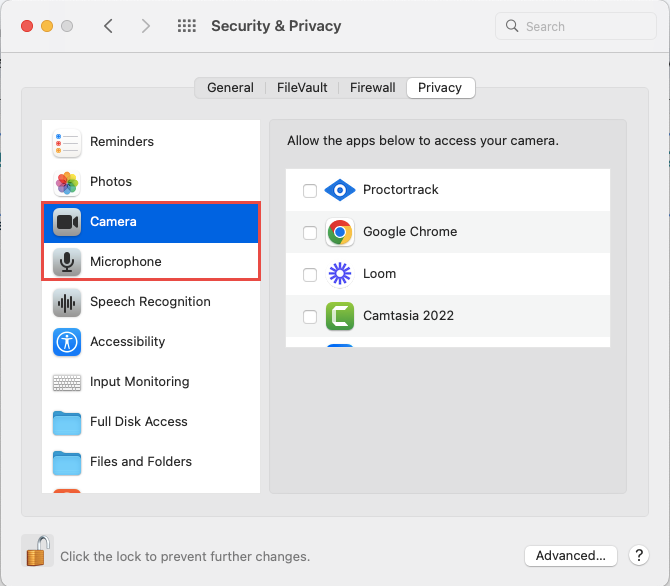
- Open the Apple menu

- Click Privacy & Security
 in the sidebar.
 - Click Camera/Microphone.
- Enable camera/microphone access for the browser used for the interview.

Changing the camera/microphone in your Windows settings
To use an external camera/microphone, you may need to change the selected camera/microphone in your system settings.
- Press Windows + X, and click Device Manager.
- Click Cameras/Audio inputs and outputs.
- Right-click on the integrated webcam/microphone.
- Click Disable device and ensure your external camera/microphone is recognized.





