This guide applies to an older version of YouTestMe and may not reflect the current product experience.
Required knowledge for understanding this article: How to create a simple test.
To allow test-takers to update their personal information when initiating the test, you have to check the box “Require updating personal information,” in Step 2 of the test creation process.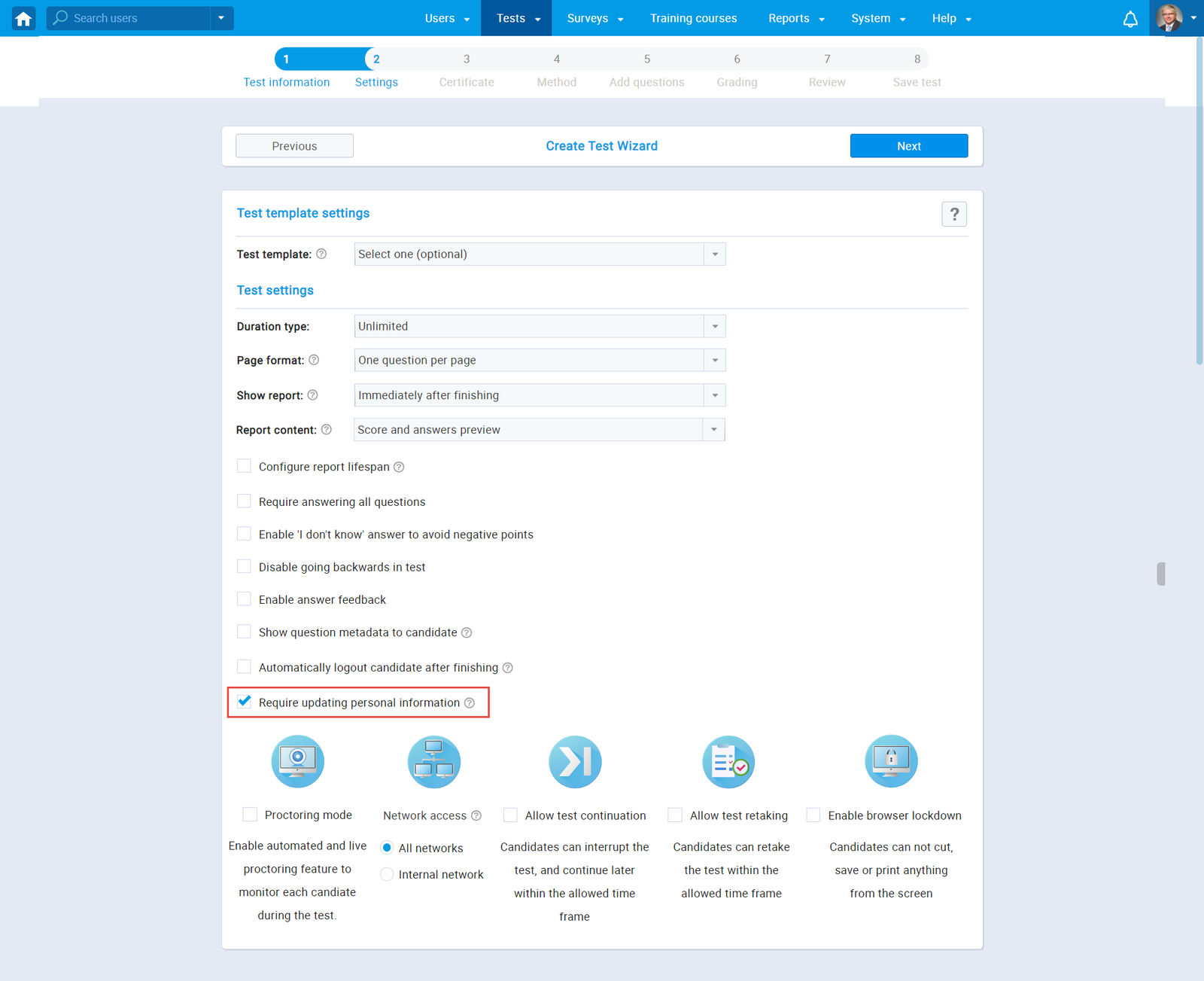
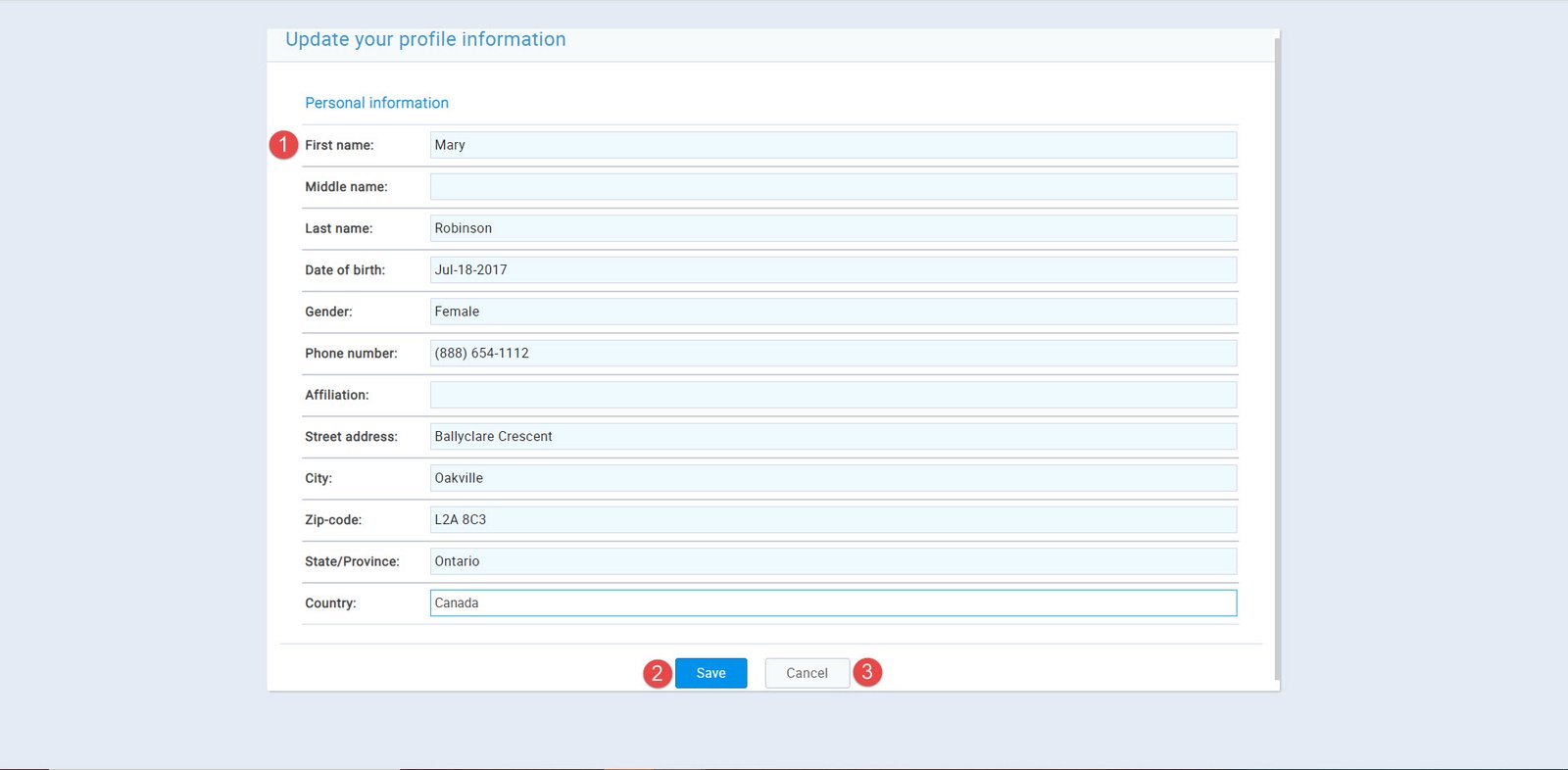
Once the test-taker initiate the test, the window with personal information will appear.
- Update or fill in the personal information.
- Click “Save” to start the test.
- Click “Cancel” if they don’t want to update personal information.