
Coming Soon: This feature is on our roadmap and not yet available.
This article explains how to configure and use the Multidimensional Rubric and AI grading tools in YouTestMe GetCertified to support efficient and consistent essay question grading. It covers rubric setup from the test administrator’s perspective, the grading workflow available to graders, AI-generated scoring recommendations, and the plagiarism and AI detection check.
Configure the Multidimensional Rubric
Rubrics are structured scoring guides that help graders evaluate essay answers consistently against predefined criteria and performance levels. In YouTestMe GetCertified, rubrics are configured directly within the test settings and are available to graders during the evaluation process — no printed materials needed.
To set up the rubric:
- Navigate to Tests > Manage Tests and select the relevant test.
- Open the Settings tab and select Multidimensional rubric from the left-side menu.
- Click Add criterion to open the criterion configuration dialog.
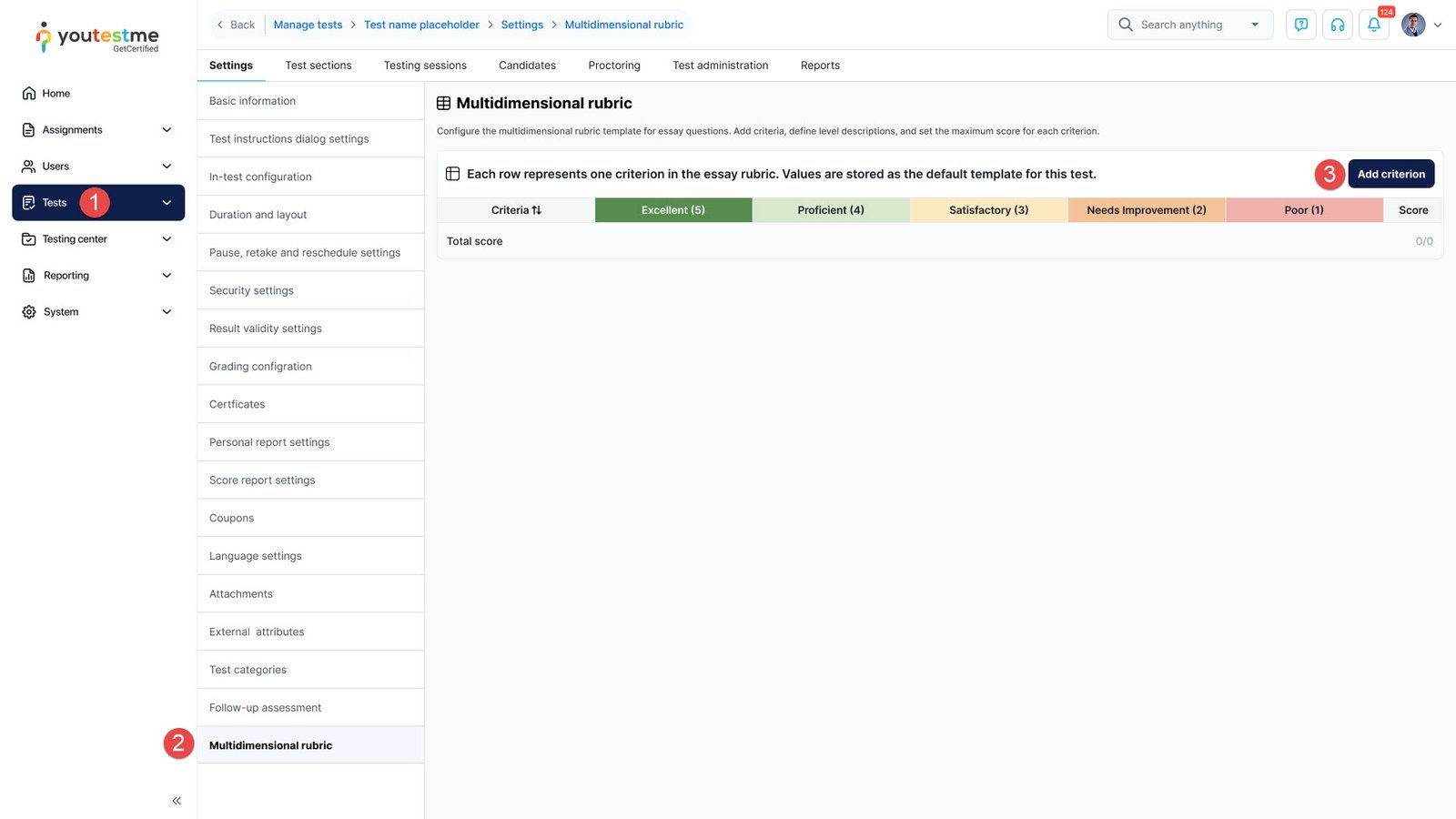
- Select the Criterion name (e.g., Content and Ideas).
- Set the Max score for that criterion.
- For each performance level, enter a short description that defines what a response at that level looks like.
- Click Save to add the criterion to the rubric.
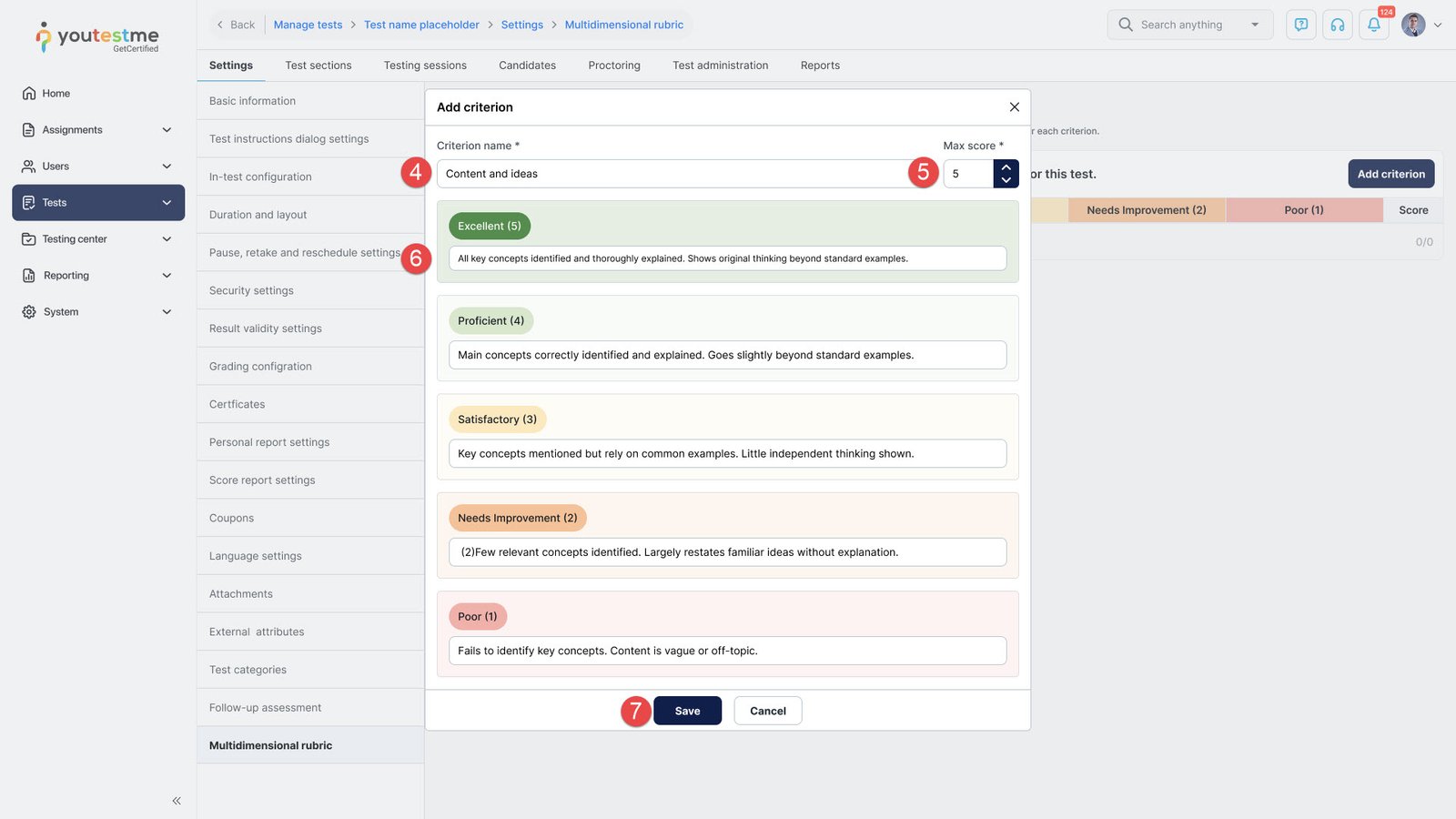
- Repeat the process for each additional criterion you wish to include (e.g., Organization and Structure, Grammar and Mechanics, Use of Evidence).
Once all criteria are saved, the rubric table is displayed on the Multidimensional rubric page. Each row represents one criterion, and each column represents a performance level with the corresponding description and point value.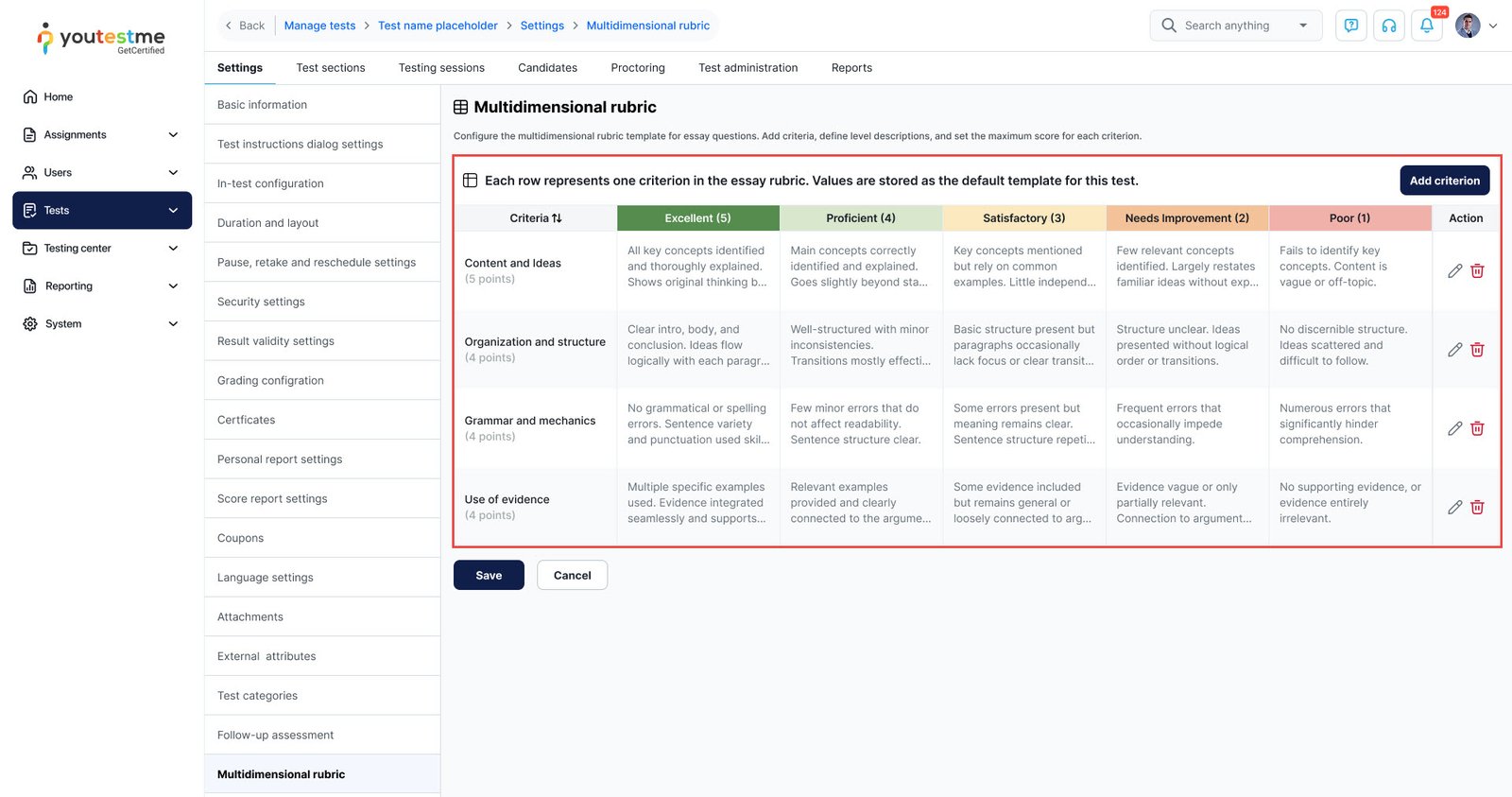
Grade Essay Questions using Multidimensional Rubrics
When a grader opens a candidate’s attempt and navigates to an essay question, the rubric is displayed directly below the candidate’s written response.
For each criterion, the grader can read the performance level descriptions and assign the appropriate score using the score input field on the right side of the rubric row. The Total score is calculated automatically based on all assigned scores.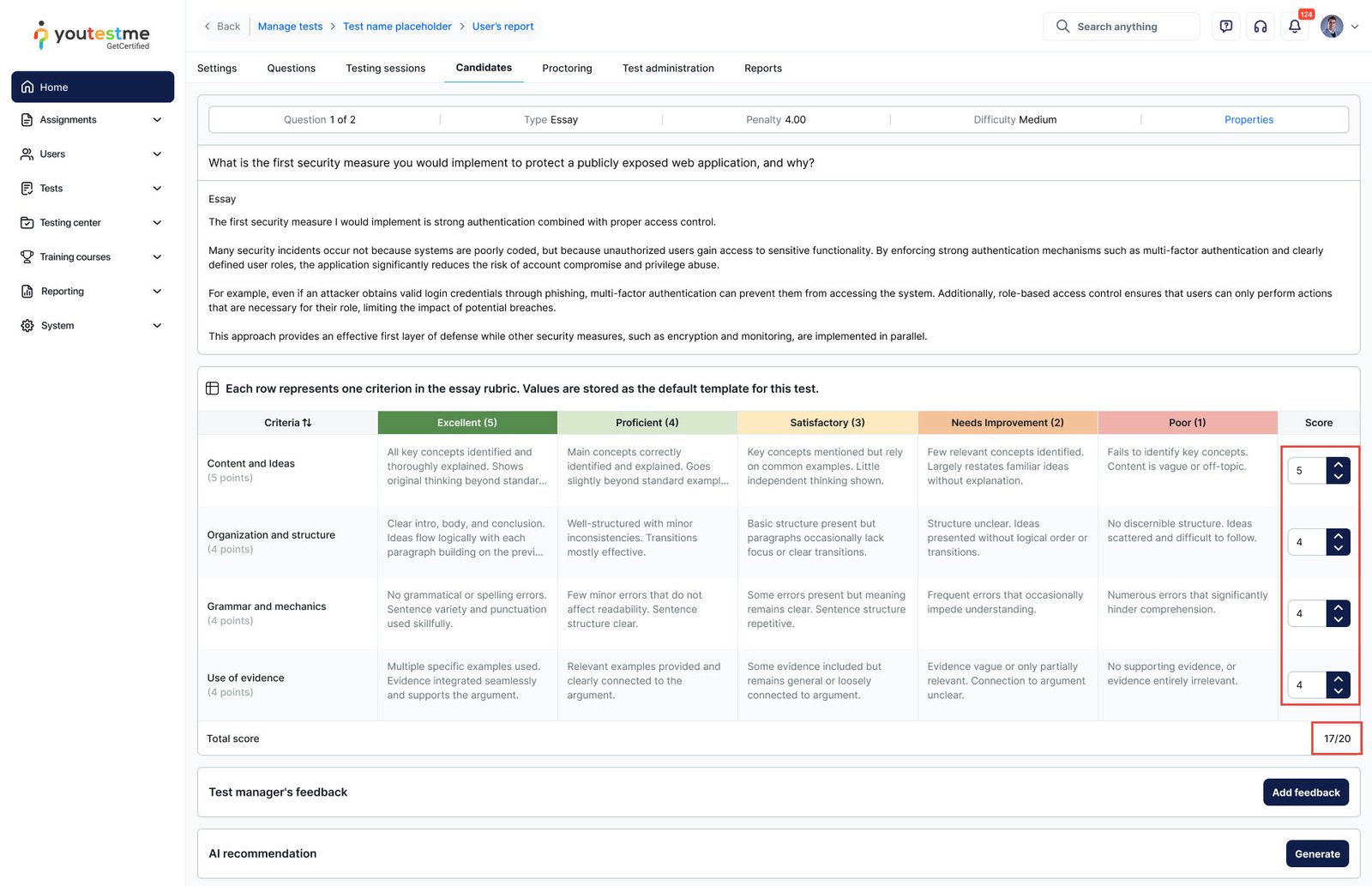
To assist with grading, the grader can request an AI-generated scoring recommendation by clicking the Generate button in the AI recommendation section.
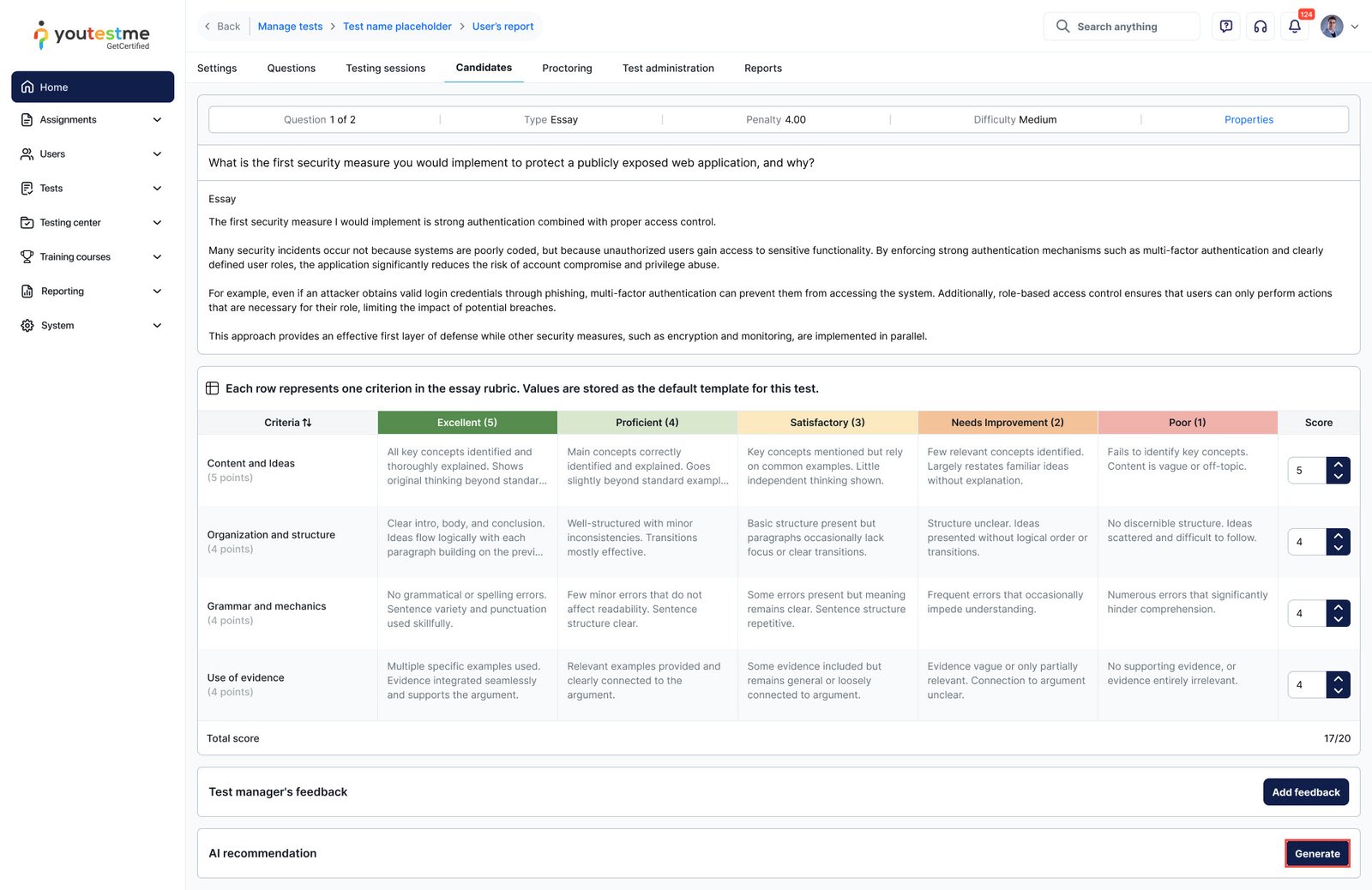
The AI analyzes the candidate’s response in the context of the rubric criteria and performance level descriptions defined during setup. It returns a breakdown by criterion, explaining the reasoning behind each suggested score, along with a Recommended points total.
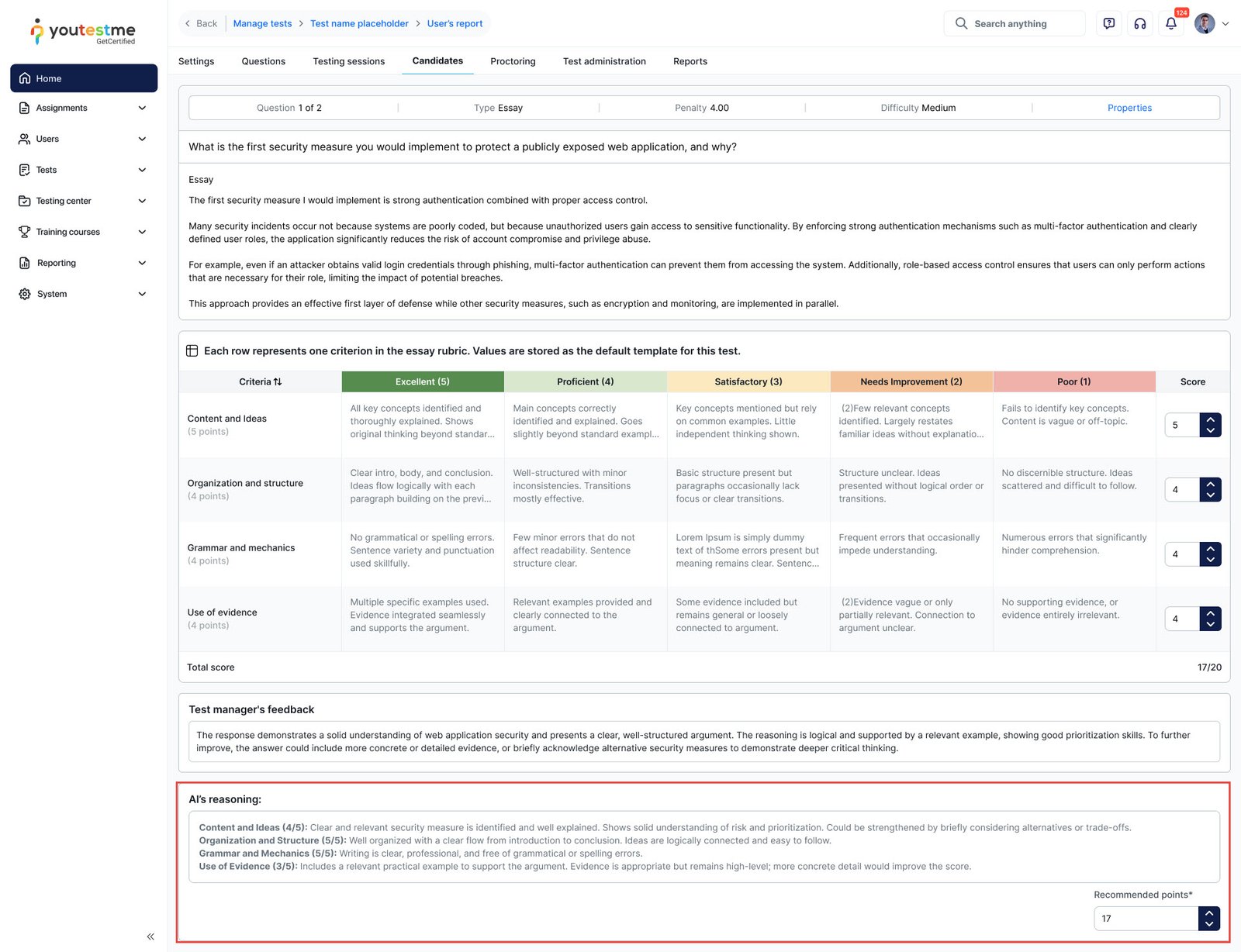
The grader reviews the AI output and can accept the suggested scores or adjust them before submitting the final grade. The AI recommendation is advisory — the grader always has full control over the final score.
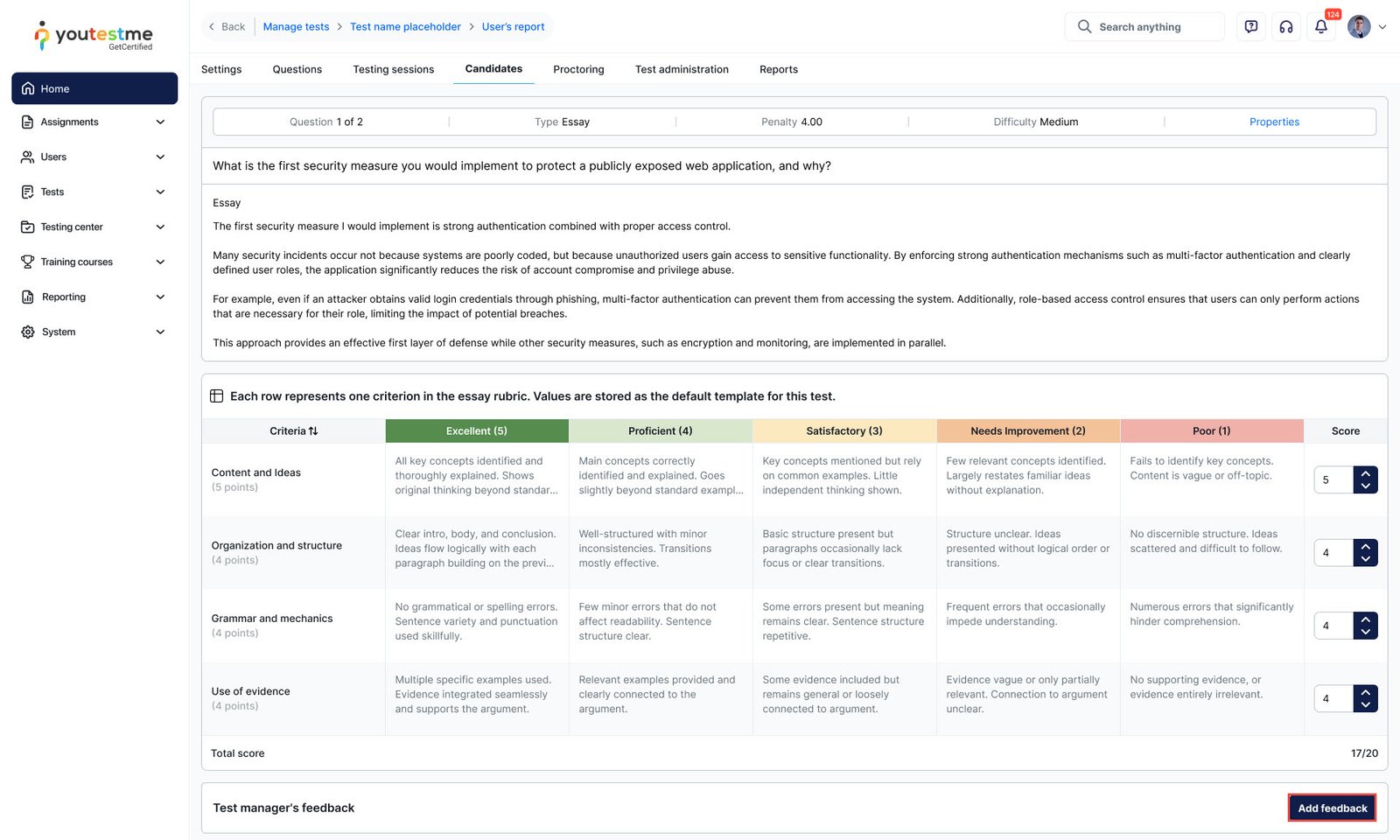
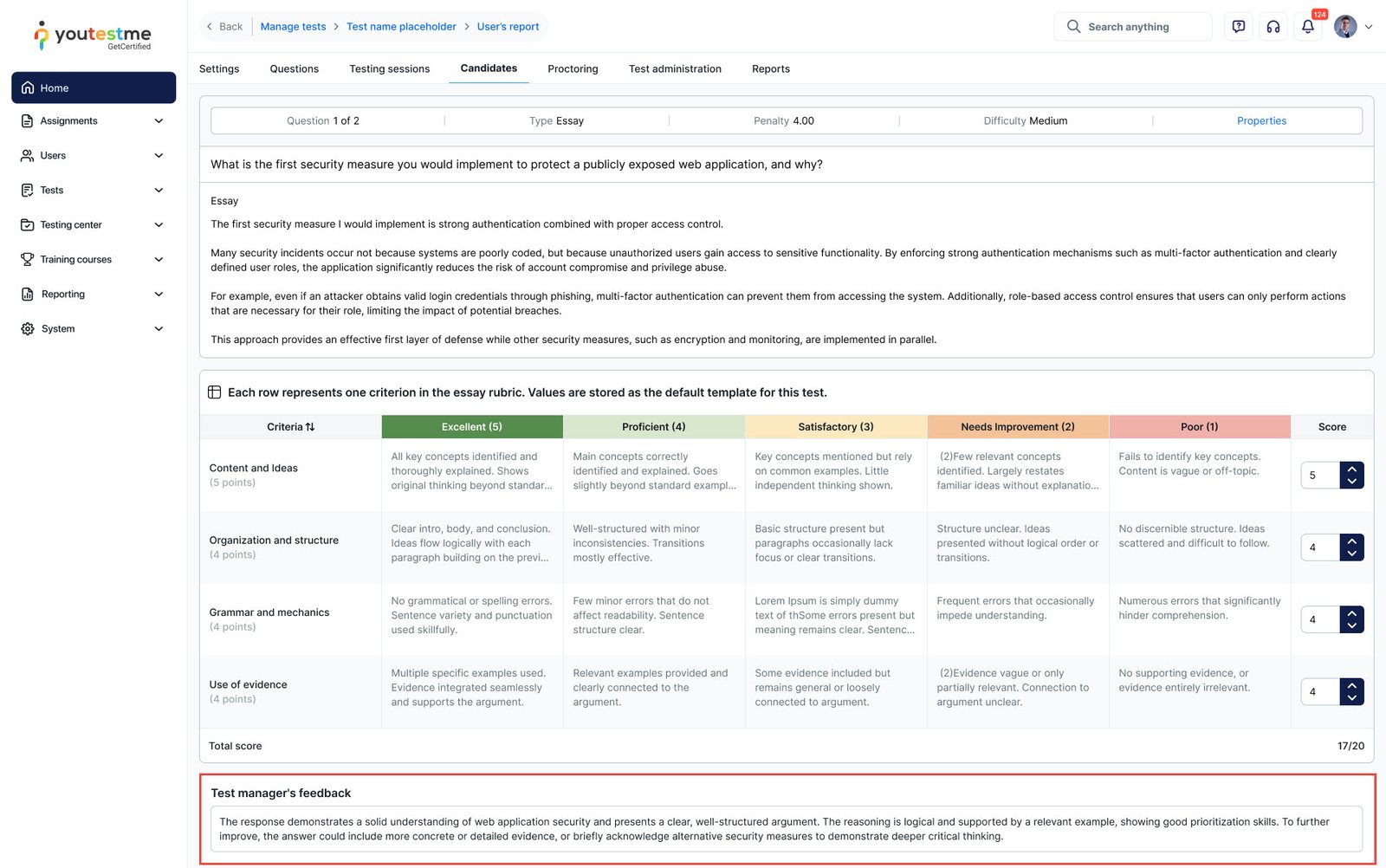
In addition to the rubric scores, graders can provide written qualitative feedback to accompany the numeric result. To do this, click the Add feedback button in the Test manager’s feedback section and enter comments in the text field.
This feedback is visible in the candidate’s personal report, depending on the report visibility settings configured for the test.
Plagiarism and AI Content Check
YouTestMe GetCertified includes an automated check that analyzes essay responses for potential plagiarism and AI-generated content. This feature must be enabled at the test level before it becomes available during grading.
To enable the check:
- Navigate to the test’s Settings tab and open Security settings.
- Enable the option Enable automatic plagiarism and AI check (essay questions only).
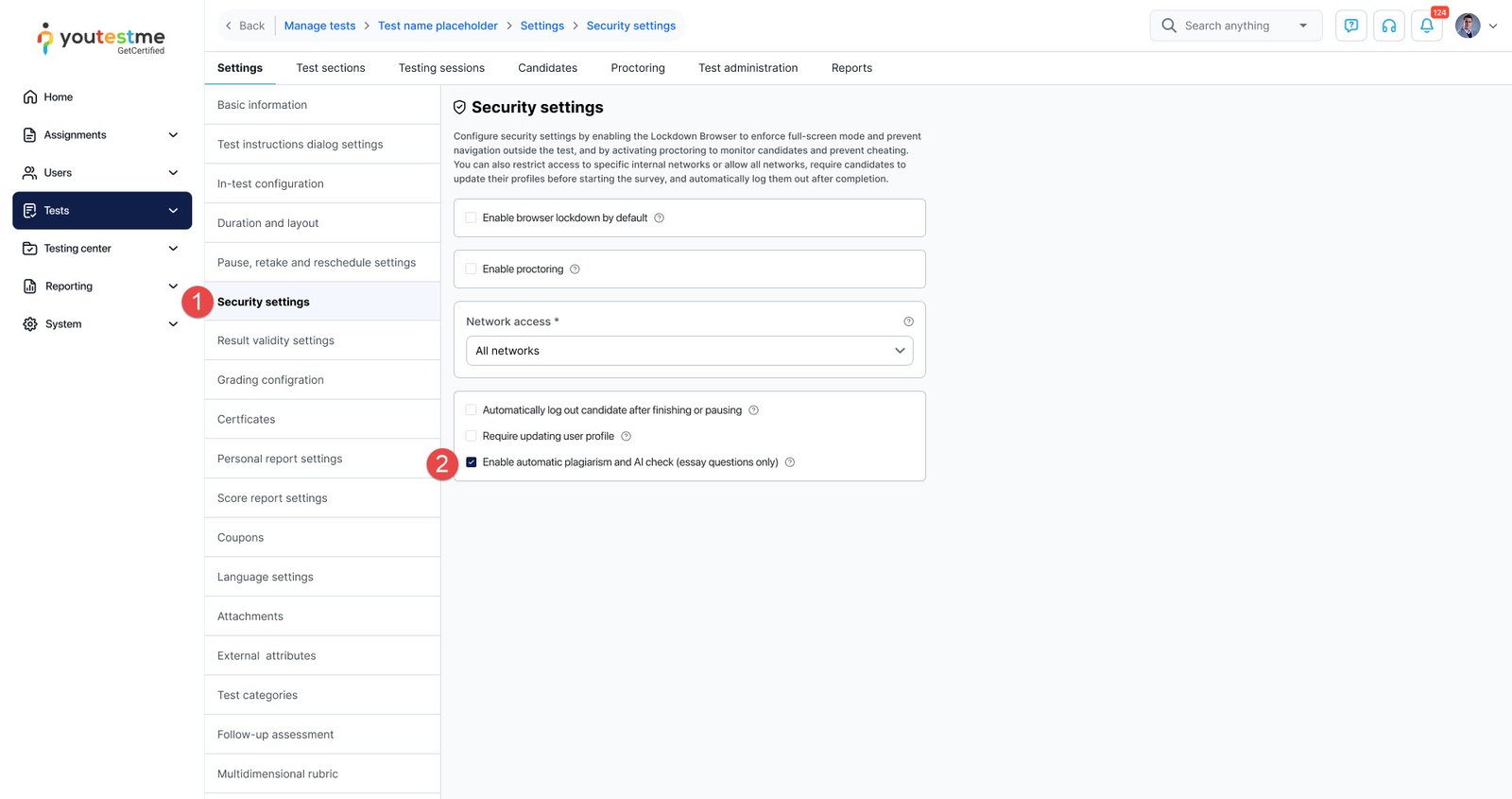
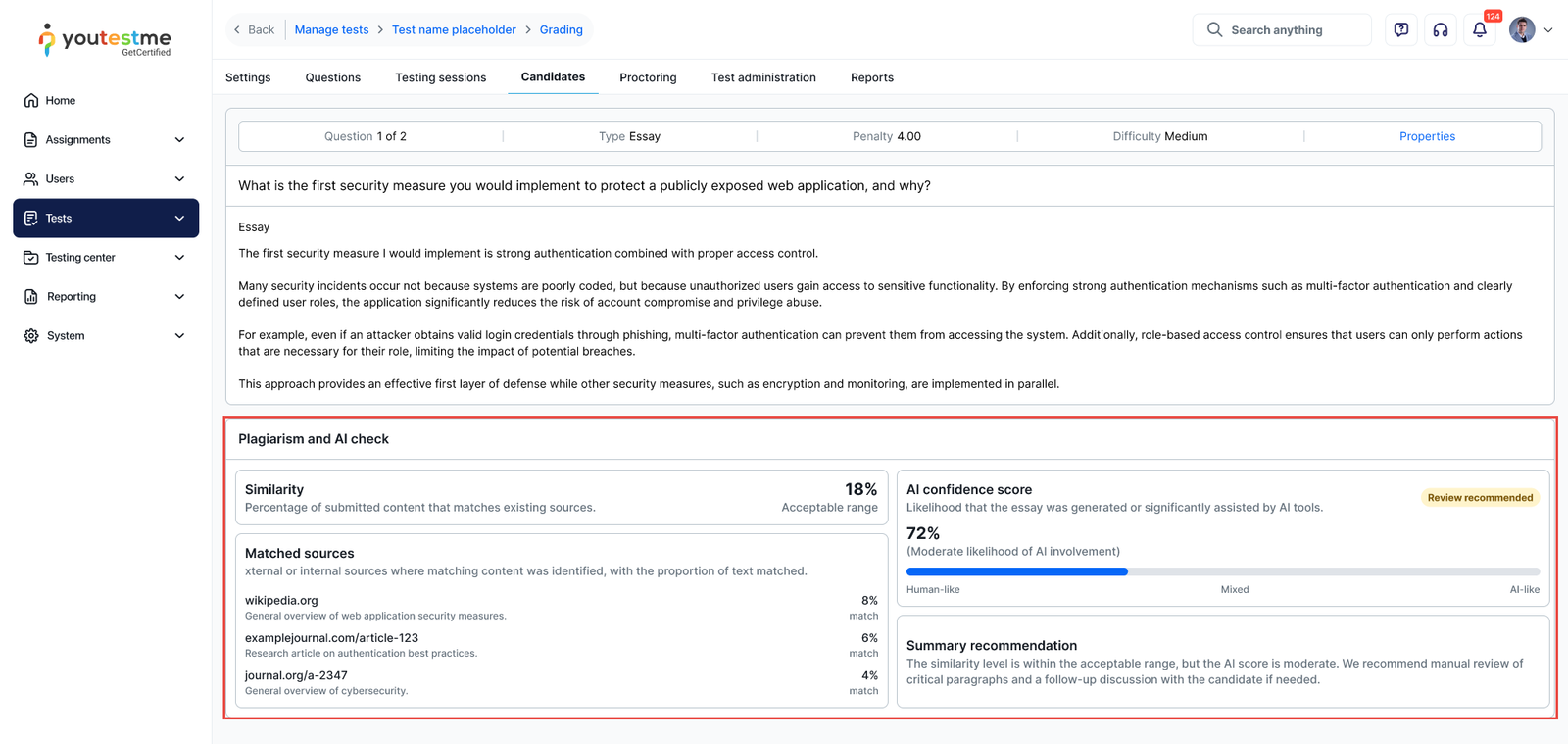
Once enabled, a Run button will appear in the grading view for essay questions. Clicking Run triggers the analysis, which evaluates the candidate’s response and produces a report containing:
- the degree of similarity to existing online resources,
- the estimated probability that the response was generated using AI tools,
- a final recommendation based on the combined findings.
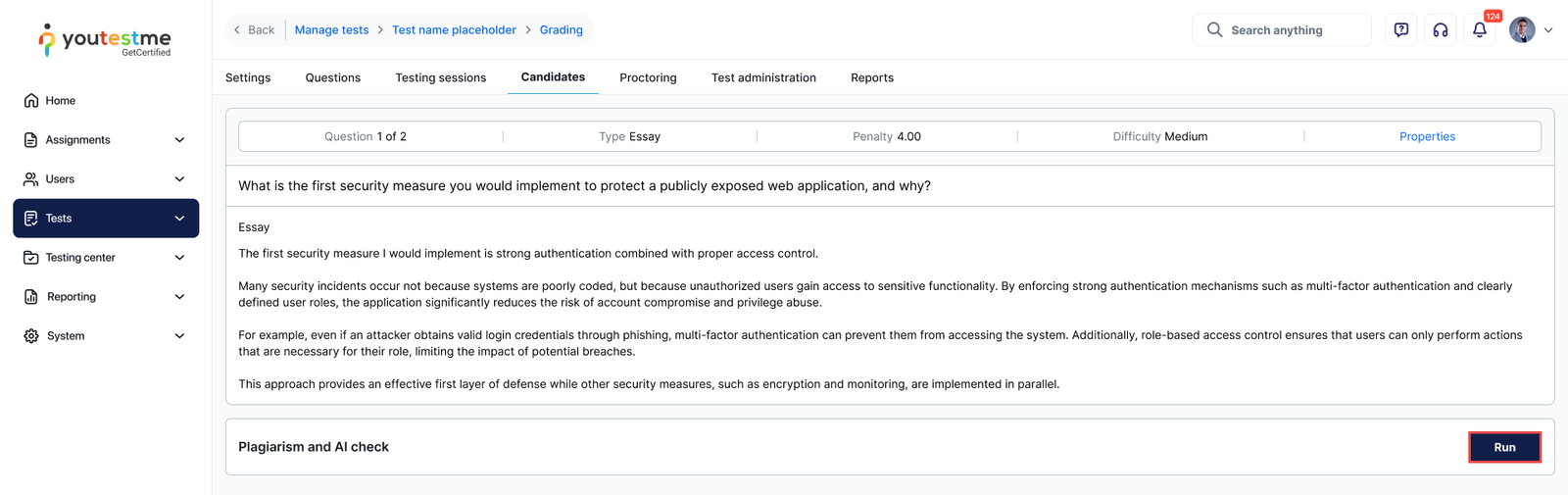
The grader can review this report before assigning the final score.
For more related useful materials, please visit:




