Article verified for Release 15.0 on September 14, 2025.
This article explains how to use the question and answer randomization feature in both manually created and generated tests. Depending on the test type and question format, you can enable randomization during test creation or adjust it later, ensuring each candidate receives a unique version of the test and helping to improve exam integrity.
Question Randomization
Questions can be randomized for each candidate.
- During test creation (only for manually created tests)
- After test creation from the Questions tab (for both manually created and generated tests)
Answer Randomization
- Single Choice and Multiple Choice: Answers are randomized for each candidate.
- Ordering and Matching: Answers are always randomized.
- Essay, True/False, Matrix, Open-ended, and Hot Spot: Answer order remains fixed and is the same for all candidates.
Note: It is possible to disable both options simultaneously, enable just one of these two options, or enable both.
Enabling Question randomization and Answer randomization in the Test wizard
- From the main menu, select Tests and then choose the New Test tab.
- In the Add Questions step of the test creation process, add your test questions and enable the desired randomization option.
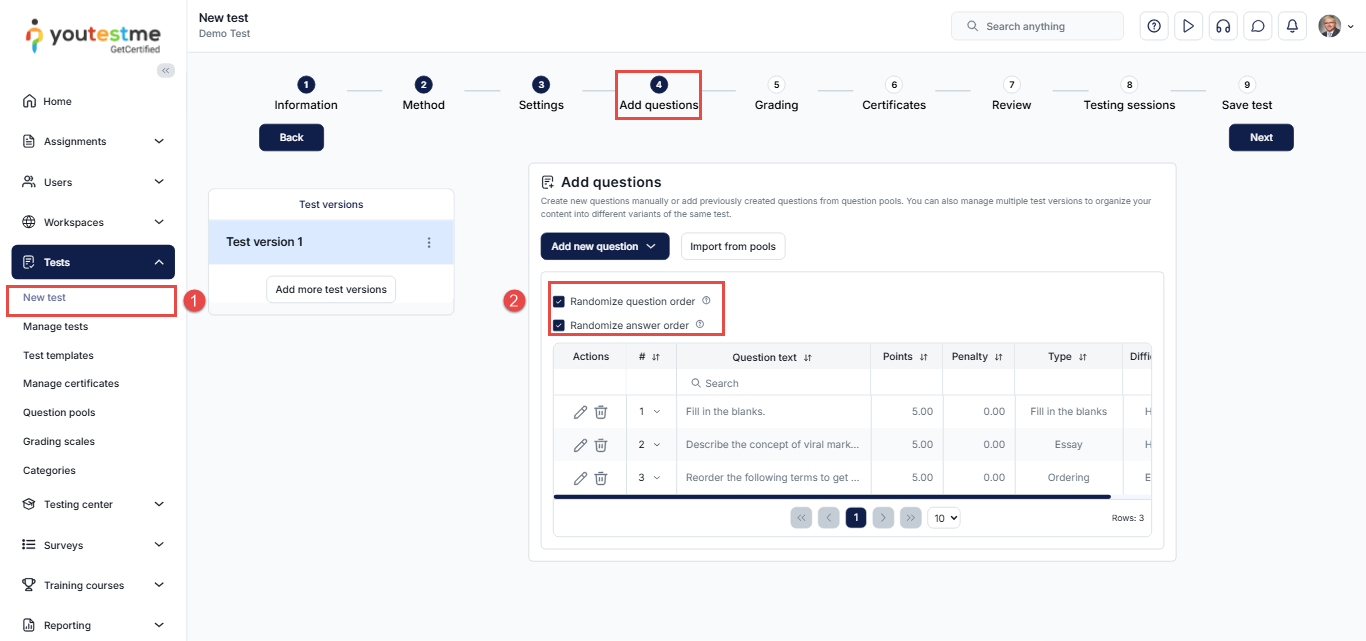
Note: These settings are only available in the Test Wizard for manually created tests. If enabled, the order of questions and answers will vary even for candidates taking the same test version.
Enabling Question randomization and Answer randomization from the Manage Tests Section
You can adjust question and answer randomization after a test has been published. The available options depend on the type of test:
For Manually Created Tests:
- Enabled during test creation: As explained in the previous section, randomization can be enabled during test creation via the Test Wizard.
- Adjusted later: After the test is published, you can modify randomization settings from the Questions tab.
Steps to adjust after publishing:
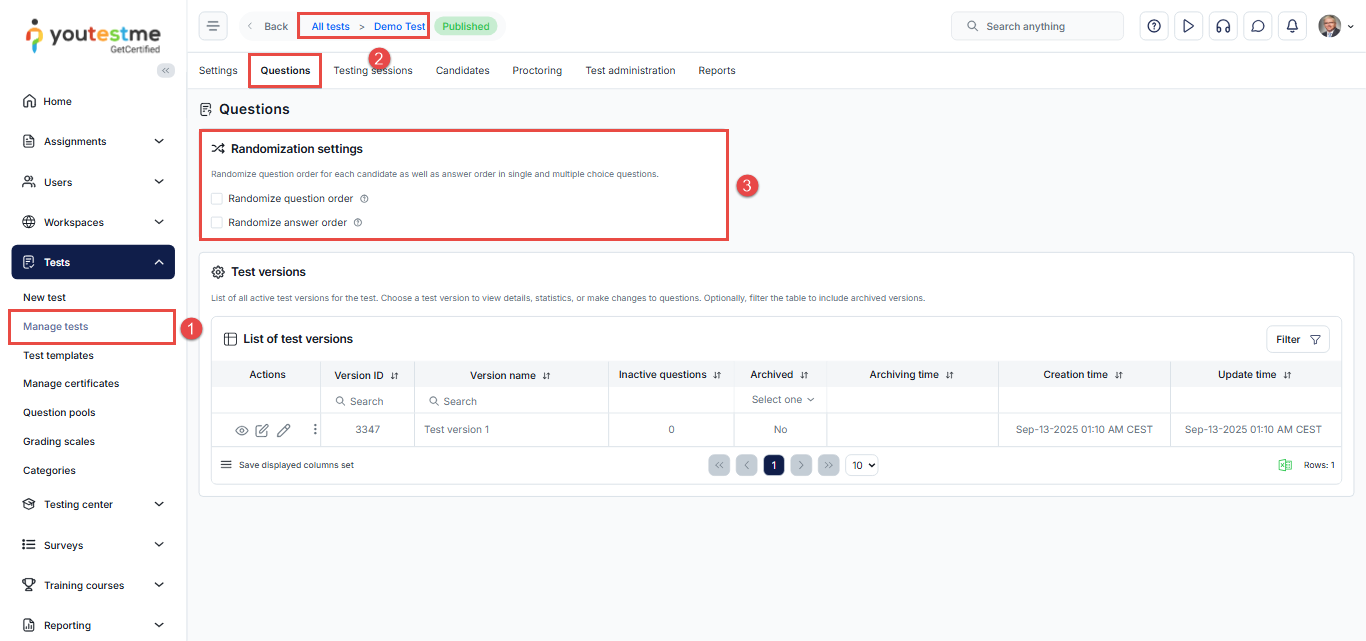
- From the Tests section, select Manage Tests.
- Choose the desired test from the list.
- Go to the Questions tab, where you can enable or disable Randomize Question Order and Randomize Answer Order.
For Generated Tests:
Unlike manually created tests, randomization in generated tests can only be managed through the Questions tab and cannot be set during test creation.
Steps to manage after generating the test:
- After creating the test, navigate to the Questions tab.
- You can choose to enable Question Randomization, Answer Randomization, or both, depending on your needs.
- You will also have the option to enable the Frequency Factor. When this option is checked, the system will consider the frequency factor of each question during the test generation process. The frequency factor determines how likely a question is to appear in the test.

For more related instructional materials, please visit:
For a video tutorial, please watch this video.





