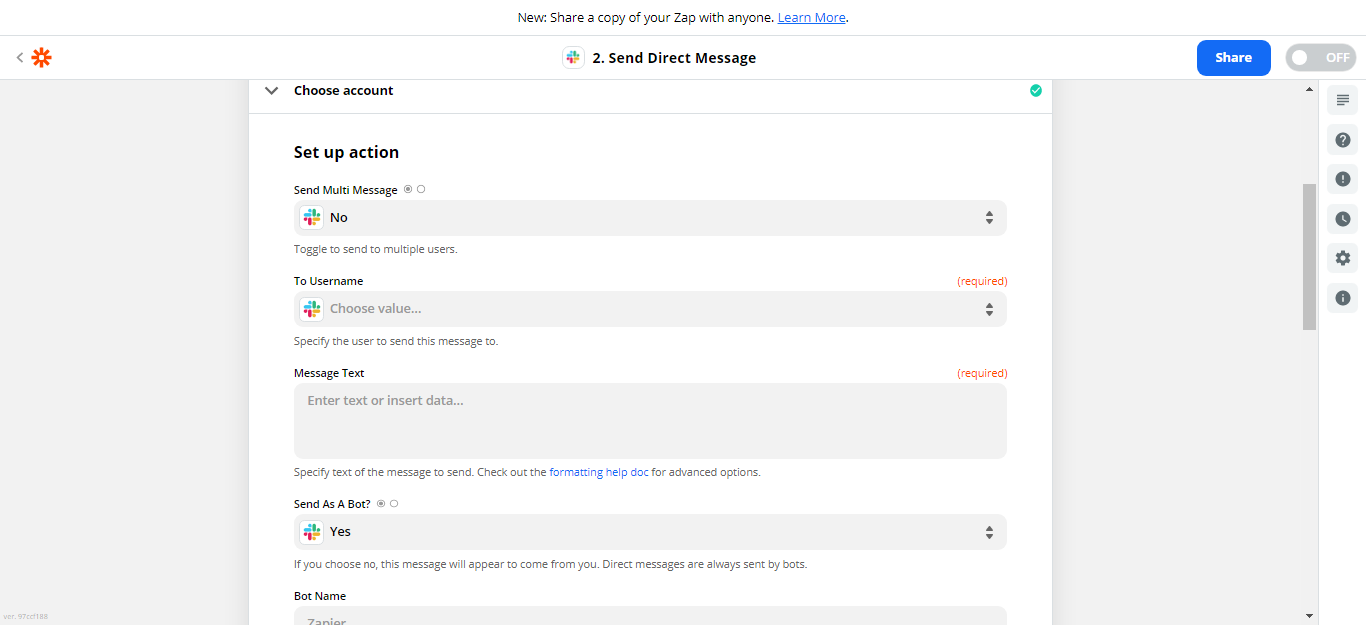
Article verified for Release 15.2 on January 22, 2026.
This article aims to explain the process of Zapier integration setup with GetCertified and explain the instructions on how users can create a Zap.
Zaps are the services that provide a connection with many different applications that have been integrated with Zapier. Setting up the Zapier integration with your chosen application is needed to create a workflow and the new Zaps.
To create Zaps using the YouTestMe application, you can choose one of the integration options. You can create a Zap to perform one of the actions offered (create, update, or delete users). The most effective way to connect with the application is by using triggers.
Zap workflow will execute each time user creates, updates, or delete the user, and the administrator will receive a notification regarding the event.
Sign in to Zapier
Navigate the YouTestMe Zapier integration link. You can sign in to Zapier using:
- Google account.
- Facebook account.
- Microsoft account.
- Work email.
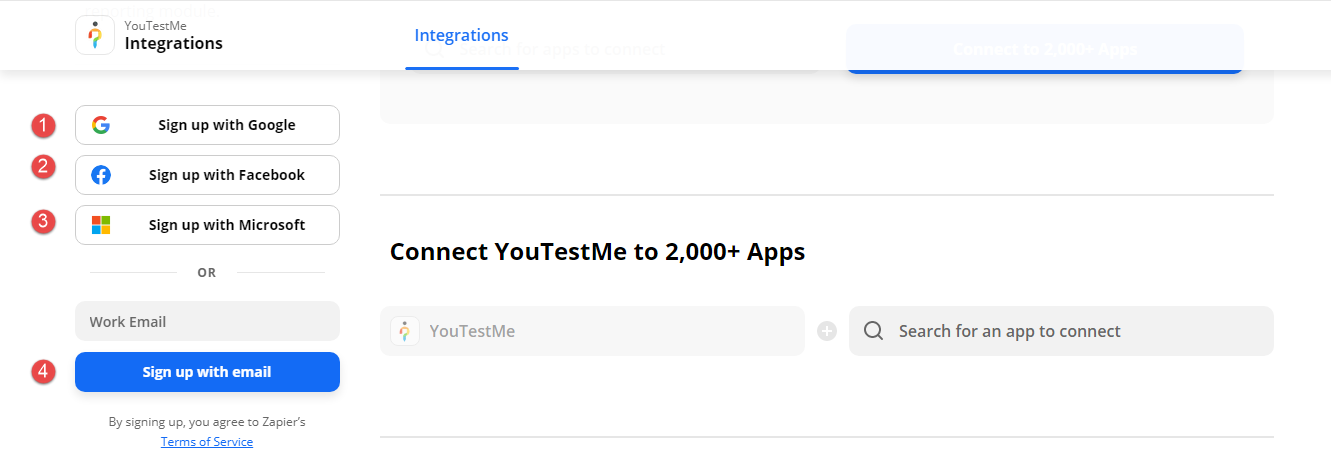
Create an account using the work email option
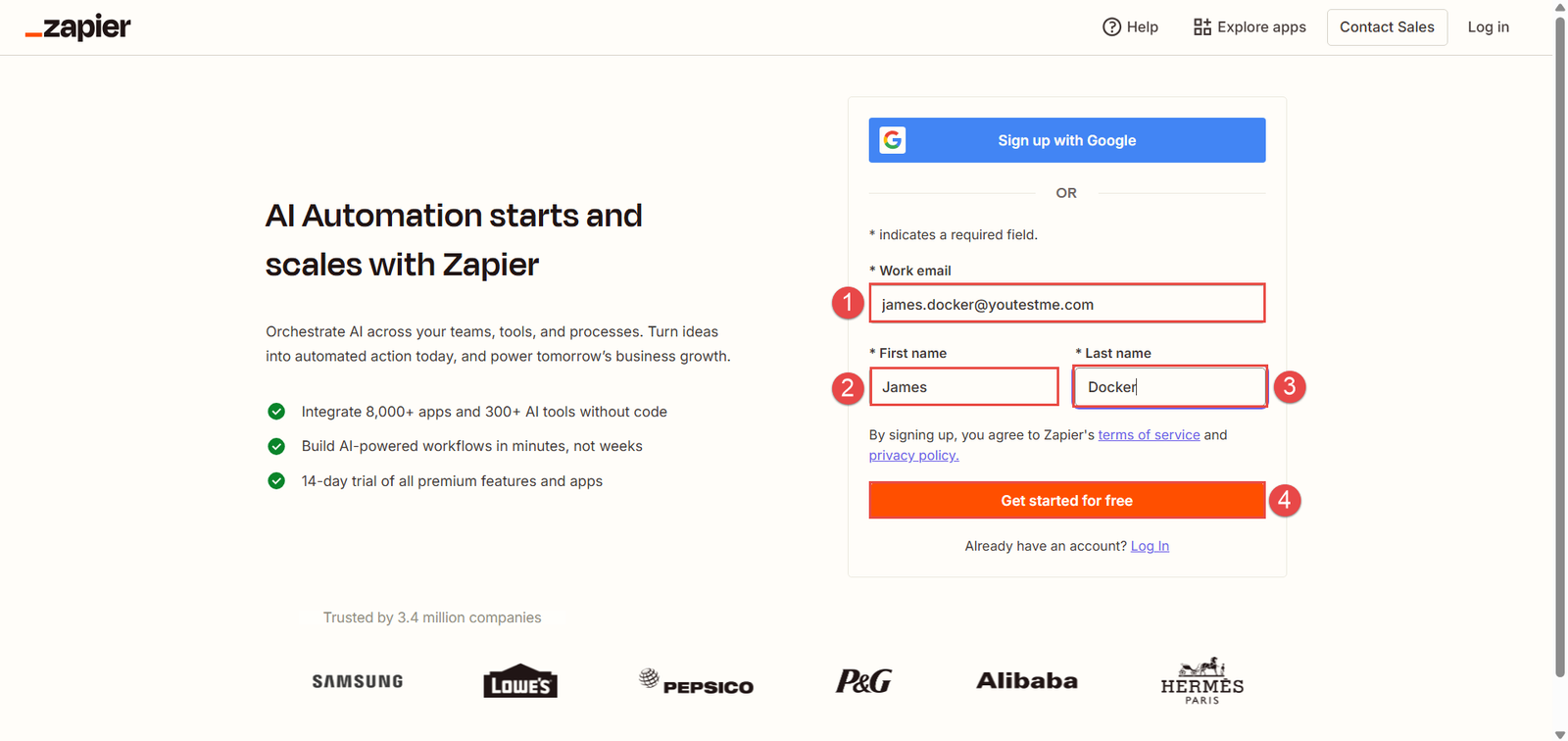
To create a new Zapier account :
- Enter the work email.
- Enter the first name.
- Enter the last name.
- Click the Get started for free button.
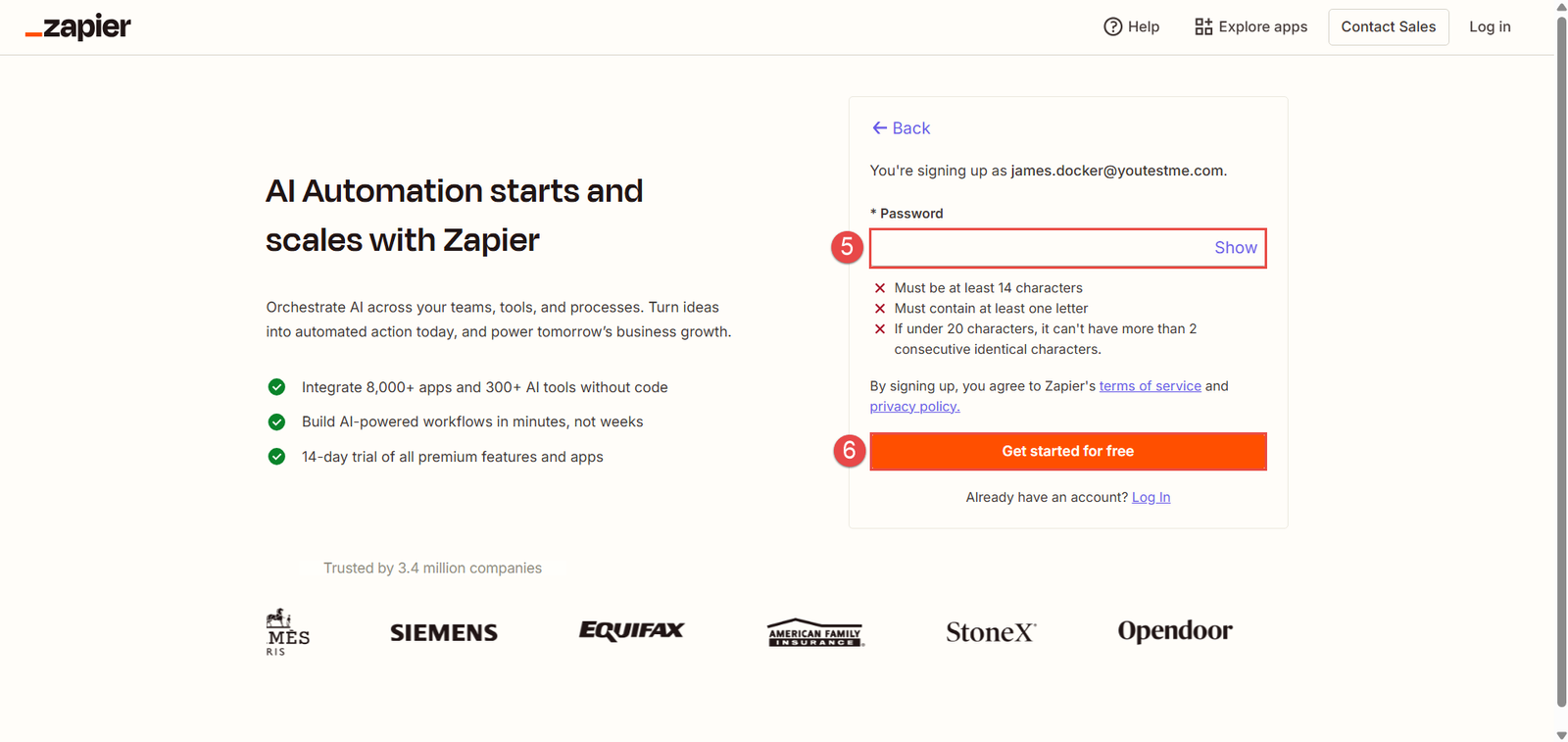
5. Enter password.
6. Click Get started for free button.
Set up the additional information:
- Choose your role.
- Select your company’s size.
- Select your job level.
- Click the continue button.
Zapier integration with YouTestMe GetCertified
To create the Zapier workflow:
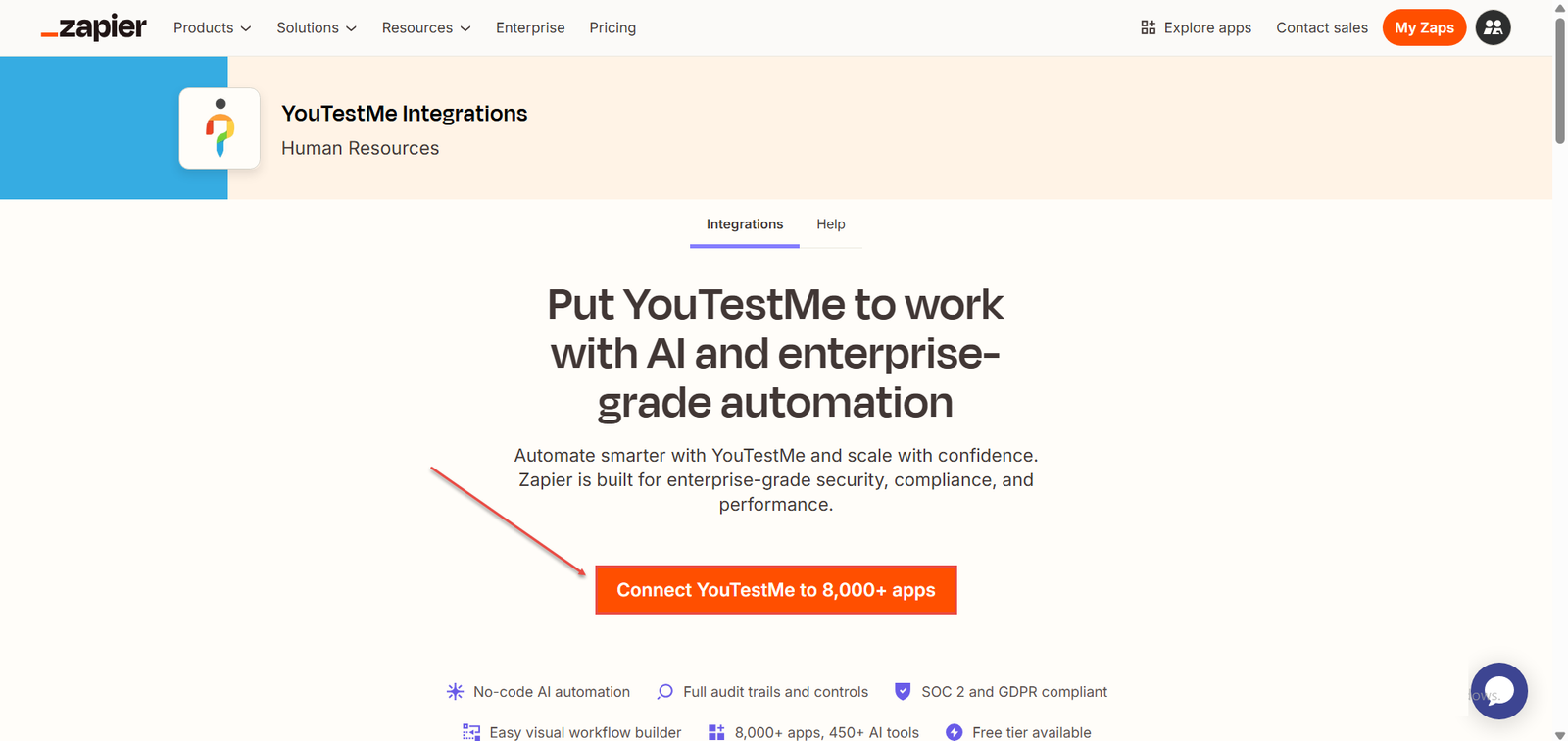
Navigate the YouTestMe Zapier integration link.
Click Connect YouTestMe to 8000+ Apps button.
Create a Zap
To create Zaps:
- In the “App” field select YouTestMe As your application (it will already be selected by default).
- Click Trigger event field.
- Select New User event.

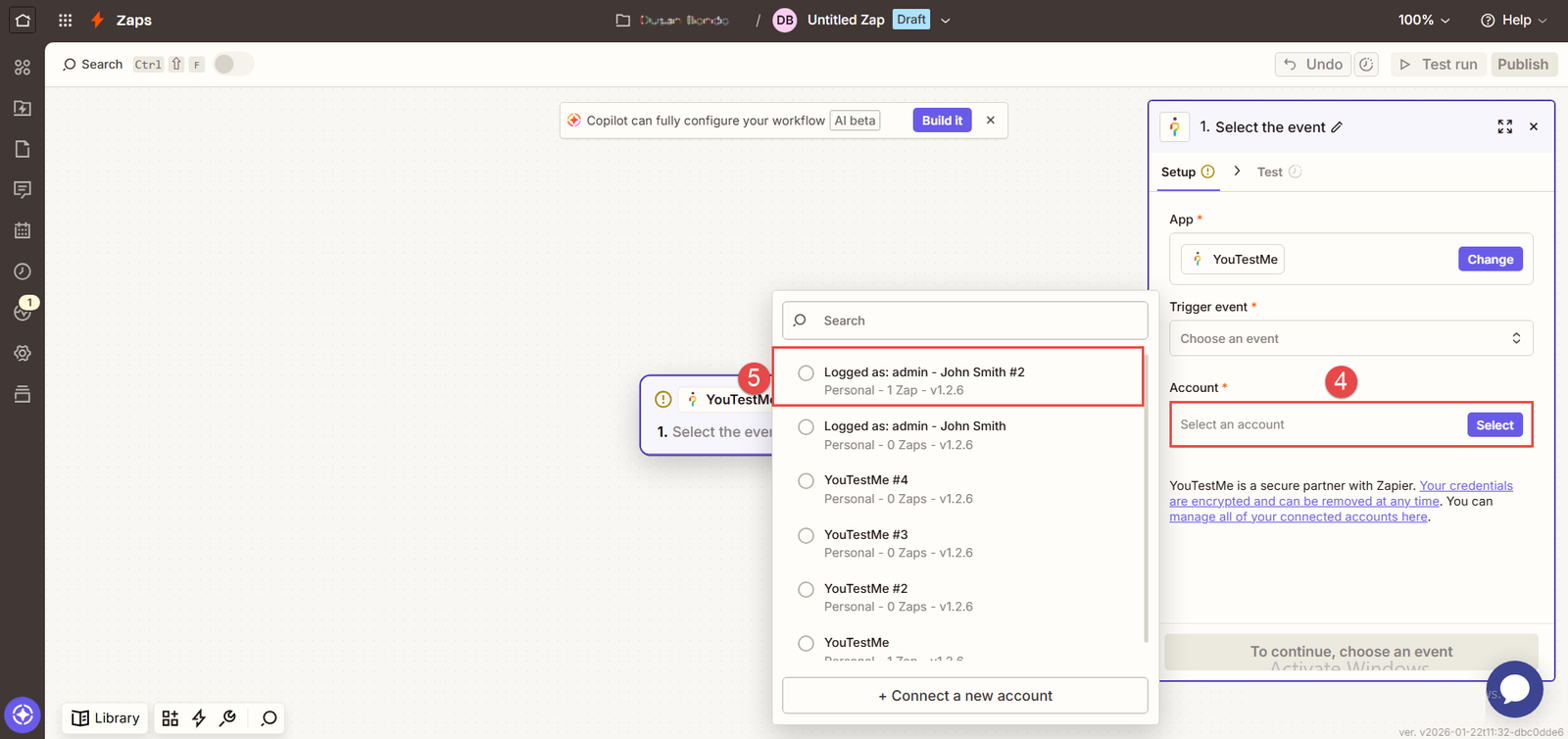
4. Click Account field.
5. Select your account from the list.
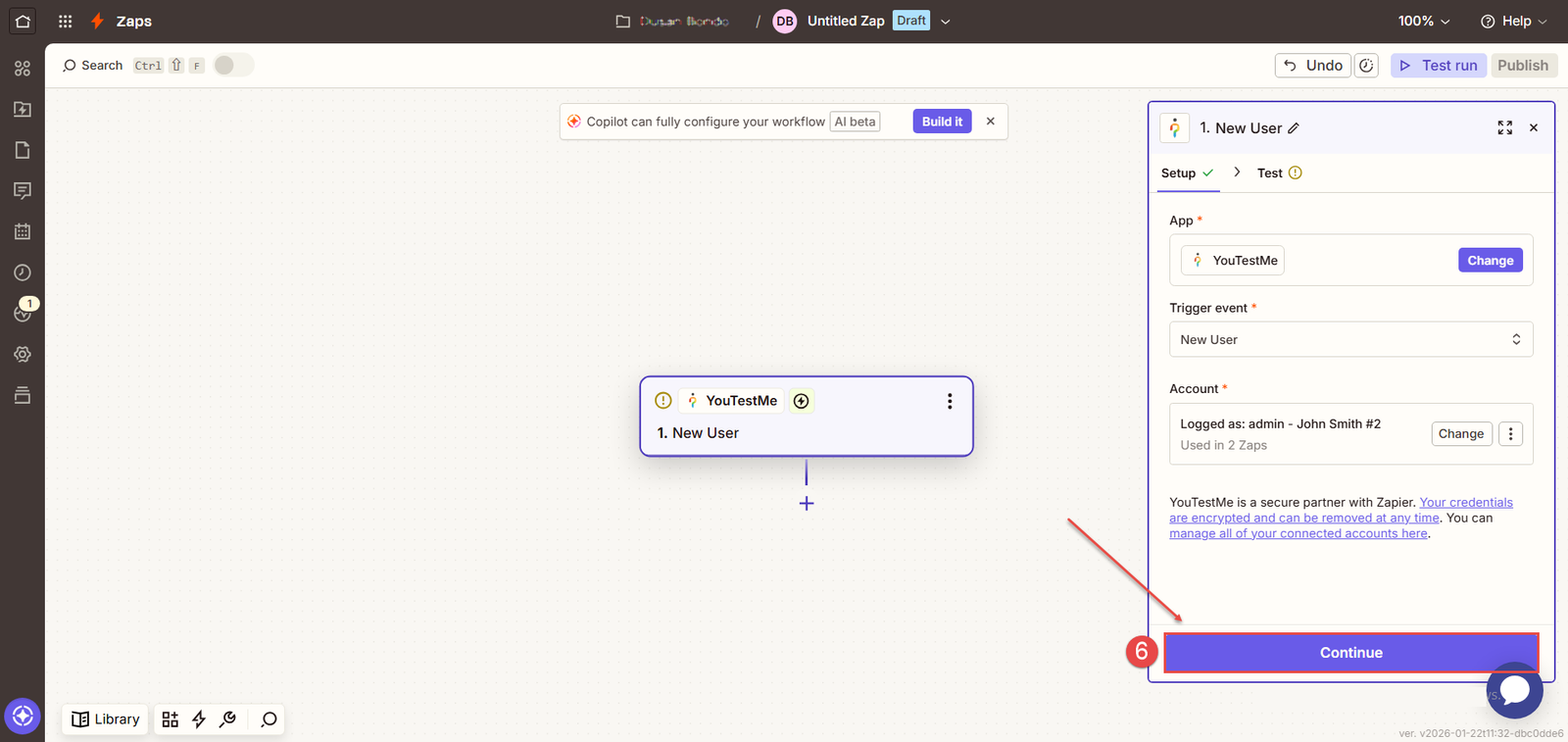
6. Click Continue button.
In the pop-up window:
- Enter username.
- Enter password.
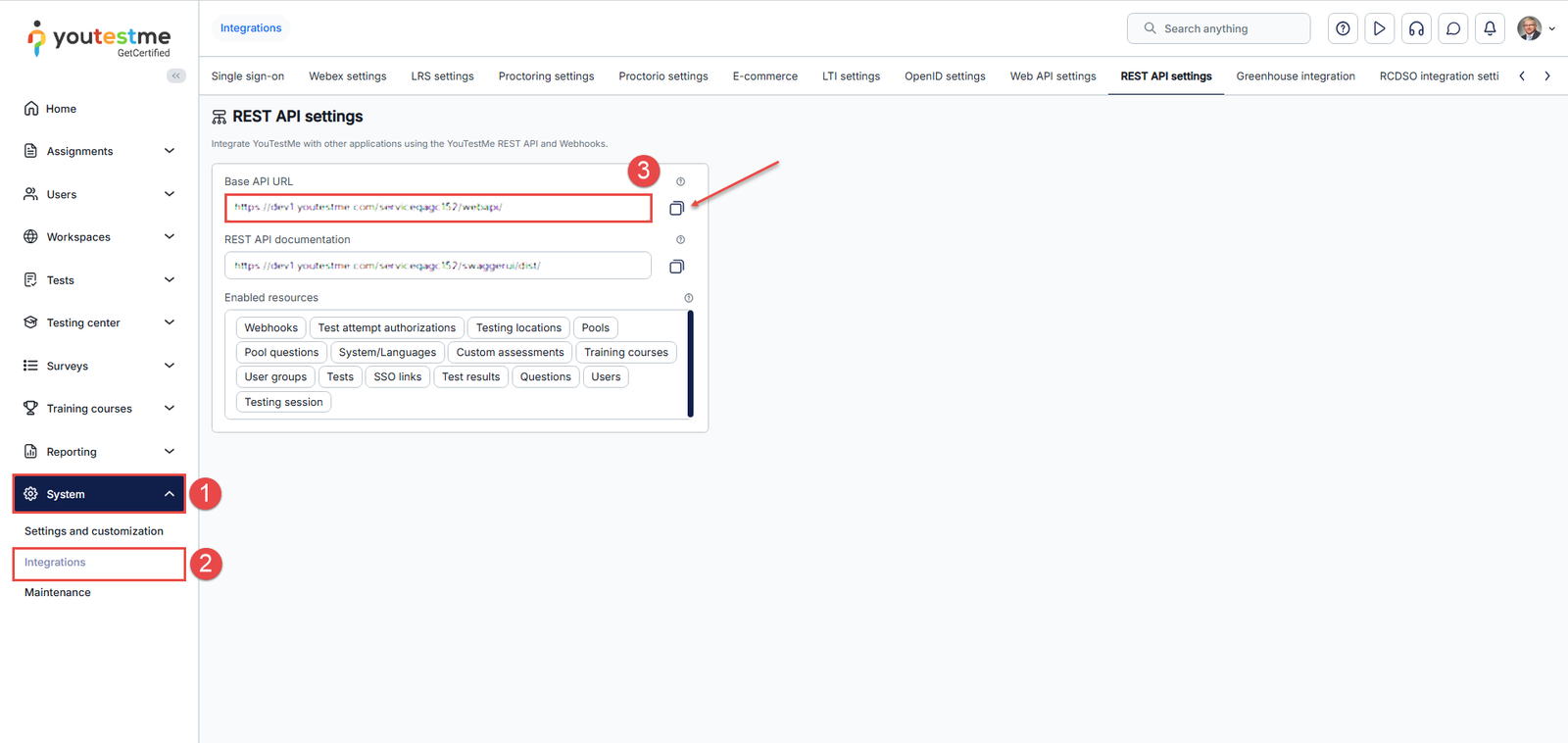
- Enter the API URL.

To obtain the API URL after logging into YouTestMe with an administrator security role:
- Access Integrations from the System dashboard in the main menu.
- Navigate to REST API settings tab.
- Copy the “Base API URL“.
After logging into YouTestMe GetCertified:
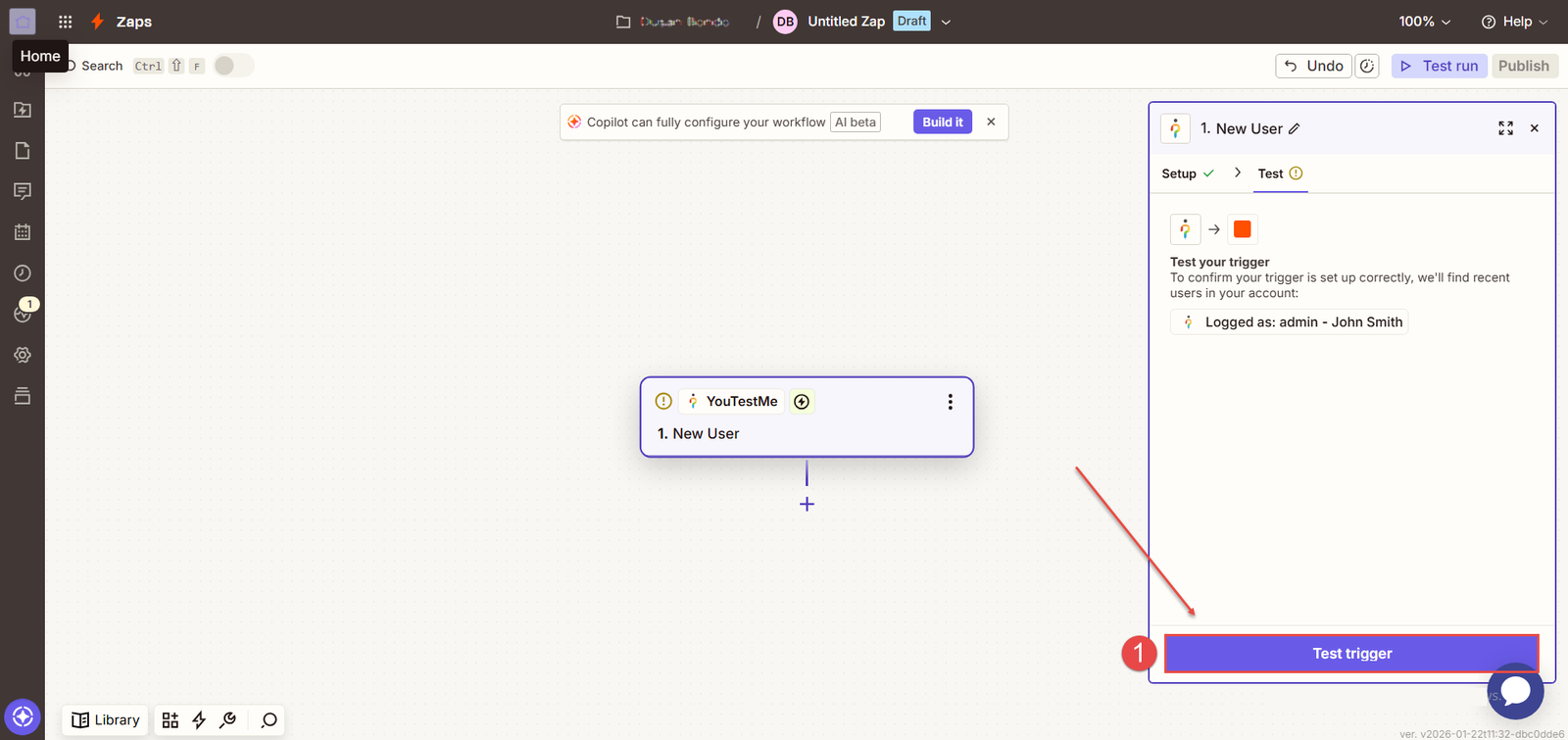
- Click the Test trigger button.
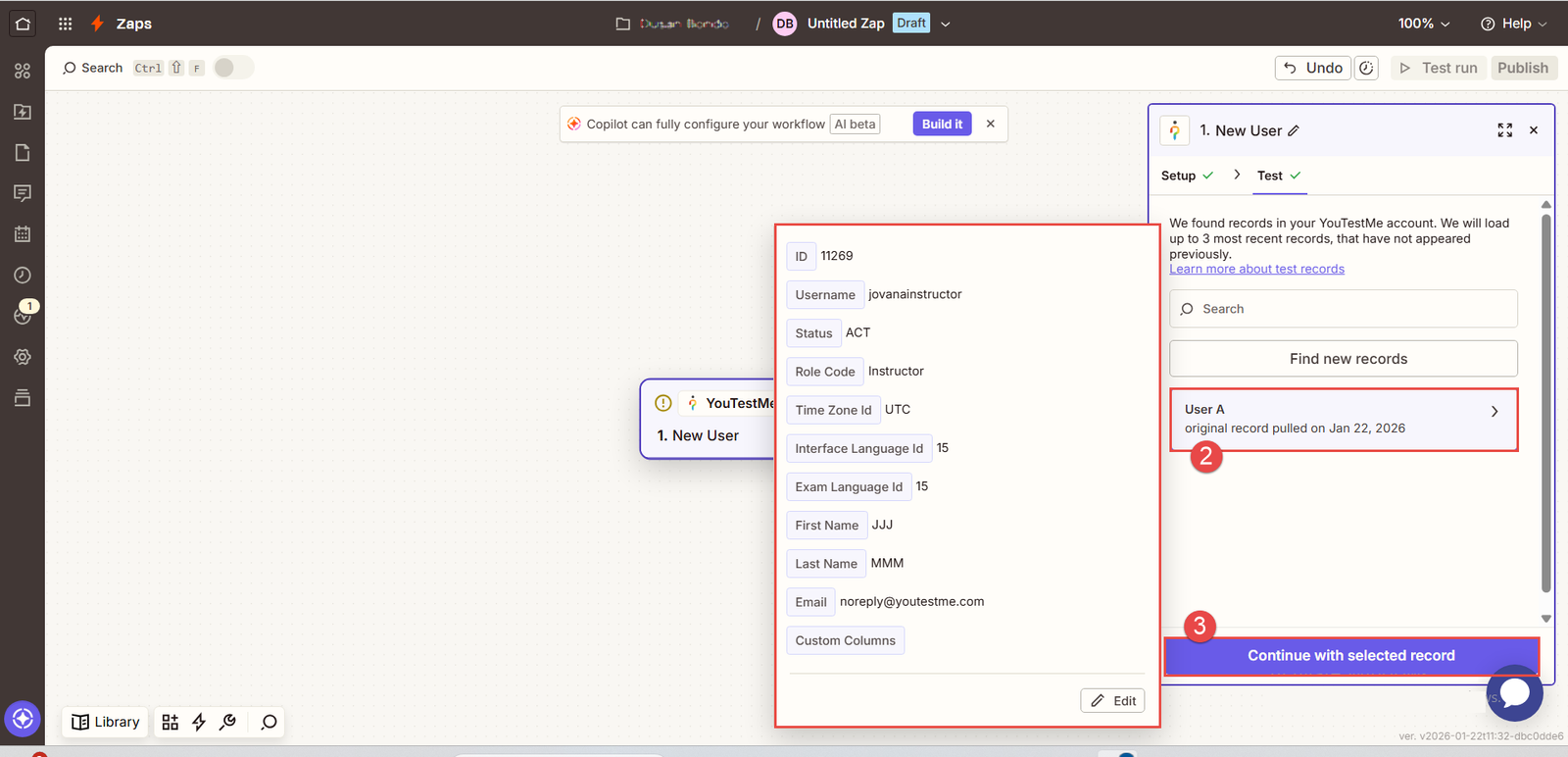
- Click on the displayed record field.
Note: You will receive the information about the last created user on the server. - Click Continue with selected record button.
Note: An action is an event a Zap performs after it starts.
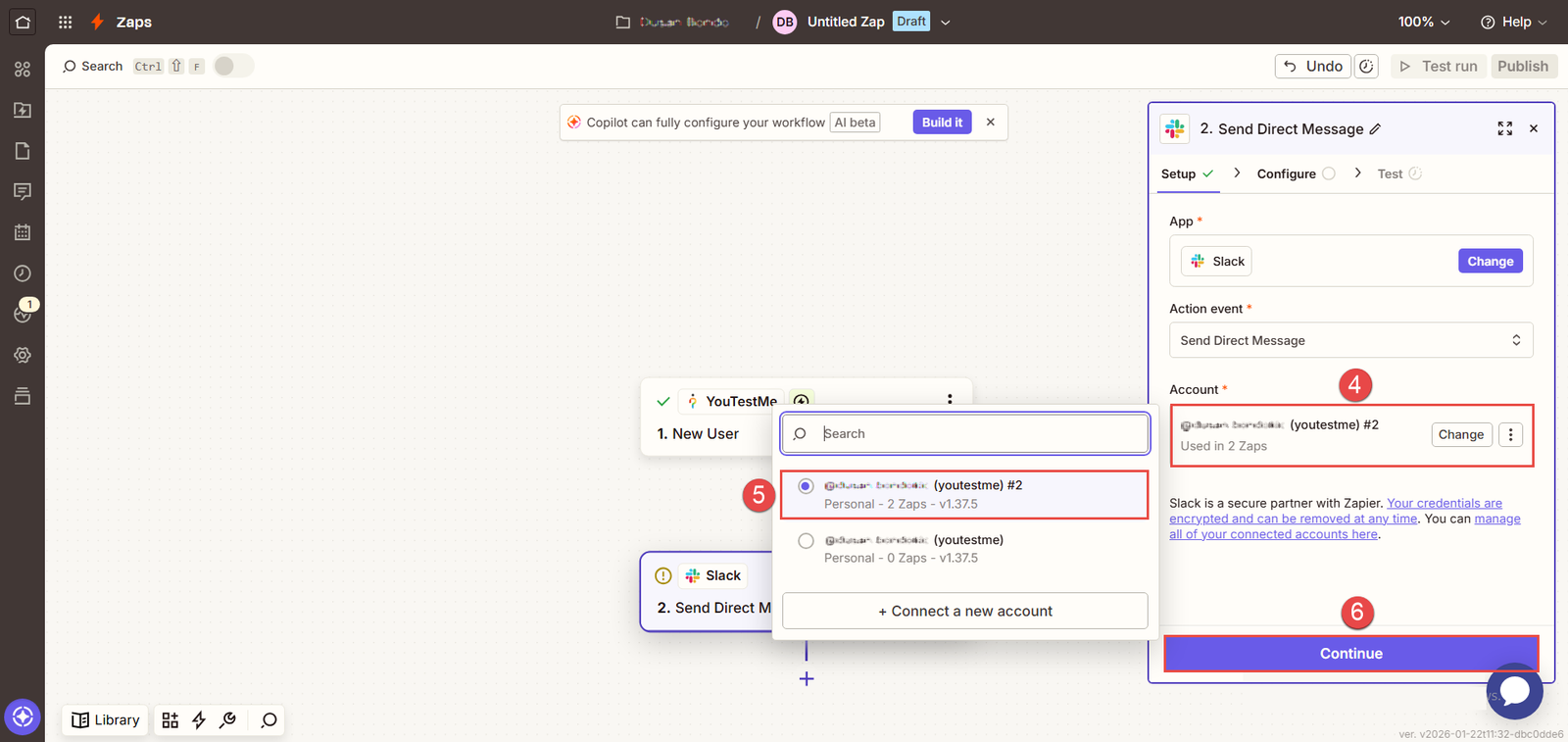
1. Choose the app you will use for the event. For example, choose Slack.
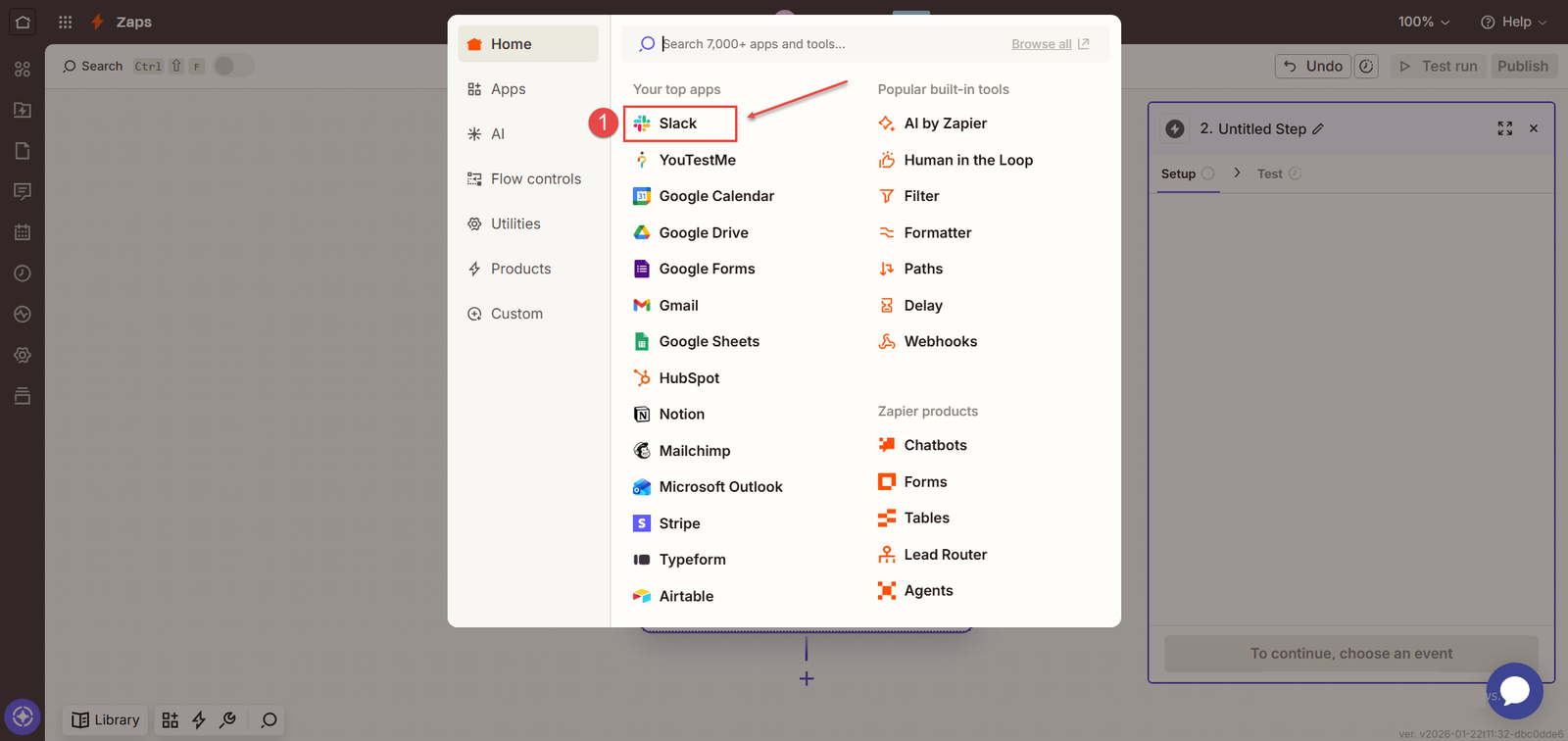
2. Next, sign in to Slack, and allow Zapier to access the Slack workspace. Then choose an action from Action event field.
3. We will select Send Direct Message, for example.
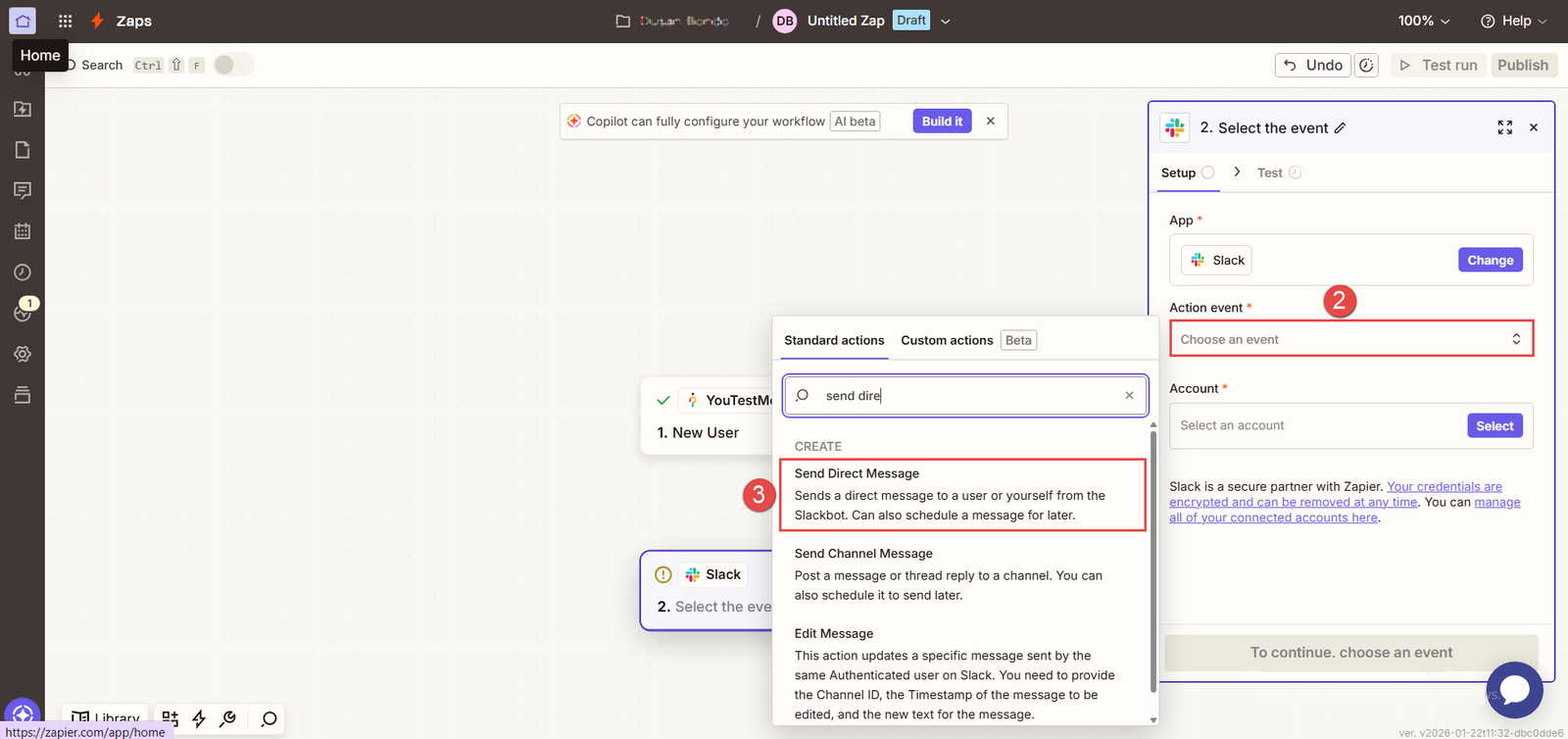
4. Click Account field.
5. Choose the account to send the direct message to.
6. Click Continue button.
Configure the following parameters:
- Send multi-message – choose Yes or No.
- To Username – Specify the user that will receive a direct message.
- Message text – Specify the text of the message. You can enter the text and data.
- Send a message as a bot? – Choose Yes or No.
- Bot name – Specify the bot name, which appears as a bold username above the message – the default name is Zapier.
Note: There are other useful settings available.
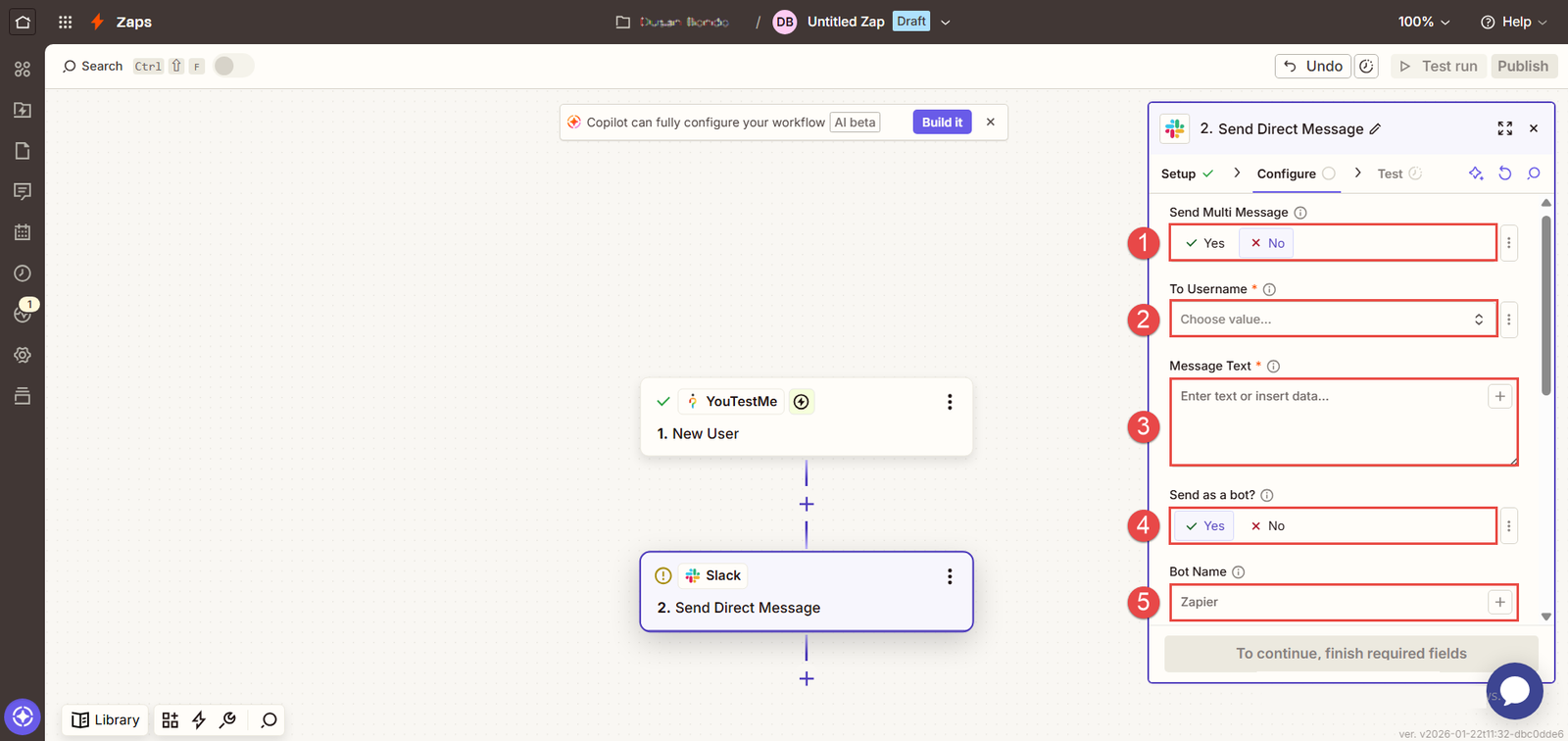
After filling all the fields, click Continue button.
Test sending the direct message. Click the “Test step” button.
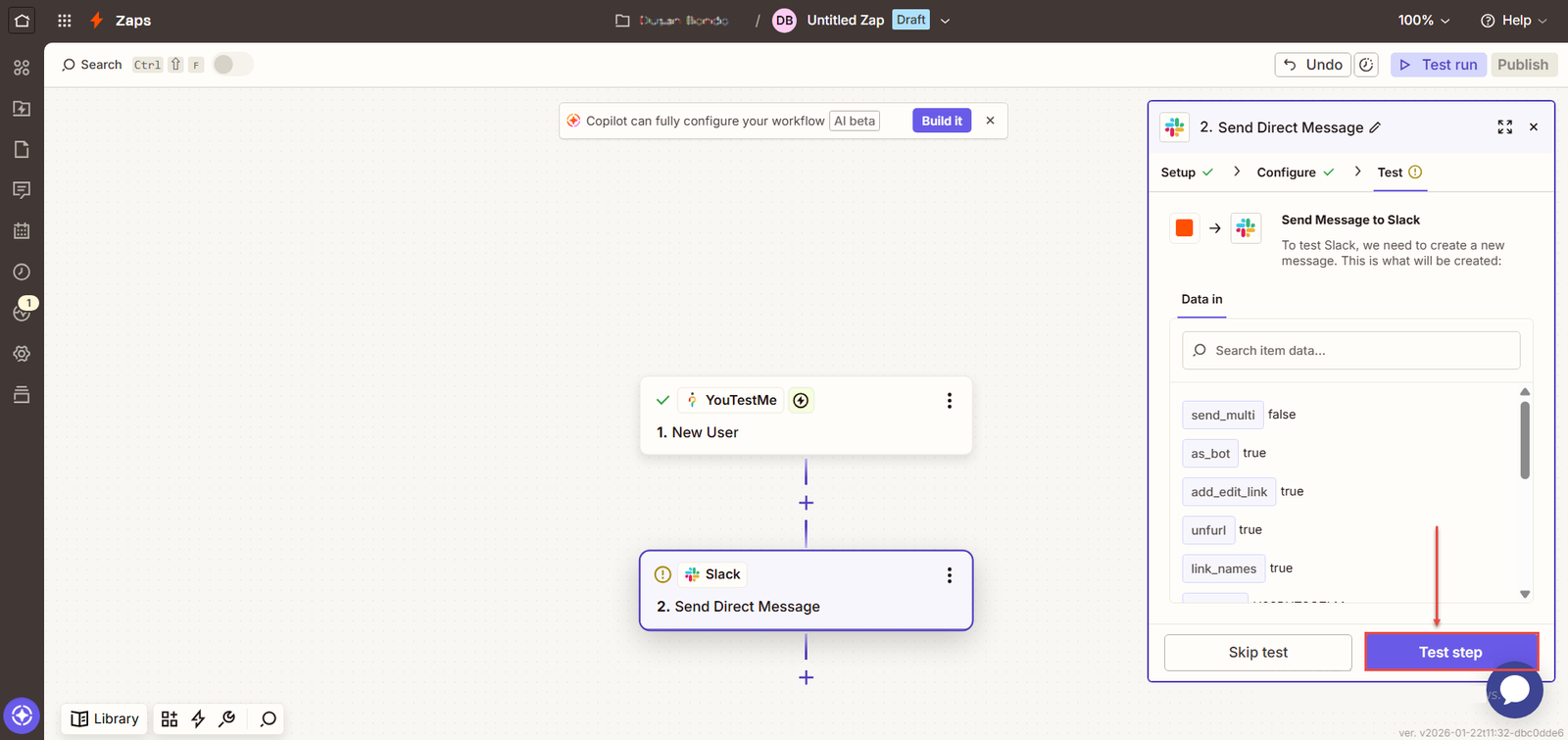
Now, open Slack and preview message data.

For more information, please visit the following articles: