Article verified for Release 15.1 on February 23, 2026.
This article explains how to delete a test attempt in your system, whether it’s a regular or suspended attempt. Deleting an attempt can be useful if a candidate submitted a test by mistake, if the attempt contains errors, or if you need to reset the test for another try.
How to enable data deletion in the system
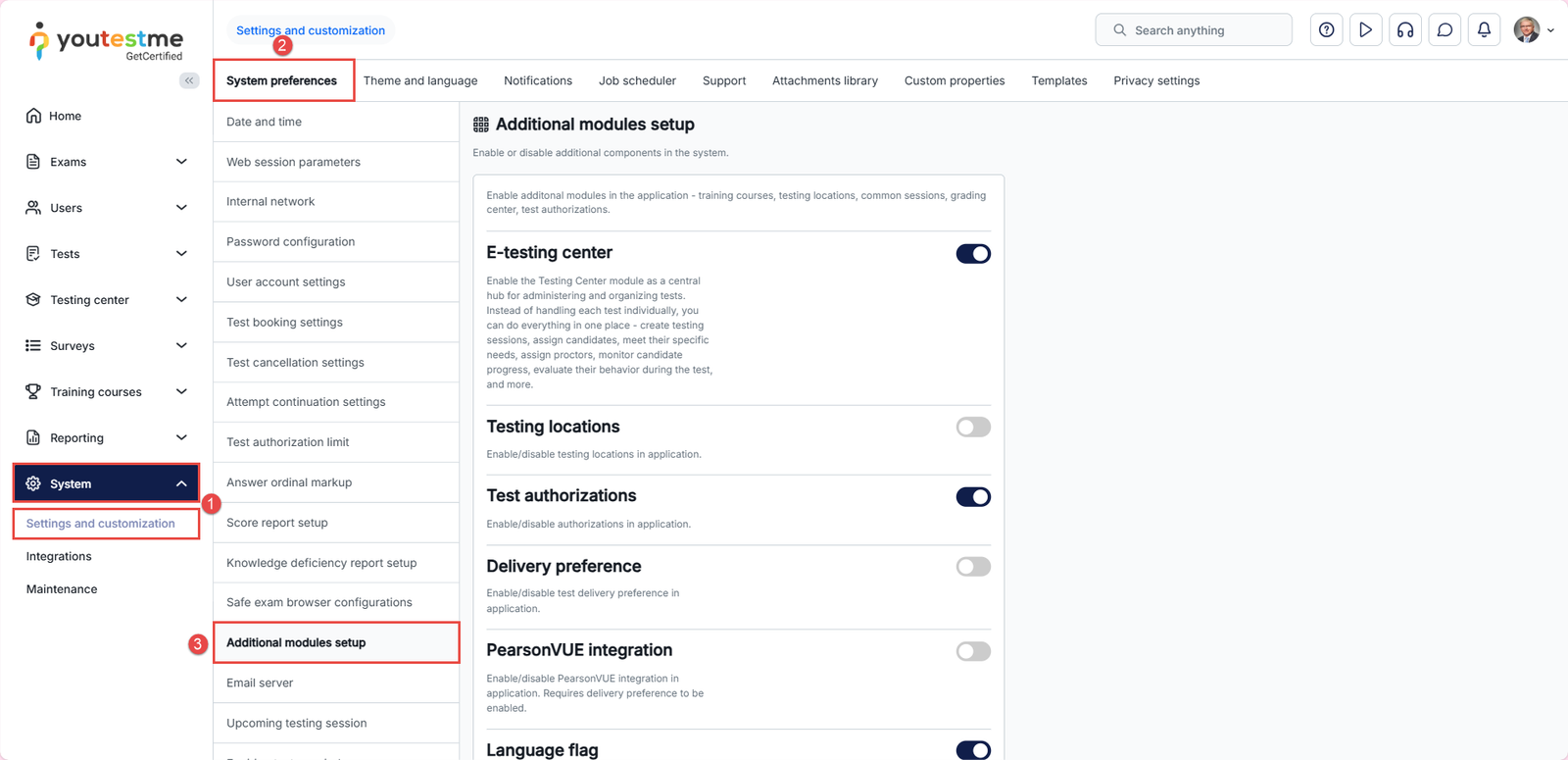
Before any attempt can be deleted, the system must be allowed to remove data. To do so, follow these steps:
- Navigate to System > Settings and customization.
- Navigate to the System preferences tab.
- Select the Additional modules setup
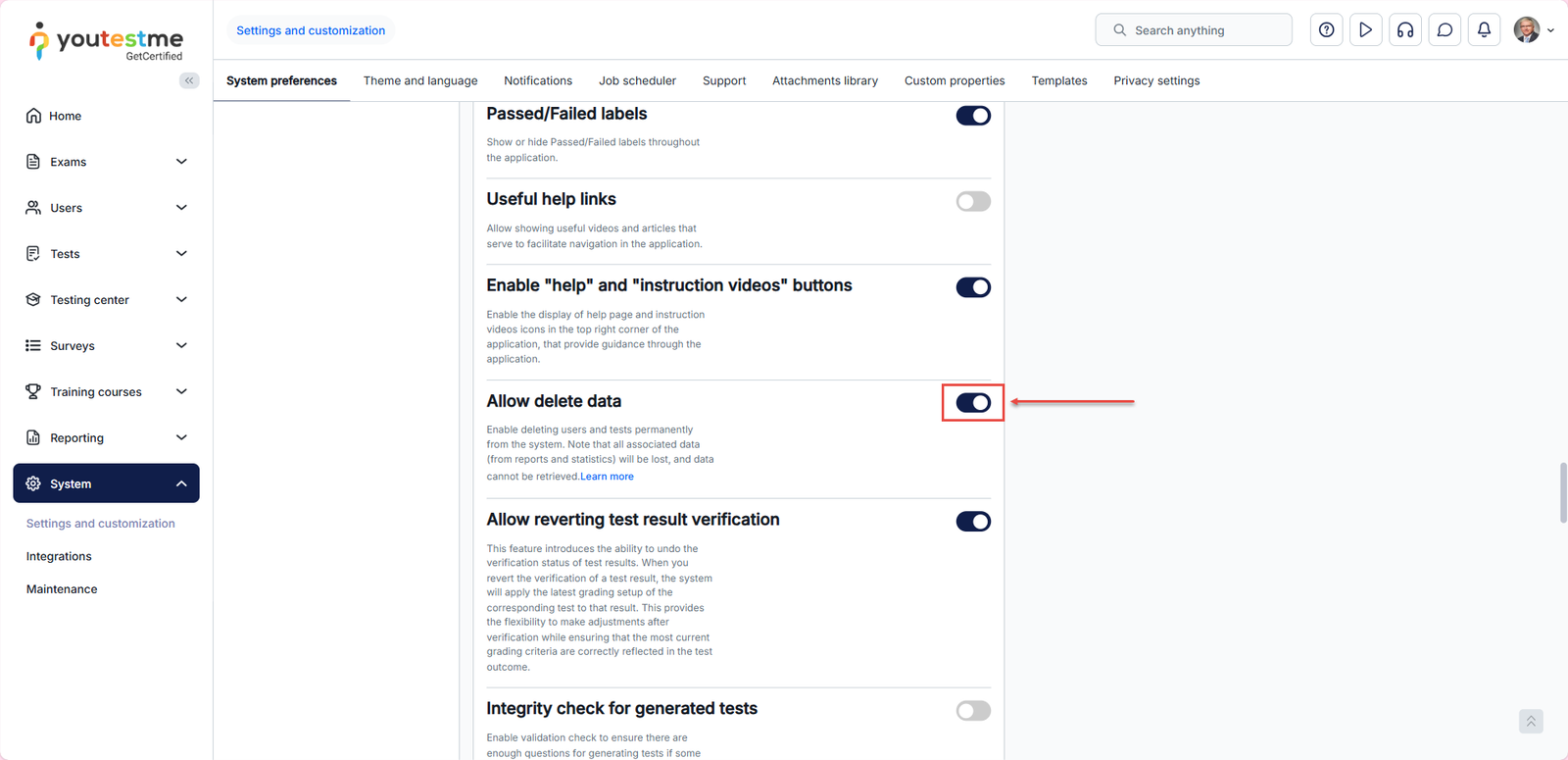
Toggle the “Allow delete data” option ON.
How to delete an attempt
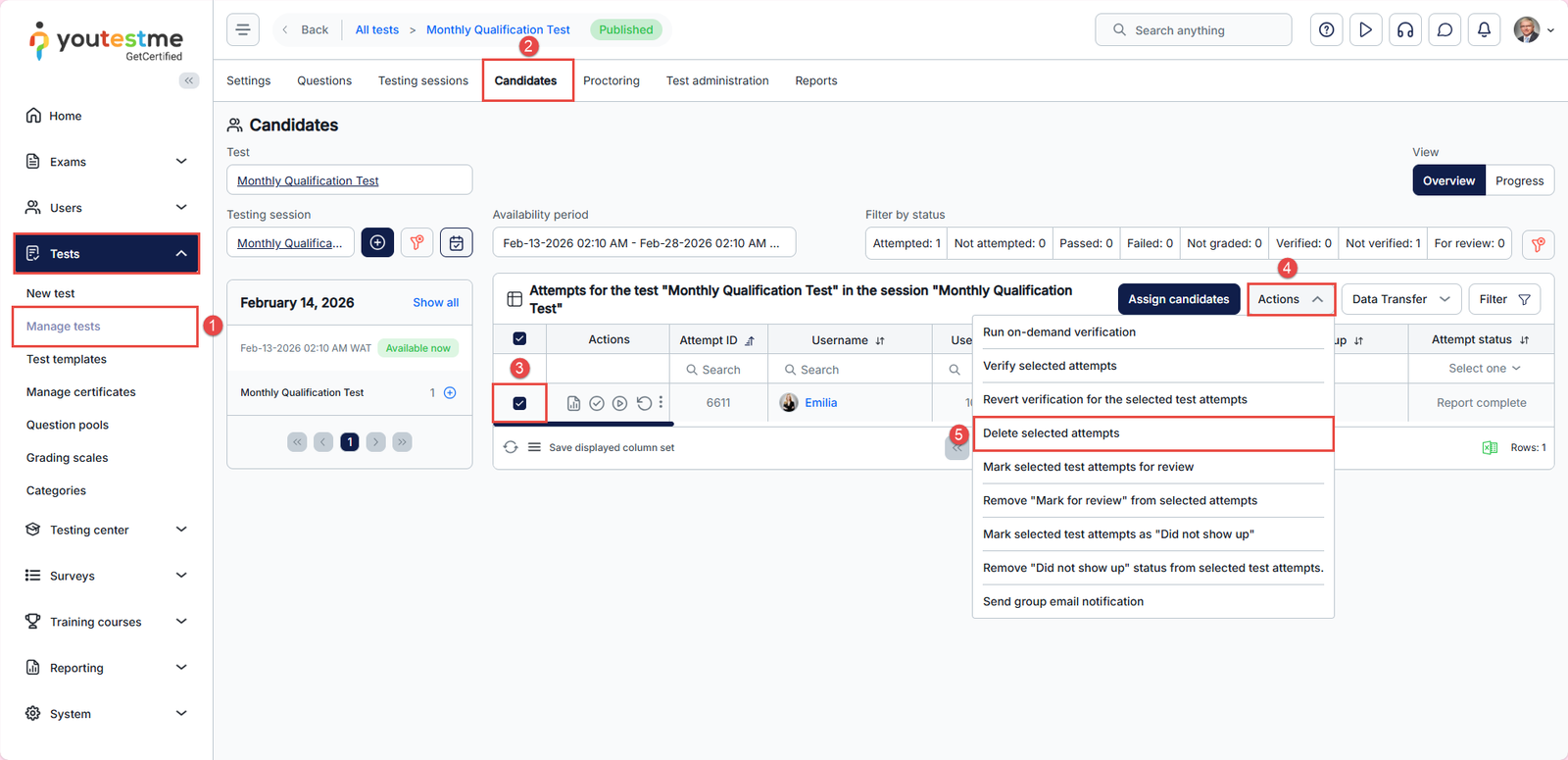
- Navigate to Tests > Manage Tests and select the desired test.
- Go to the Candidates tab.
- Select the attempt you want to remove.
- Click the Actions button.
- From the dropdown menu, choose Delete selected attempts.
How to Delete a suspended attempt
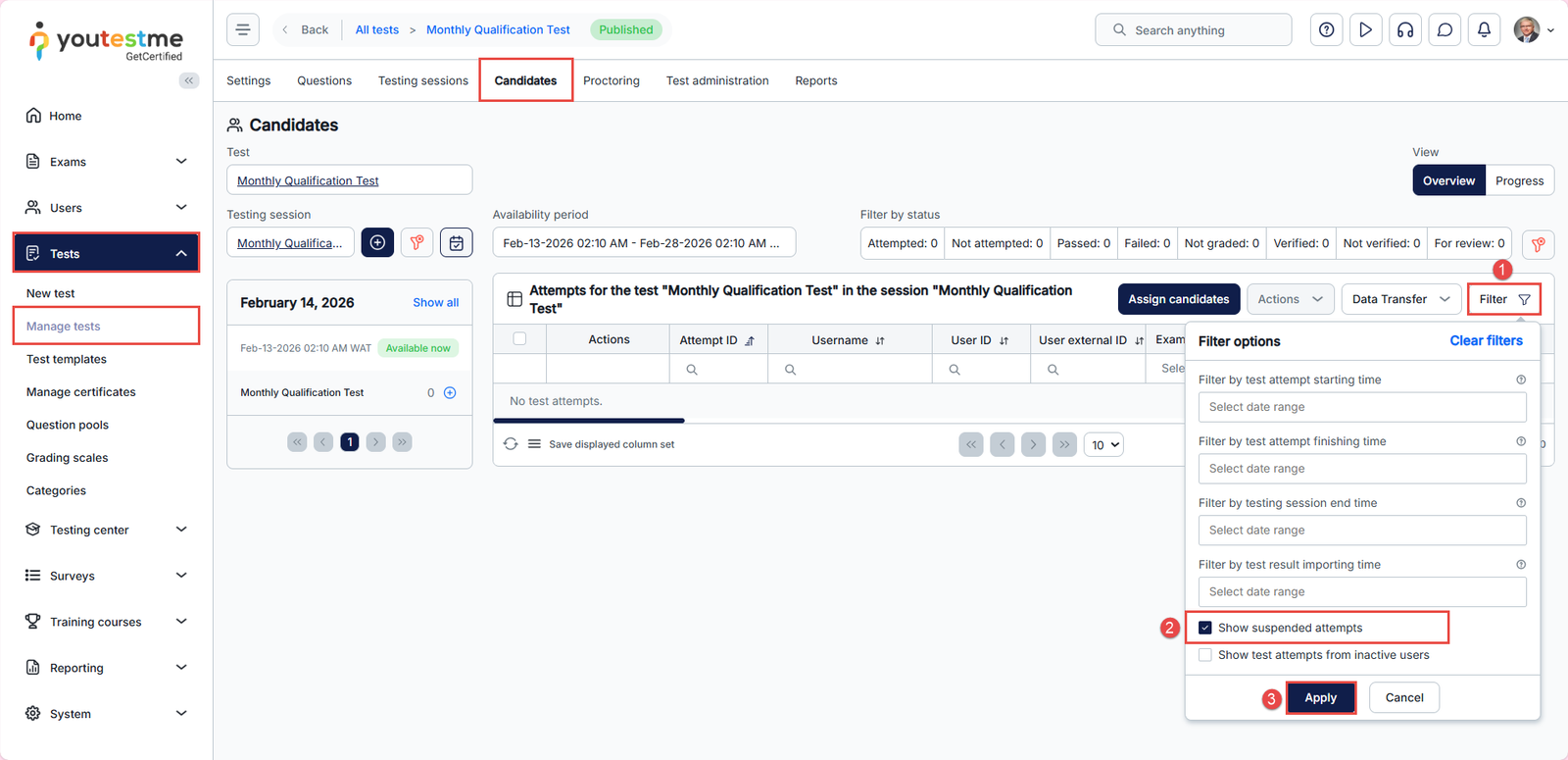
Suspended attempts are hidden by default. To delete them, you must first make them visible:
- In the Candidates page, click Filter.
- Enable Show suspended attempts.
- Click on Apply.
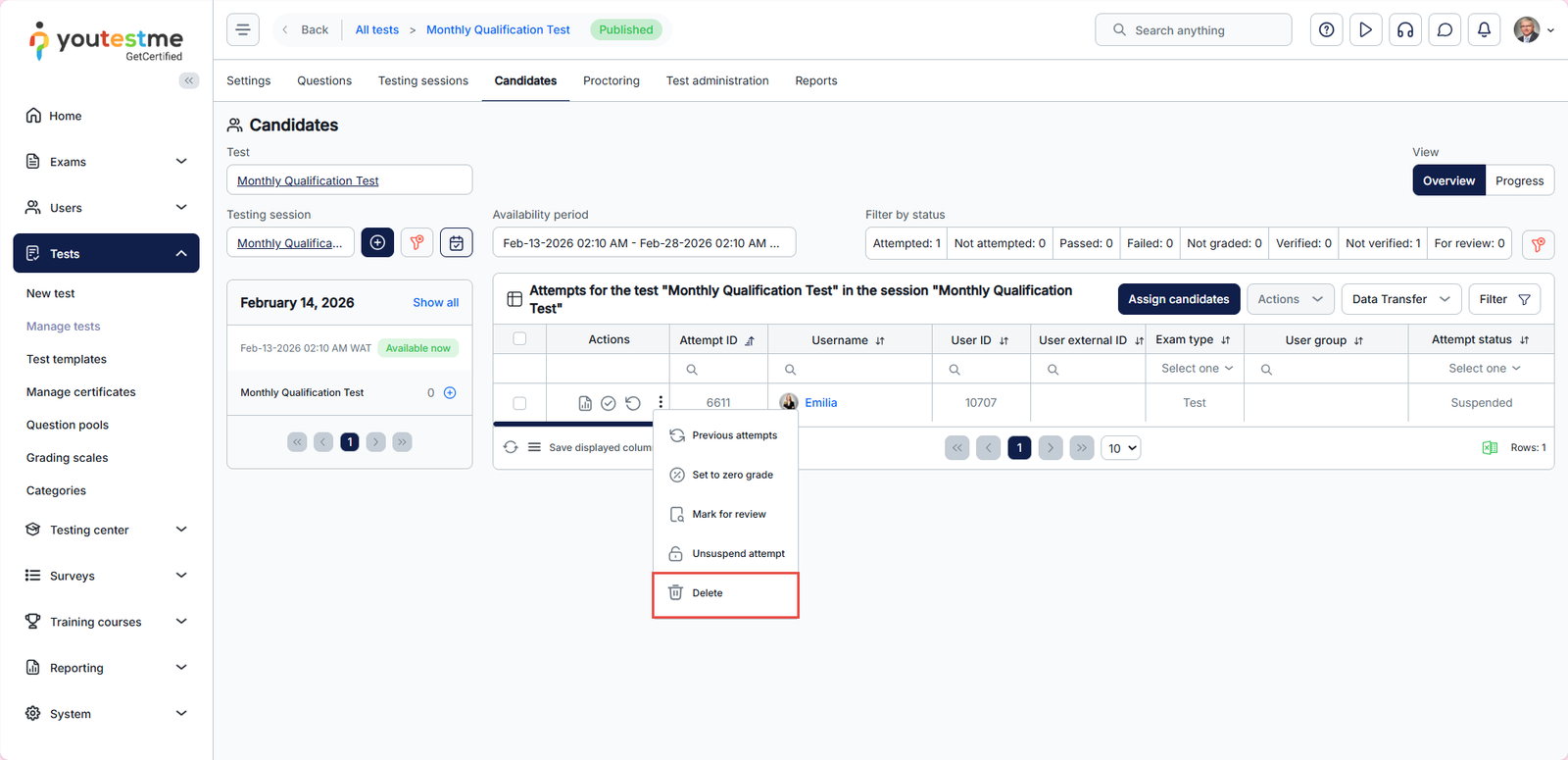
Once the suspended attempts are visible, click on the three dots under the Actions column for the desired attempt, then select Delete.
For more useful instructional materials, please visit:





