This article represents a guide on creating Paper-based test in the YTM application, following a predefined set of rules.
Creating paper-based test
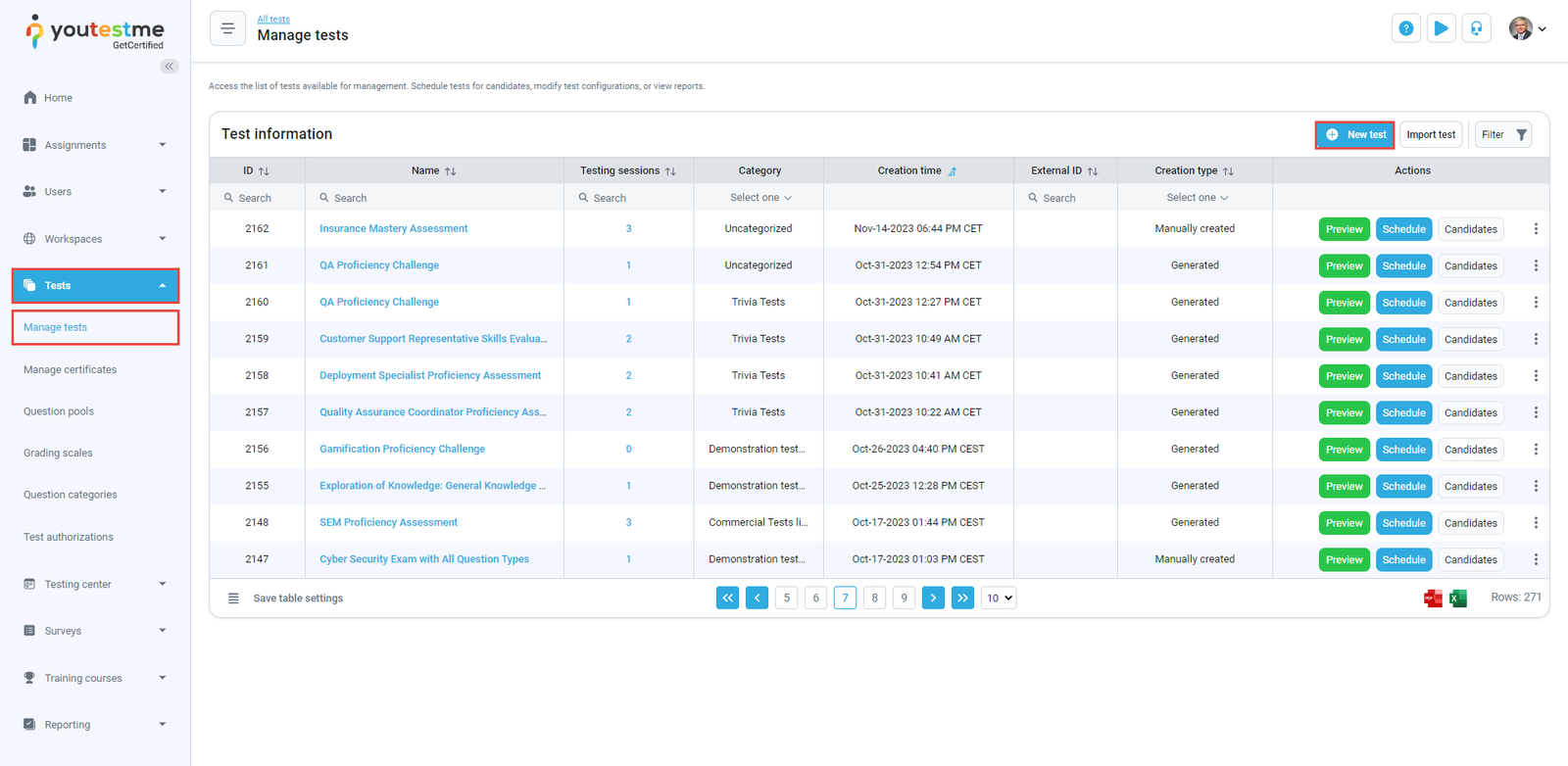
- To create an exam, select the Tests/Manage tests and select the New test button.
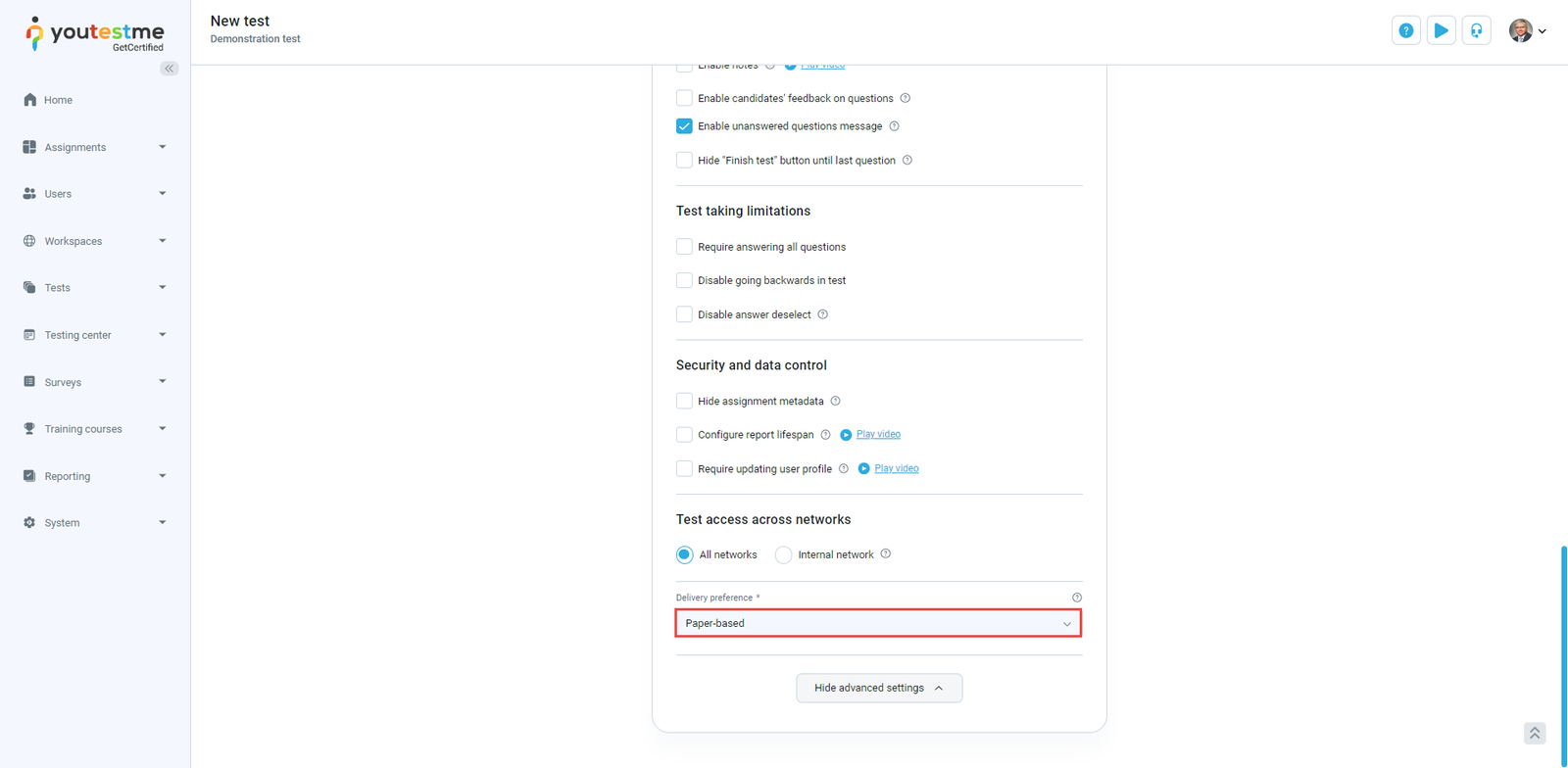
- In the second step of Test wizard, set the delivery preference to be Paper-based.
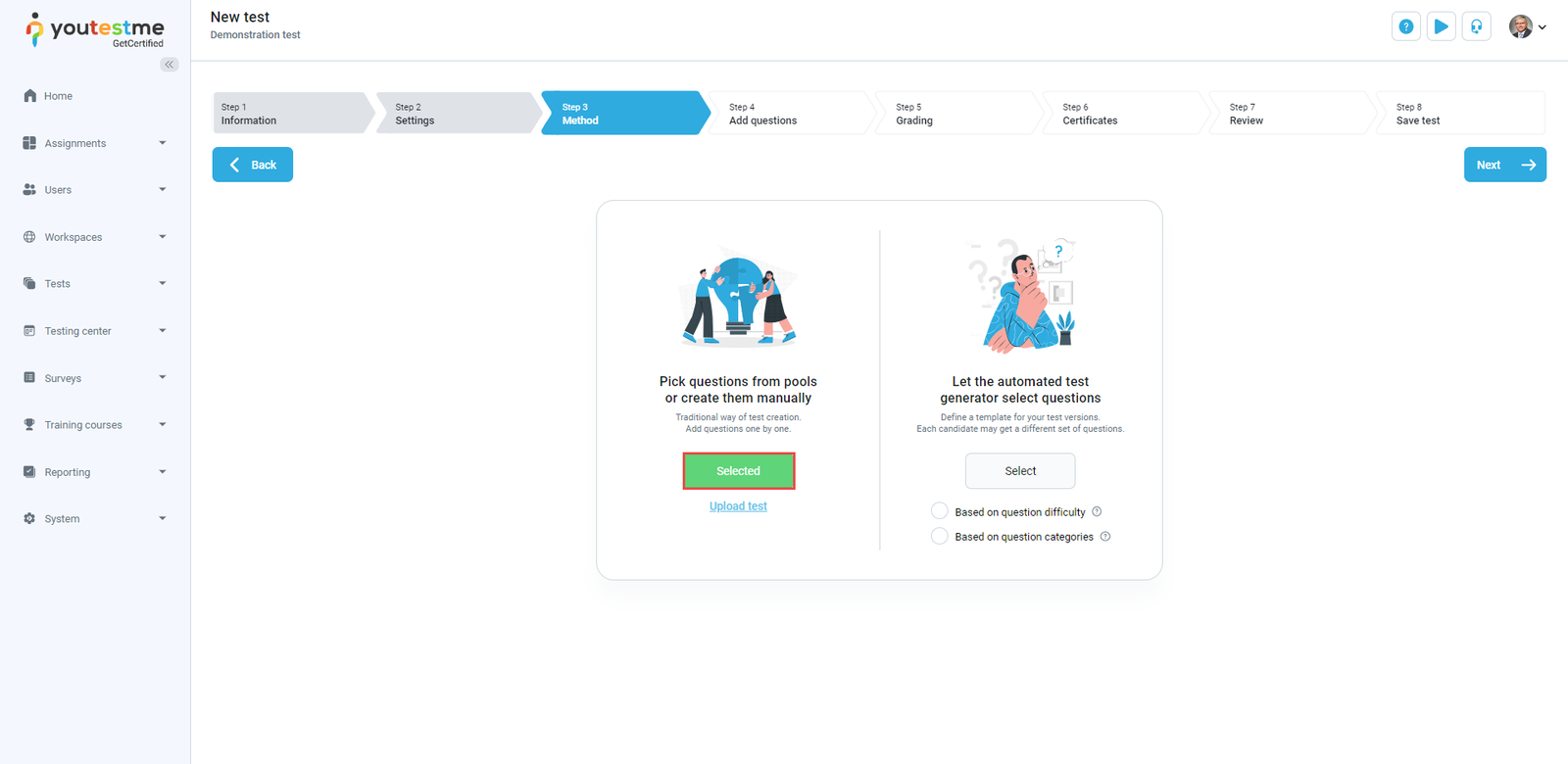
- In the next step of the Test wizad, select the Pick questions from pools or create them on the spot option to define the pre-printed exam versions manually.
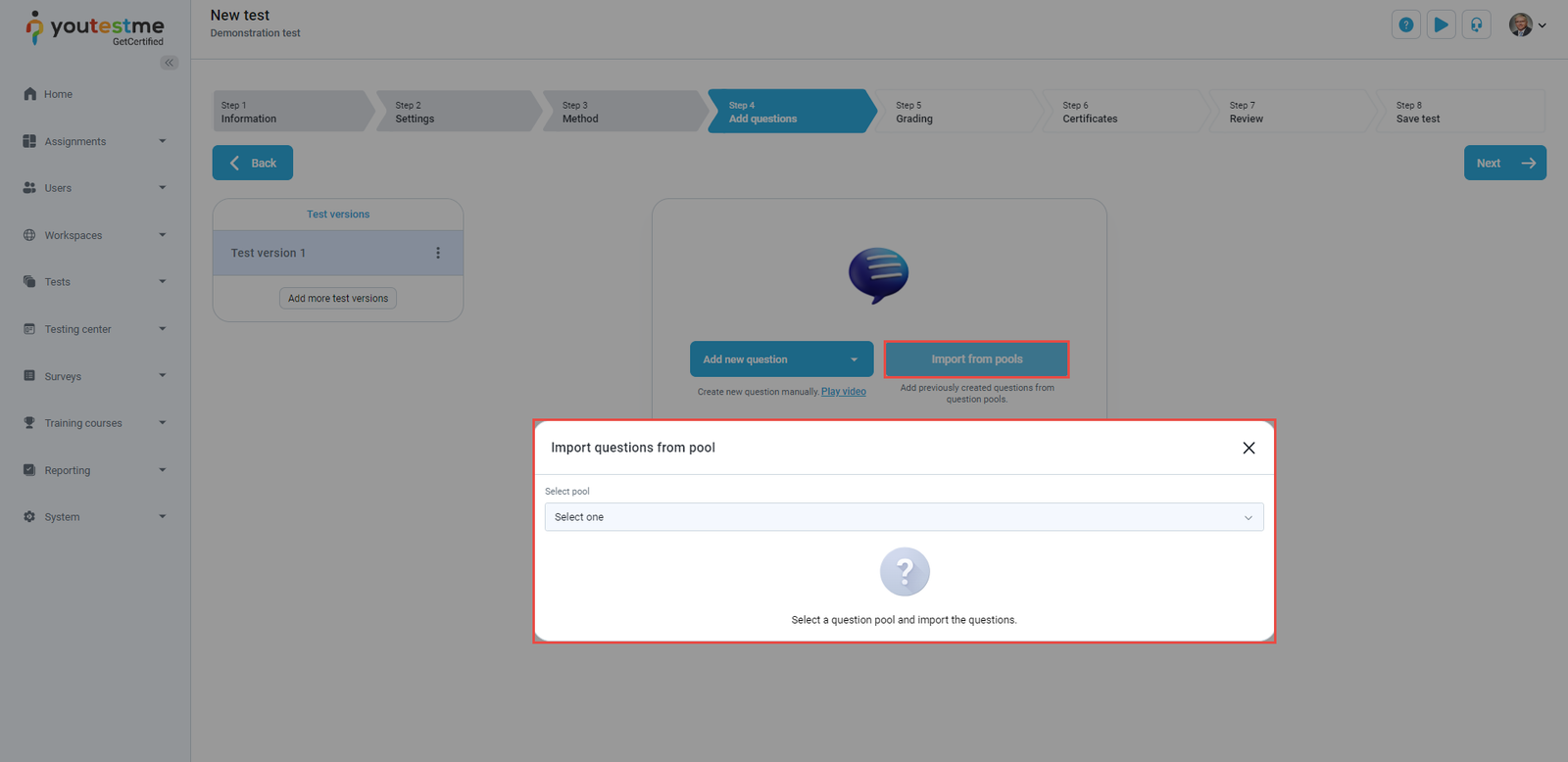
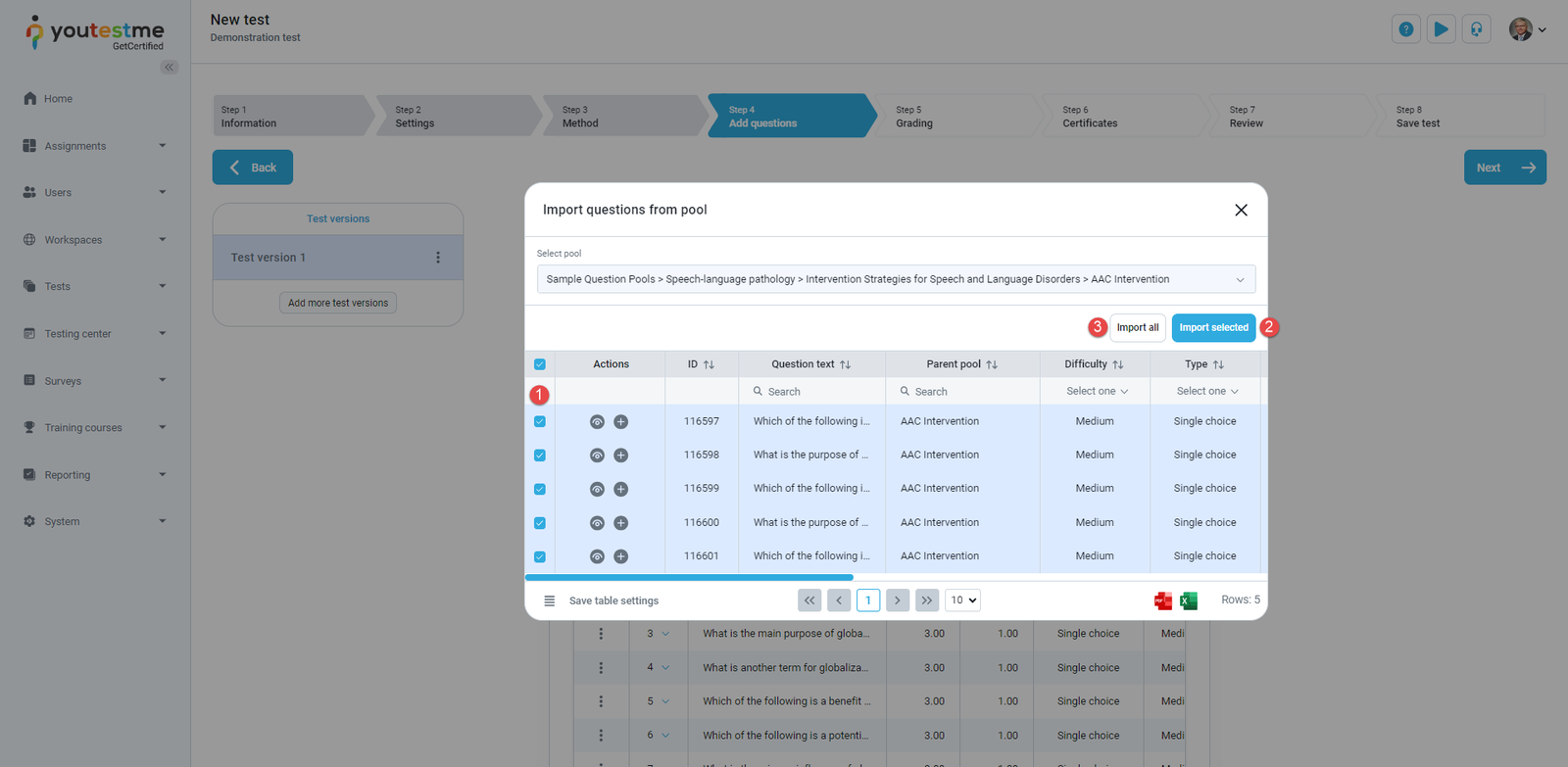
The 1st version will automatically be created, and you should select the Import from pools button and then select the dropdown to select a question pool from which you want to assign questions.
- Select the questions that you want to assign in the 1st version;
- Select the Import selected to import only the selected questions.
- Or the Import all button to import all the questions.
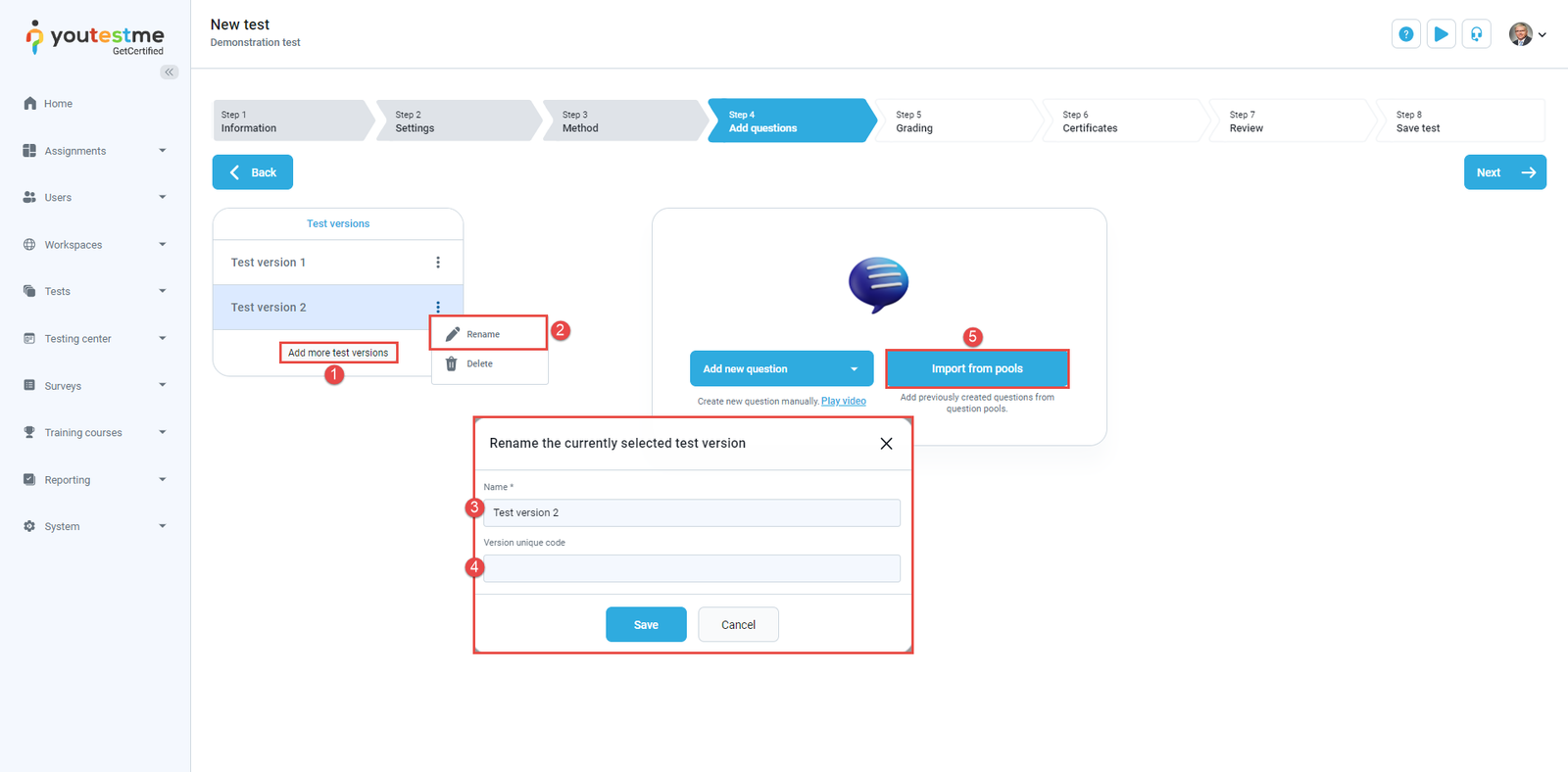
To add more test versions, do the following:
- Click on Add more test version to create a new version.
- Select the Edit button.
- Rename the test version.
- Enter the Version unique code.
- Click on Import from pools button and then follow the same steps as above.
You can create as many versions as you need.
After creating different exam versions, go through other steps to finish the test creation process.
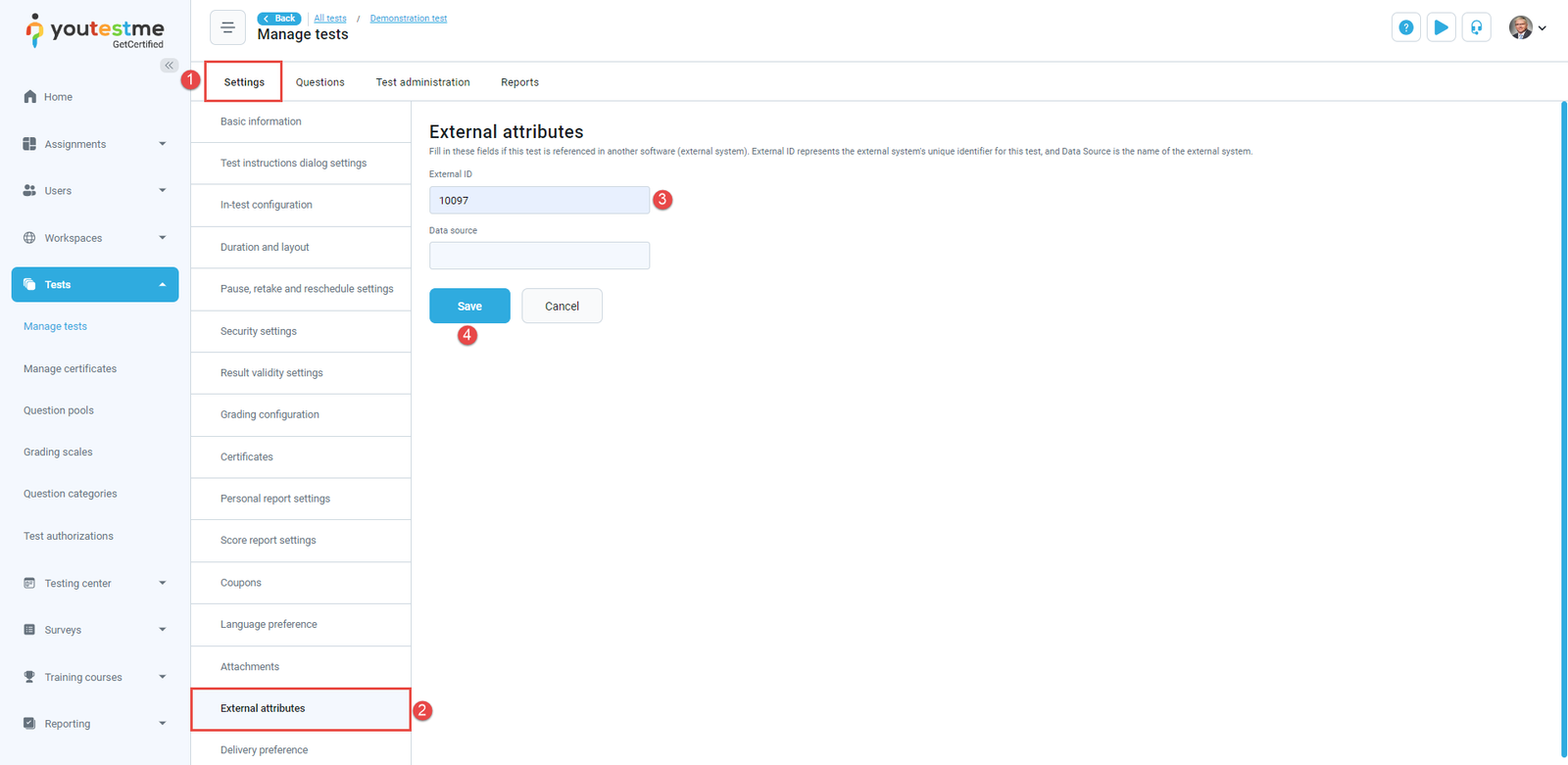
The next step is defining the exam code (External ID). To define the exam code:
- Click on the Settings.
- Click on External attributes.
- Enter the External ID.
- Click on the Save button.
For more related instructional materials, please visit:





