Article verified for Release 15.2 on December 26, 2025
This article provides instructions on how to create unique direct test links for each candidate and include these links in emails to grant candidates direct access to the test.
Export Individual Direct Test Links for Assigned Candidates
Note: Candidates must be assigned to the testing session.
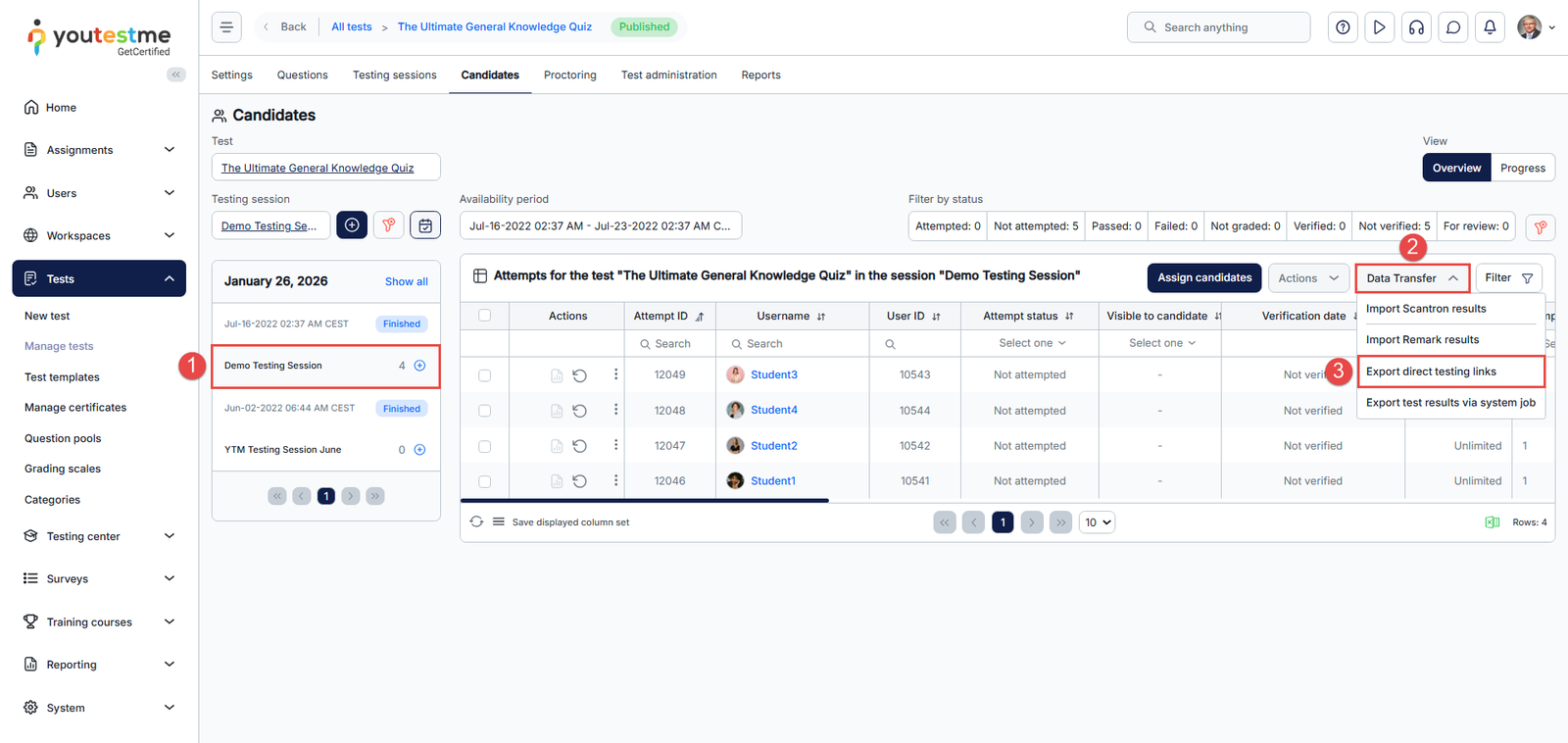
To export individual direct testing links, go to the Candidates tab and:
- Select the desired session.
- Click on the Data Transfer option.
- Choose the Export direct testing links option.
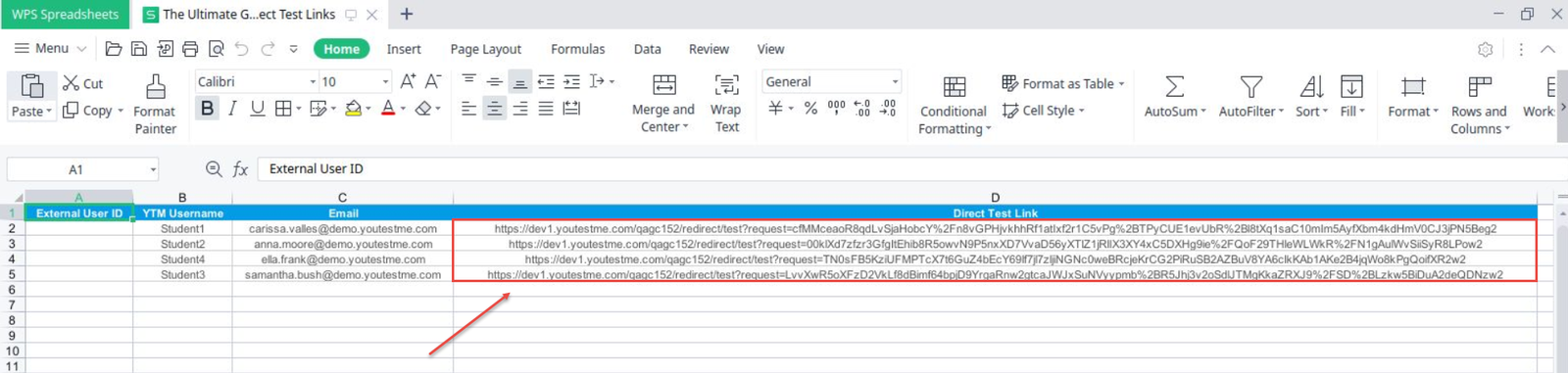
An Excel file containing the generated direct links for each candidate will be downloaded.
Add the Direct Test Link to Email Notifications
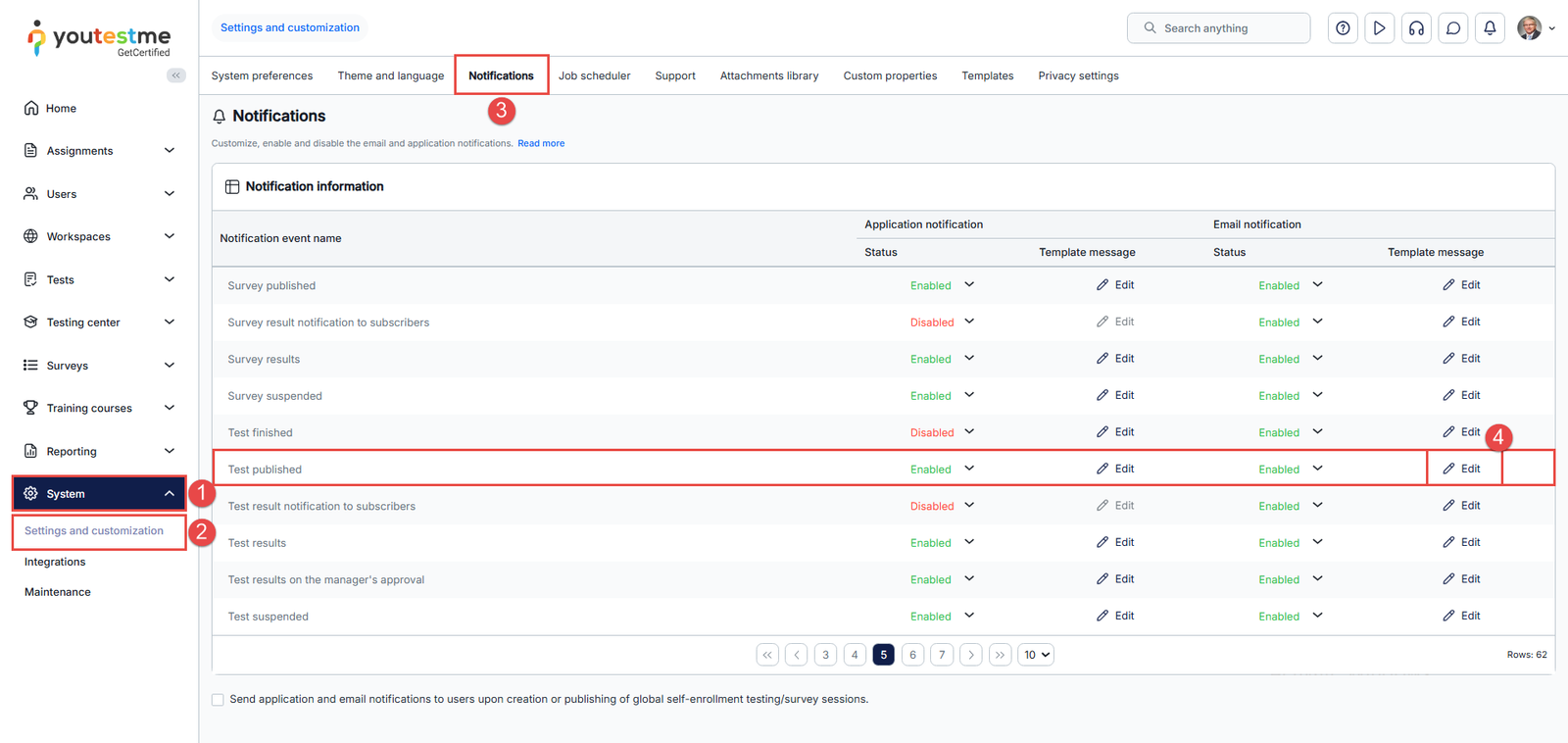
To configure email notification:
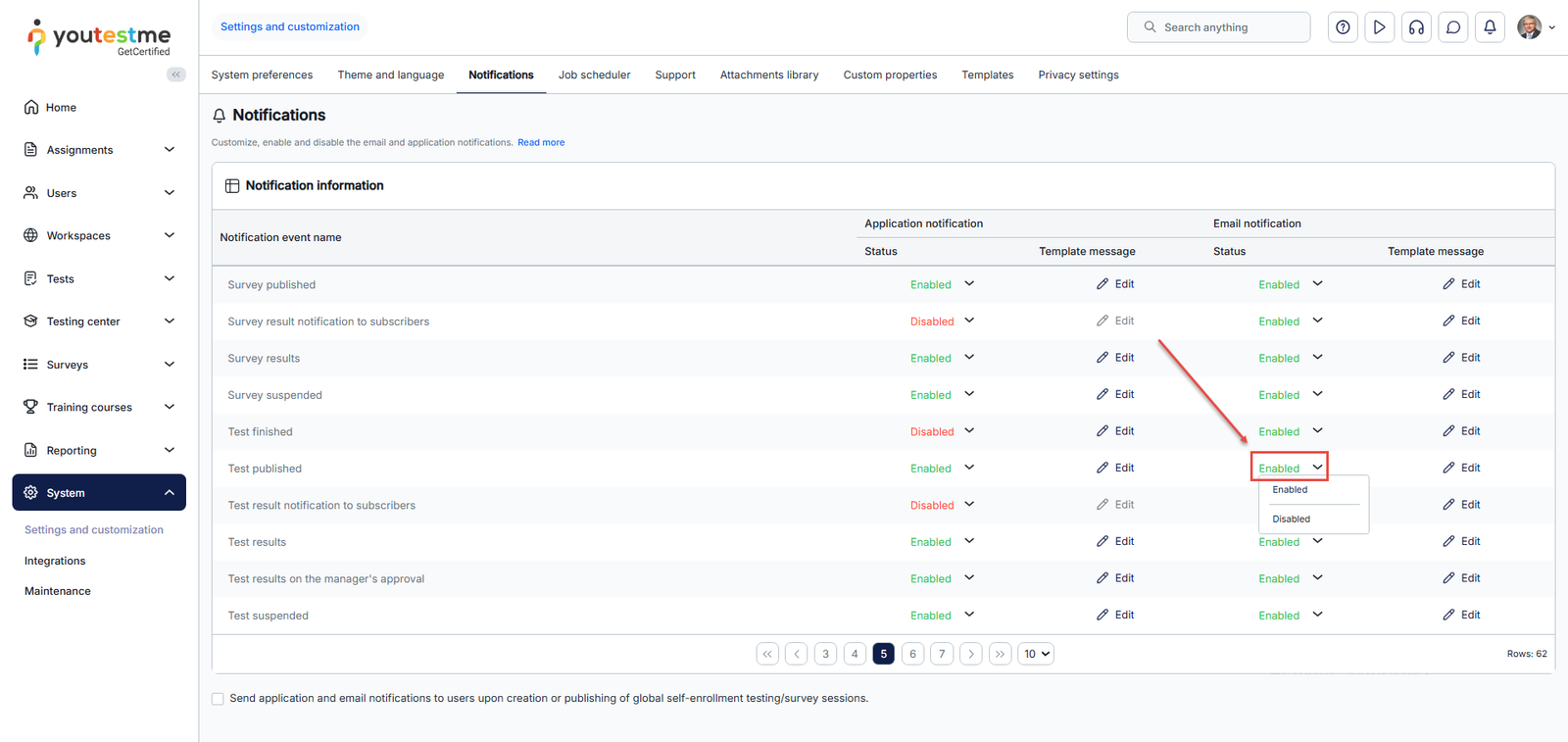
- Select System from the main menu and choose Settings and Customization.
- Navigate to the Notifications panel.
- Find the desired notification.
- Click on the Edit option in the e-mail notification column.
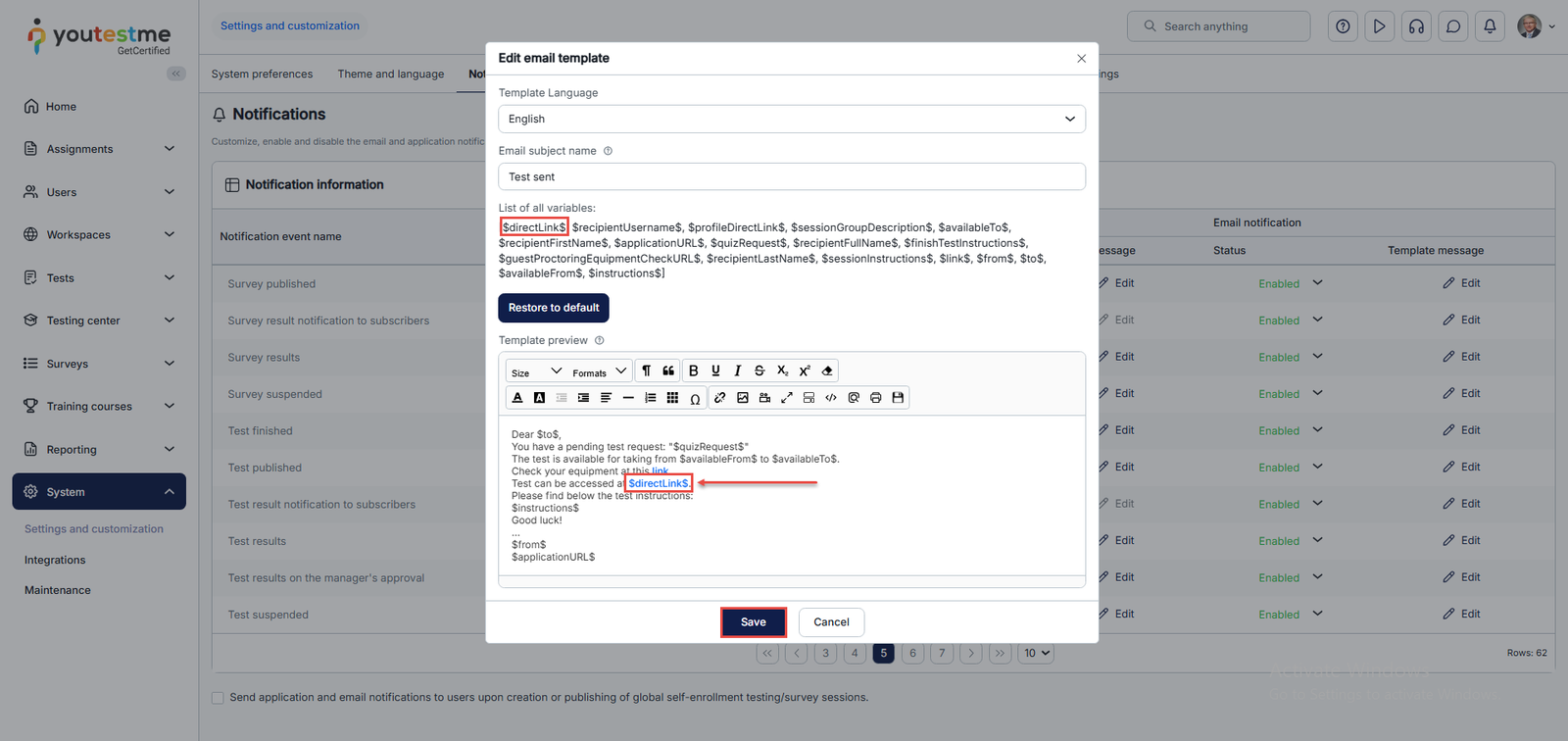
Include the $directLink$ variable in the email notification template, make the necessary adjustments, and then click the Save button to save the modifications.
Make sure the email notifications are Enabled.
Candidate’s perspective
Now, once candidates are assigned to a testing session, they will receive an email containing a direct link that provides immediate access to their test, eliminating the need to log into their accounts. 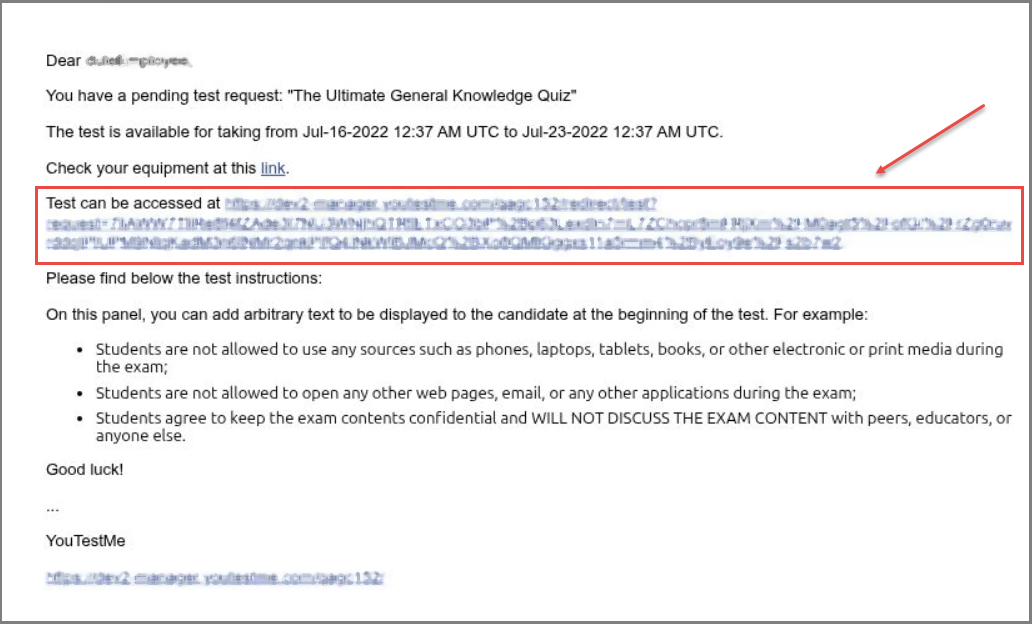
For more related instructional materials, please visit:





