This article explains how to enable test retakes, define the time required to pass between attempts, and how set up a maximum number of test attempts.
You can also watch our video on this topic.
Configuring test retakes in new tests
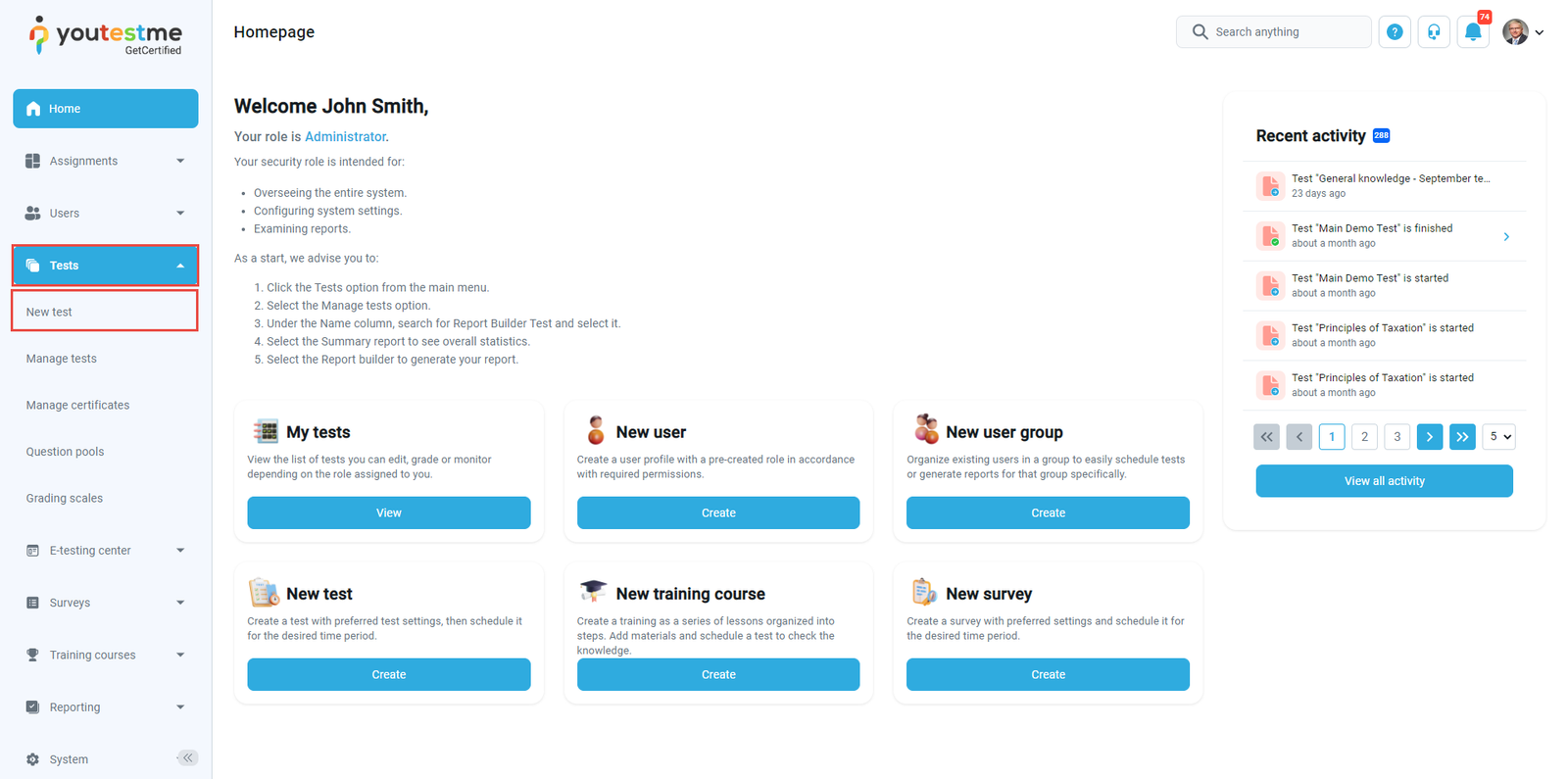
To start creating a new test, hover over the Tests in the main menu and select New test.
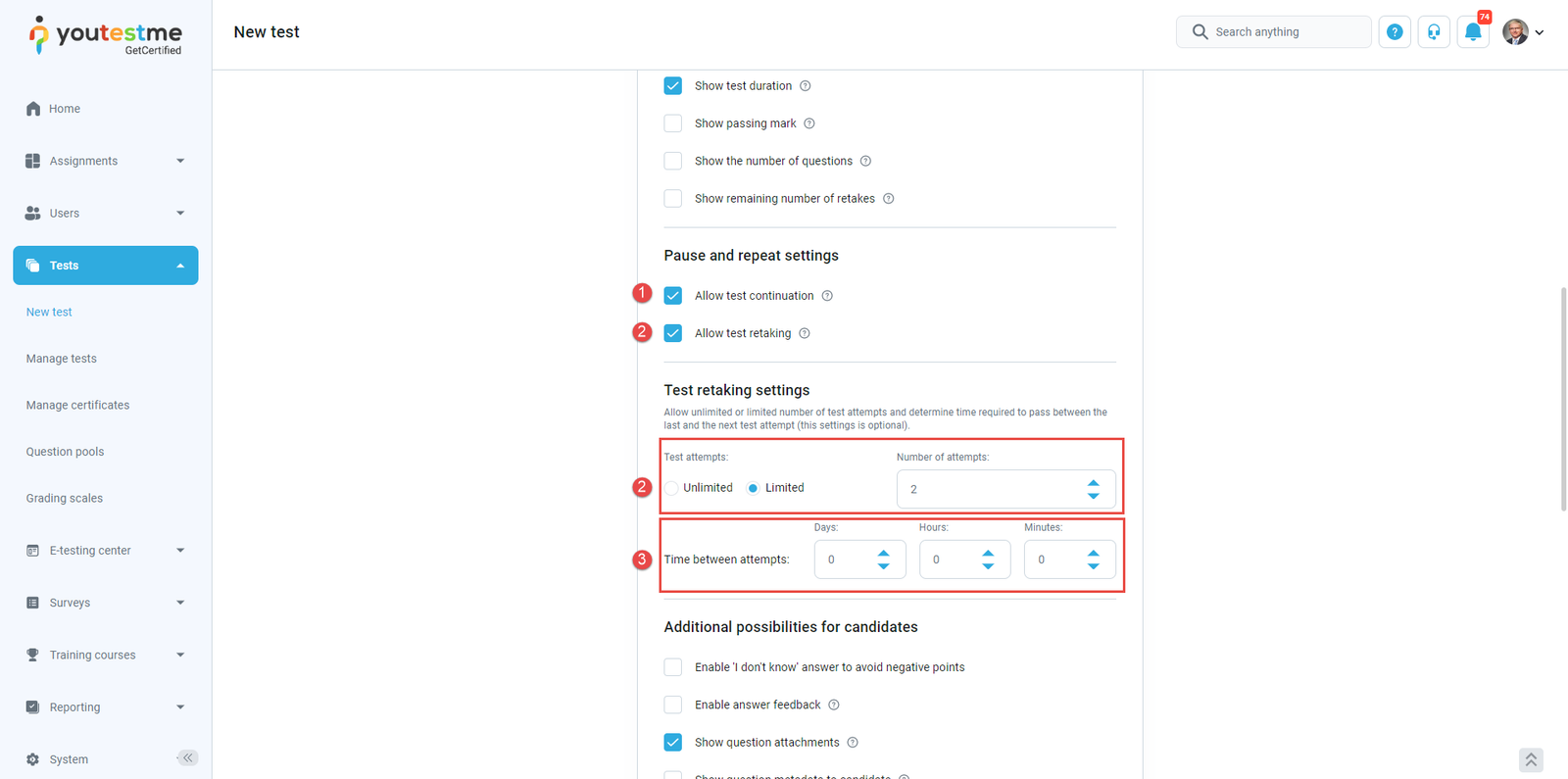
Furthermore, in the second step of the test creation process (Settings). There you can set the maximum number of test attempts and the time required to pass between them.
To do this, do the following:
- Check the Allow test retaking option.
- Allow users to retake the test an unlimited number of times (Unlimited) or limit the number of test-retake attempts (Limited).
- Set the time required to pass between each retake attempt. Define the period in days, hours, and minutes.
Configuring test-retake attempts in existing tests
Additionally, remember to change this setting for both draft and published tests. To do so, select the desired test and follow the steps below:
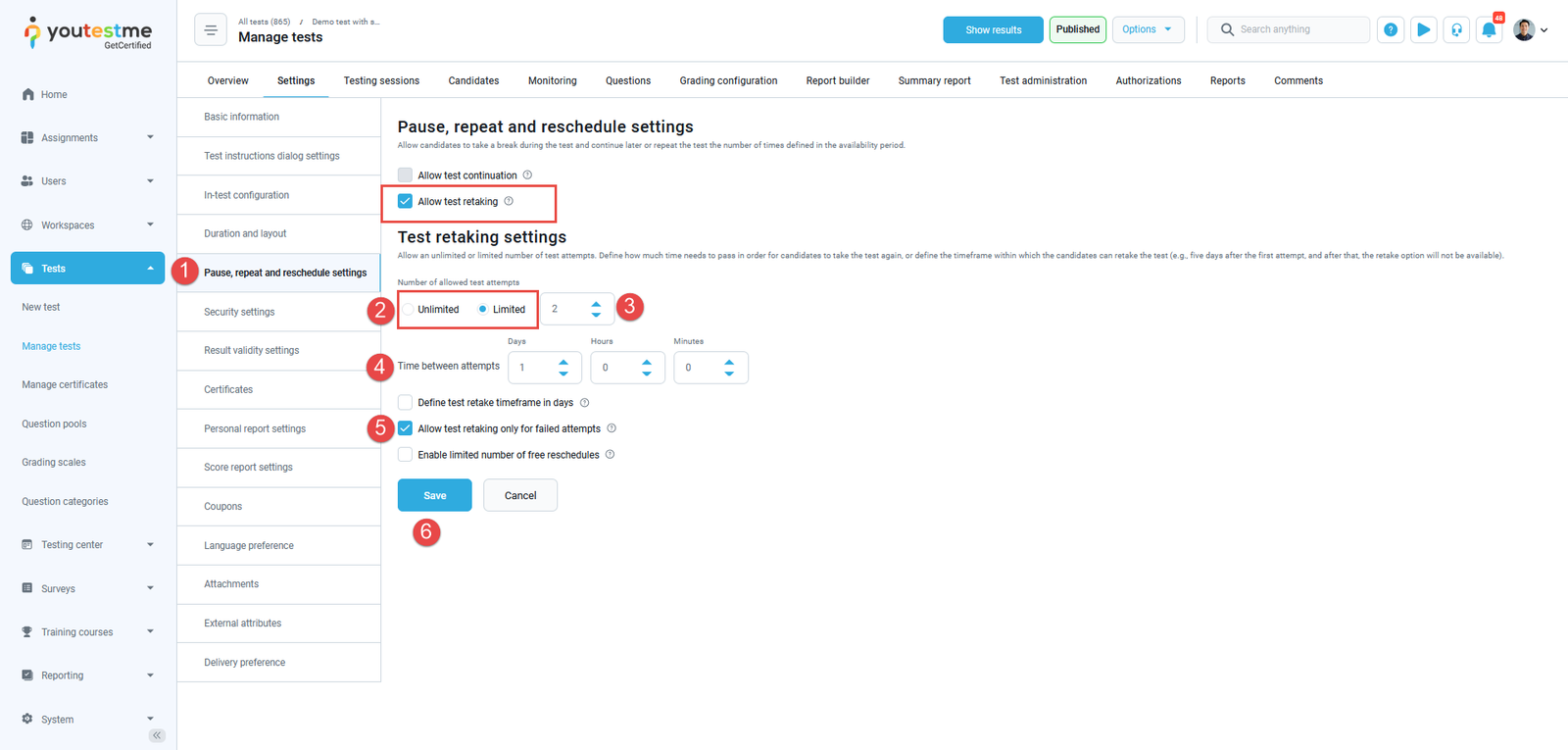
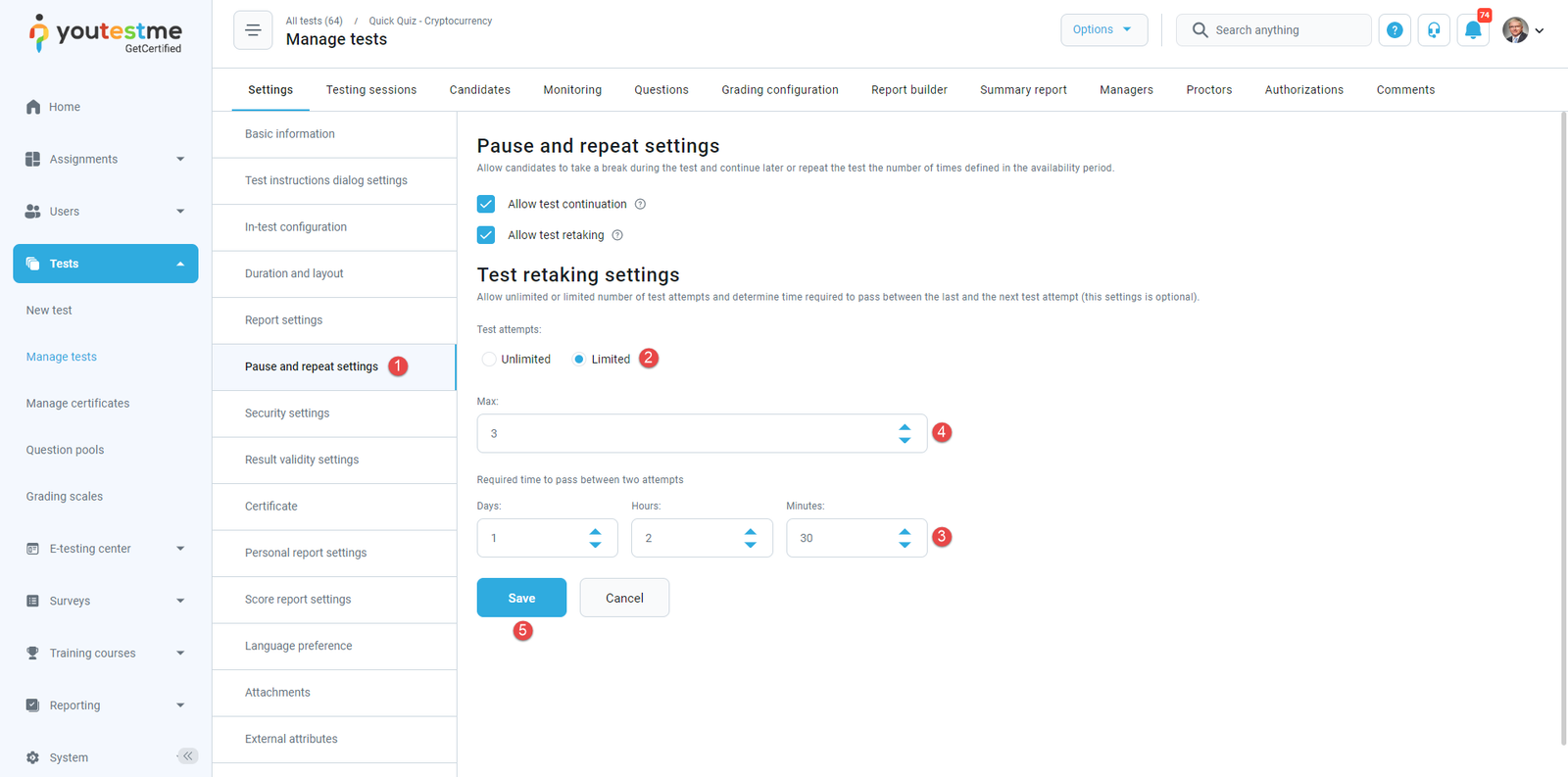
- Navigate to the Pause, repeat and reschedule settings tab in the sidebar menu.
- You can either allow users to retake the test an unlimited number of times (Unlimited) or limit the number of test-retake attempts (Limited).
- Specify the maximum number of test attempts in case of limited test attempts.
- To set the time required for each retake attempt, you can define the period in days, hours, and minutes.
- You can allow test retaking only for failed attempts.
- Click the Save button to confirm the changes.