
Article verified for Release 16.1 on May 08, 2026.
This article explains how to access candidate feedback reports on test questions, either for an individual test or across all tests at the global level.
Check Report for a Specific Test
To review candidate feedback on questions within a specific test:
- Go to Tests > Manage Tests.
- Search for and select the desired test.
- Open the Report tab.
- Select Test Question Candidate Feedback Statistics.
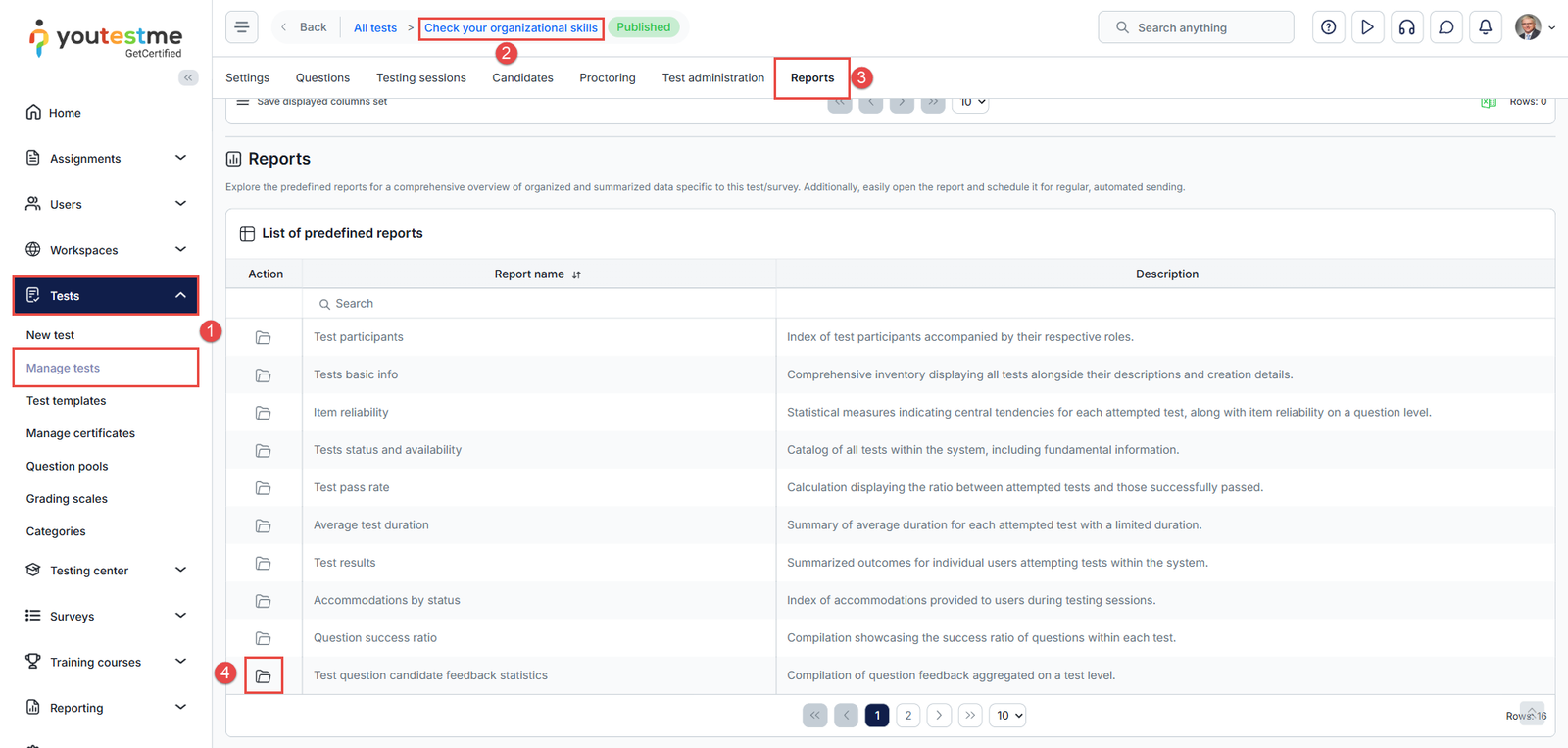
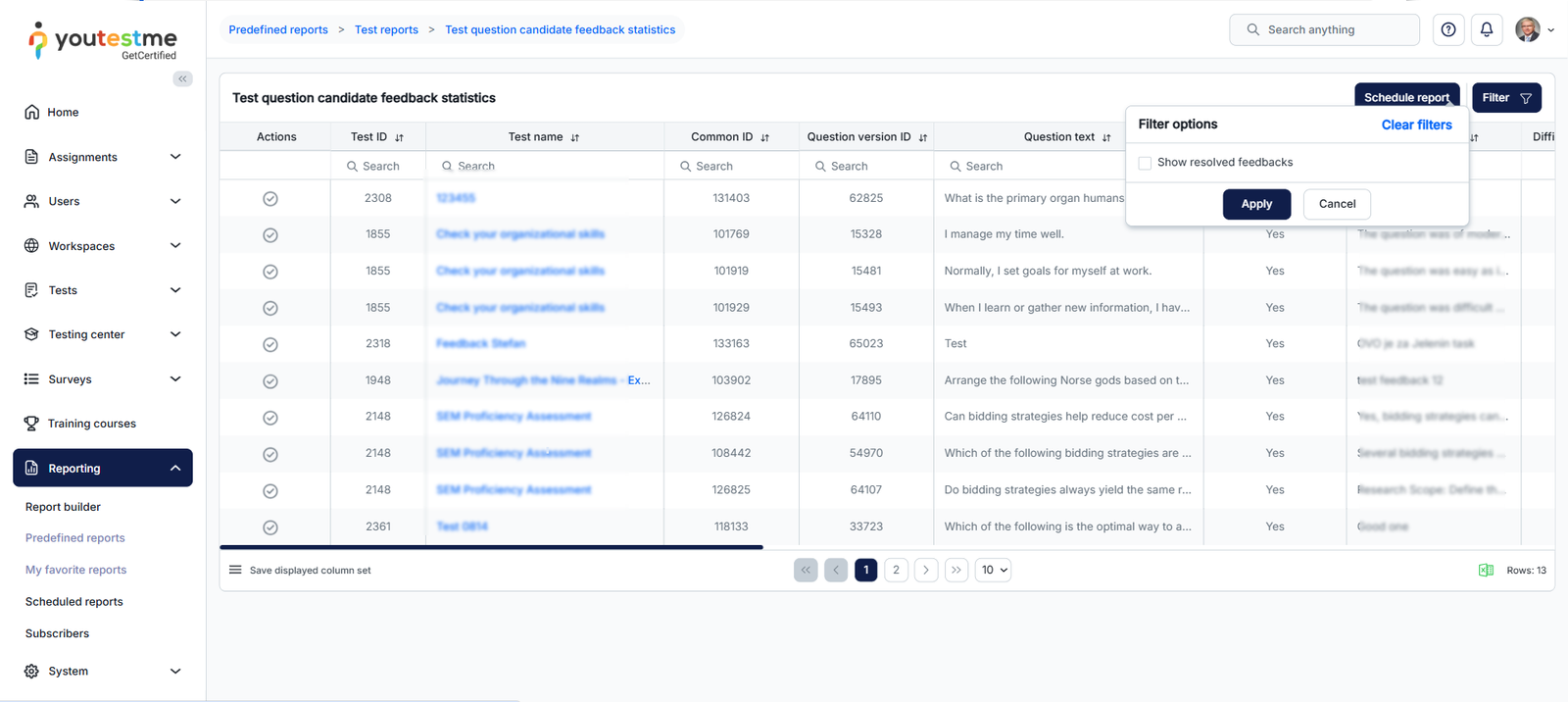
By default, the report displays unresolved feedback entries only. Resolved feedback entries can be displayed by using the Feedback resolved filter.
The report contains the following information:
- Test information – Test ID and Test name.
- Question information – Common ID, Question version ID, Question text, and Active version.
- Feedback information – Text feedback, Difficulty feedback, Number of feedbacks, Feedback resolved, and Feedback resolution note.
- Candidate information – User ID, Username, First name, Last name, and Email.
- Attempt information – Test started, Test finished, Result, Question status, and Session name.
The following actions are available in the report:
- Resolve feedback – Opens the feedback resolution dialog.
- Resolution note – Allows entering notes describing how the feedback was handled before resolving it.
- Filter – Opens filter options for feedback visibility.
- Show resolved feedbacks – Displays resolved feedback entries in the report.
- Schedule report – Schedules automatic report generation and delivery by email.
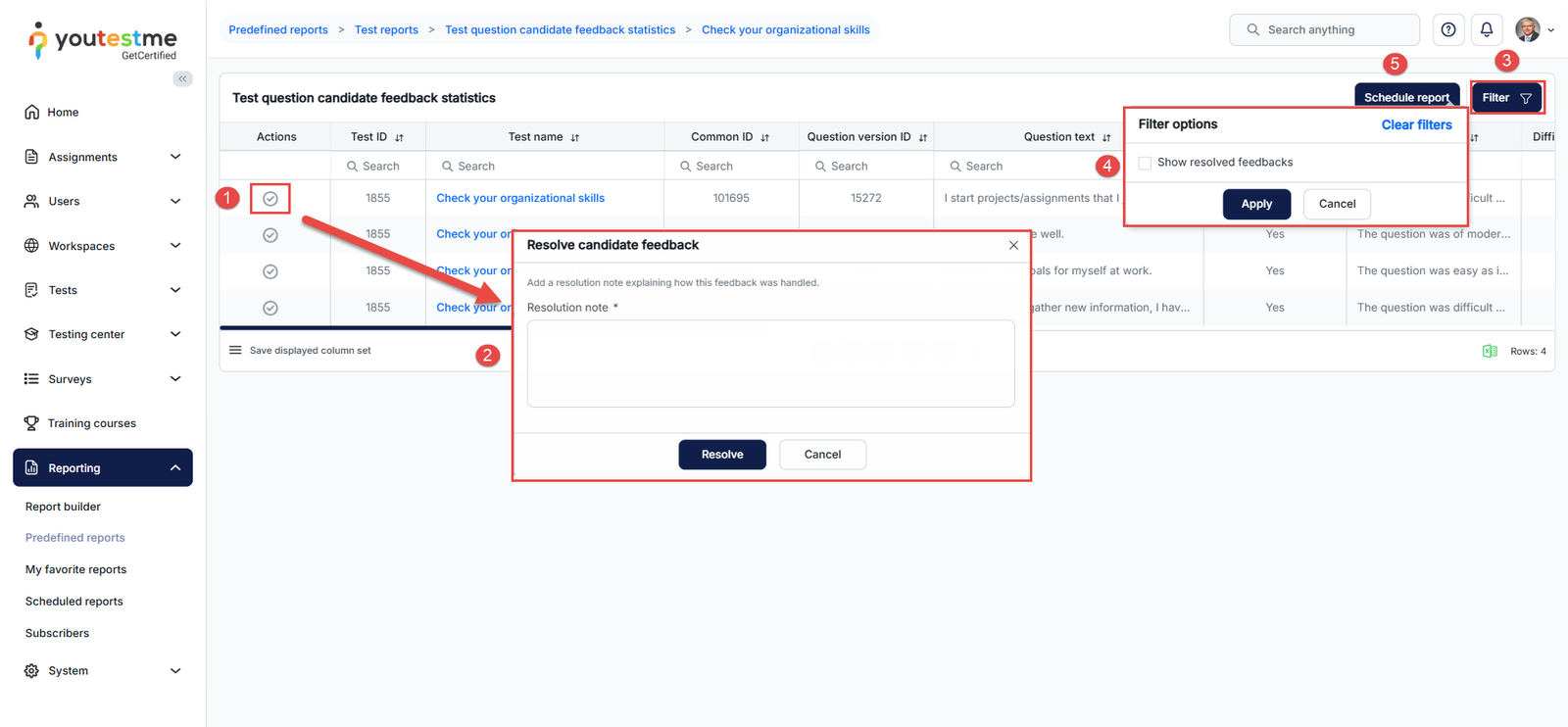
The report displays all candidate feedback on individual questions. It can also be scheduled to run automatically and sent to designated users via email at defined intervals. For details on scheduling reports, refer to the article.
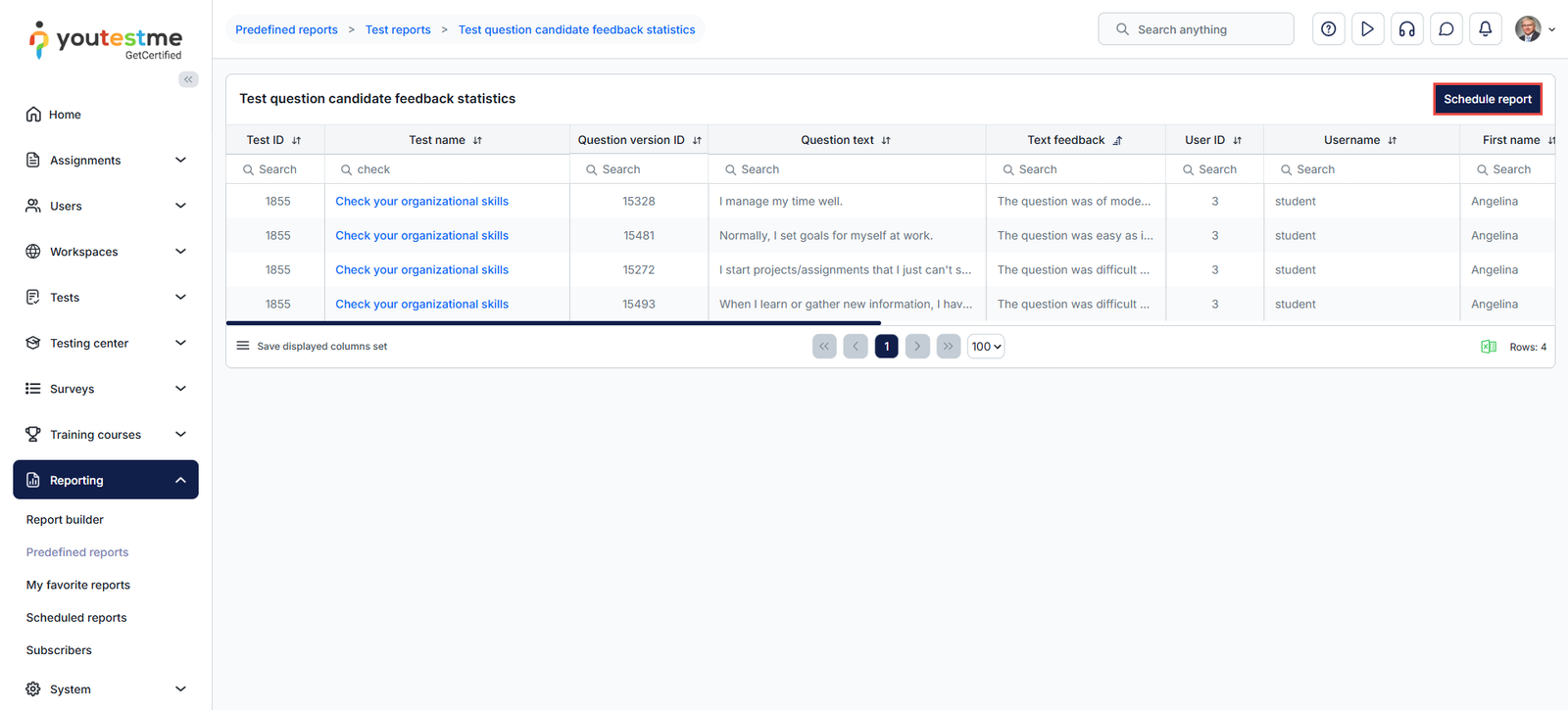
Check Report for All Tests
To review candidate feedback across all tests:
- Go to Reporting > Predefined Reports.
- Choose Test Reports.
- Select Test Question Candidate Feedback Statistics.
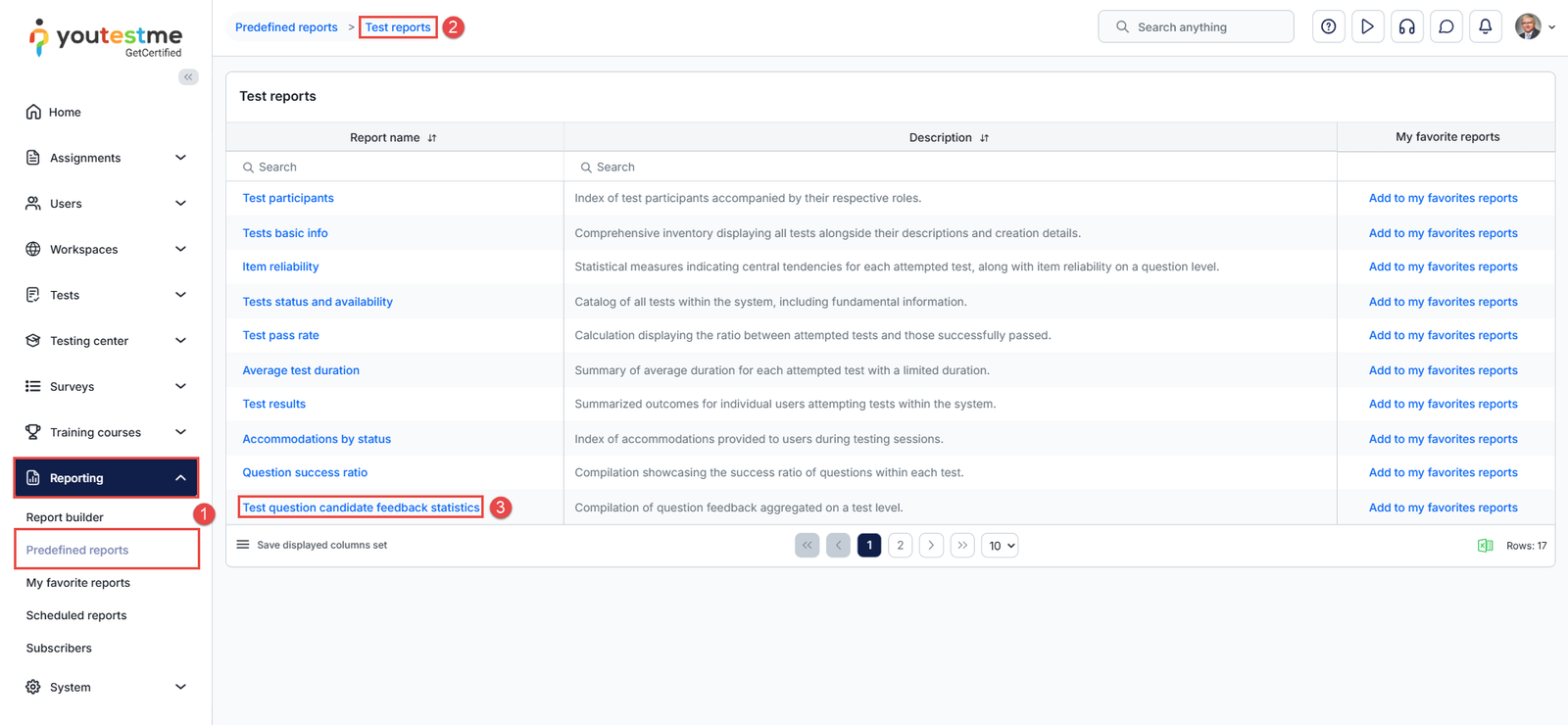
This report consolidates all candidate feedback on test questions across multiple tests. Like the individual test report, it can also be scheduled for automatic delivery by selecting Schedule Report.
Review Question Feedback Report at Pool Level
To review candidate feedback for questions at the pool level, go to Question Pools > search for the desired question pool, and open it.
- Open the Reports tab.
- In the Predefined reports section, click Show.
- Open Question Feedback Statistics at the Pool Level.
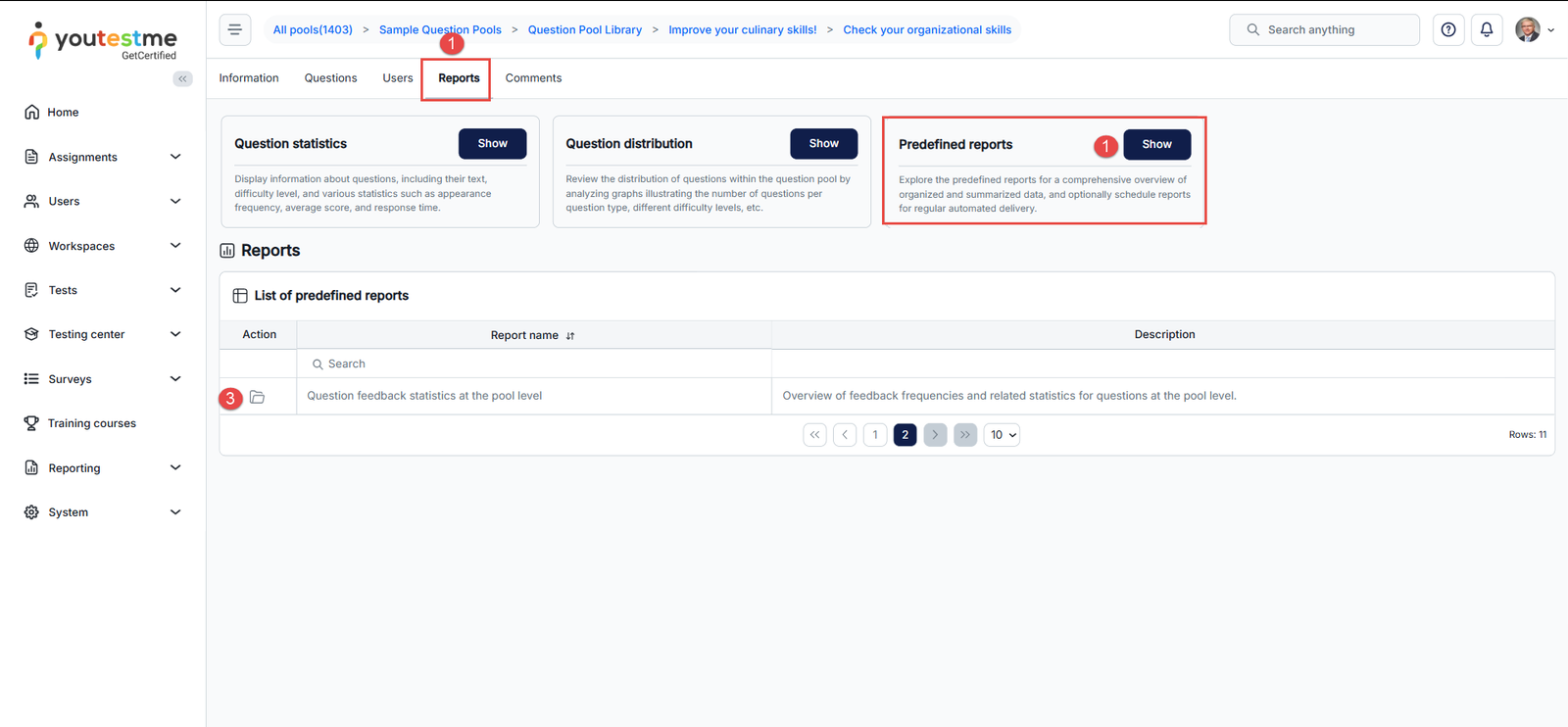
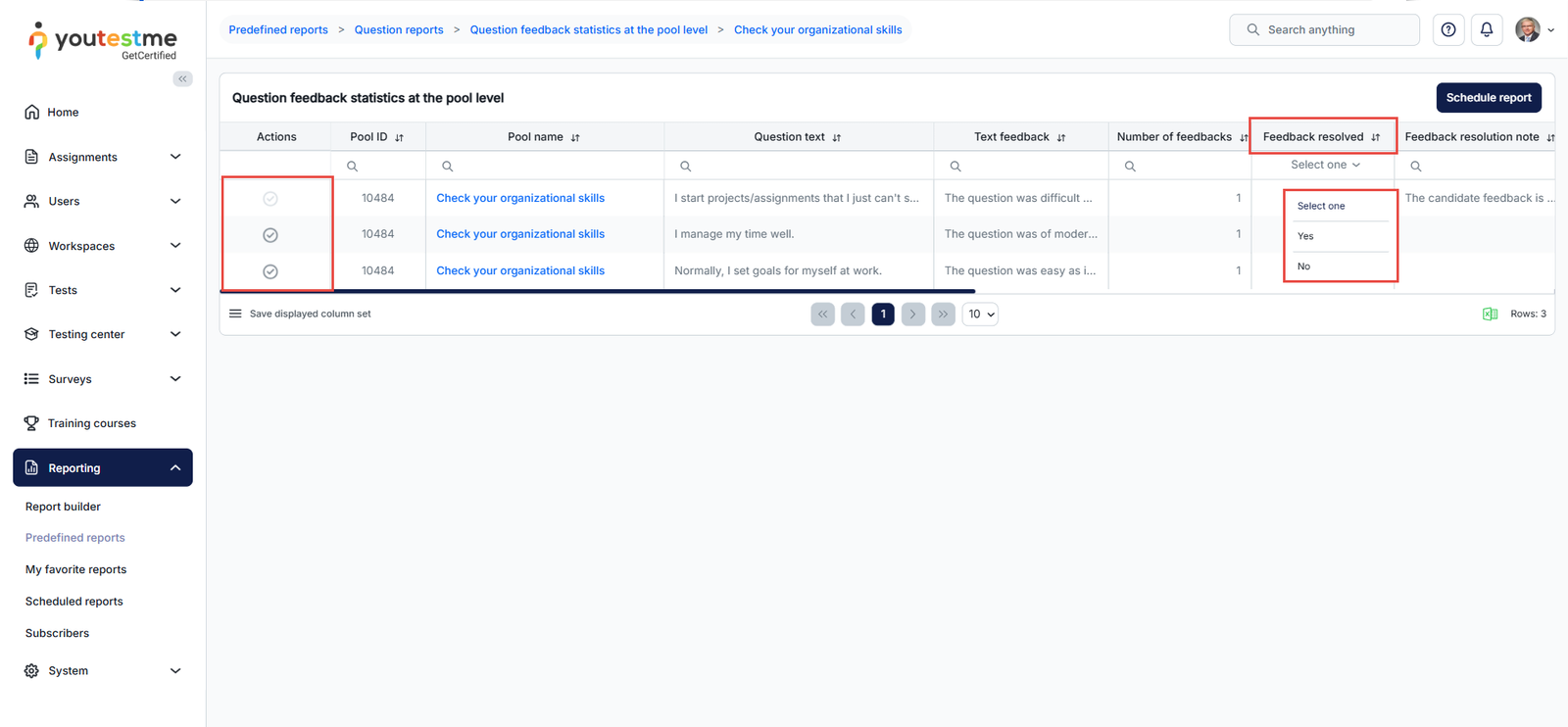
Note: Unlike the test-level report, the pool-level report displays both resolved and unresolved feedback entries by default. Users can filter the results using the Feedback resolved dropdown.