
Article verified for Release 15.2 on January 15, 2026.
The advanced editor in YouTestMe GetCertified allows you to create rich, interactive content for questions, answers, translations, and feedback. This guide explains how to use the editor’s features to format text, insert media, and enhance your content.
Steps to Access Advanced Editor
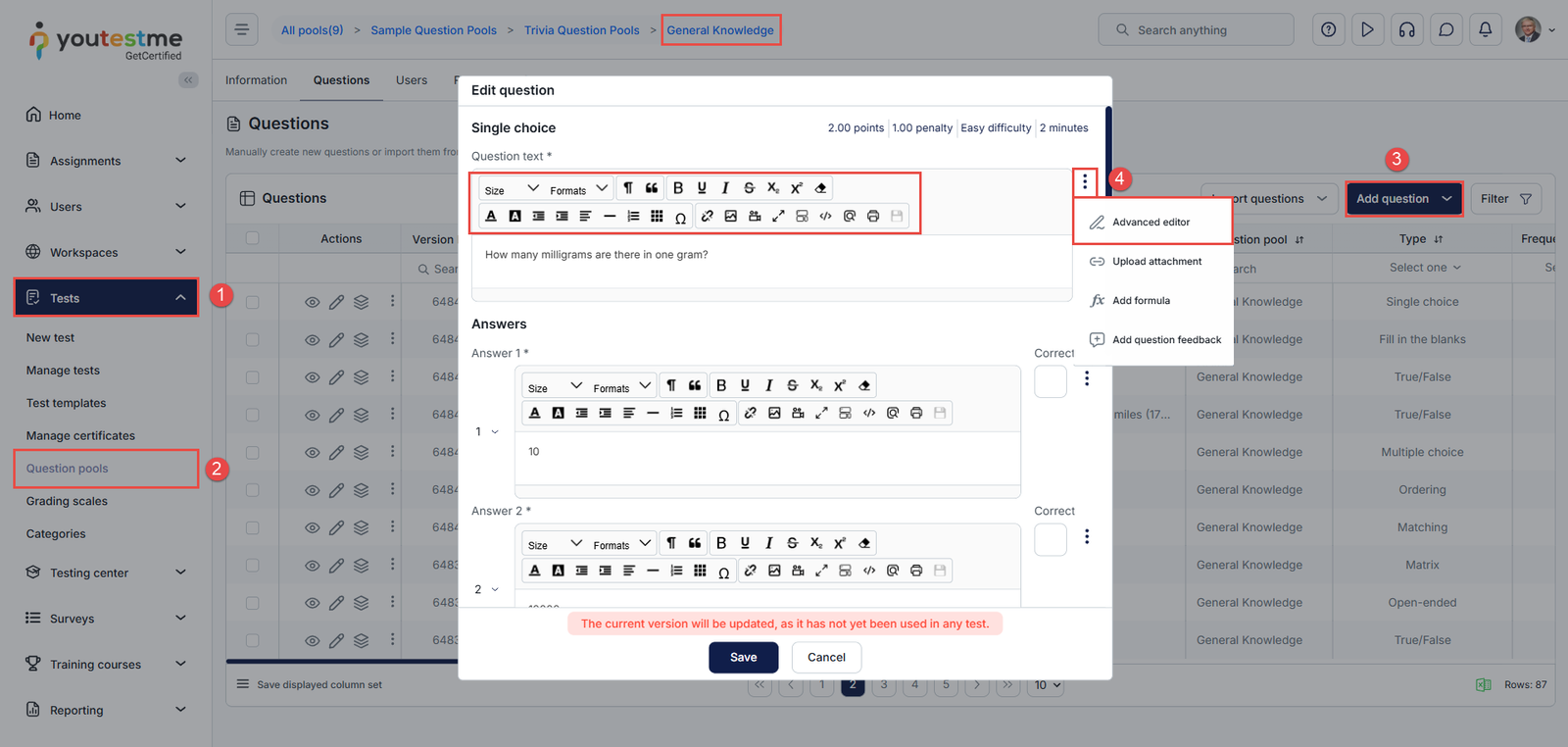
Here are the steps to access the Advanced Editor when creating a question in a question pool (the same applies when using the wizard):
-
Go to Tests
-
Open Question Pools
-
Choose a Pool & Add Question: Select the desired pool, then click the “Add question” button and choose the question type (e.g., single choice).
-
Open Advanced Editor
In the question creation dialog:-
Click the three-dots menu (⋮) in the top-right corner of the question text field (answer text field).
-
Select “Advanced editor” from the dropdown.
-
Editor Components & Toolbar Description
1 Font Controls
-
Size / Formats:
Dropdowns to select font size and apply predefined formats (e.g., headings, inline code).
2 Text Formatting Tools
- Paragraph & Quotes:
Set paragraph style, add block quotes. - Bold, Underline, Italic, Strikethrough:
Apply emphasis or decorations to selected text. - Subscript (X₂) / Superscript (X²):
Useful for scientific or mathematical notation. - Clear Formatting (Eraser):
Removes all formatting from selected text.
3 Text Alignment & List Controls
- Text Color / Background Color:
Change the font color and background color. - Text alignment:
Align text left, right, center, or justified. - Lists (Numbered / Bulleted):
Insert ordered or unordered lists. - Indent / Outdent:
Increase or decrease text indentation. - Line Height / Table:
Adjust line spacing, insert tables. - Special Characters (Ω): Insert symbols such as currency signs, mathematical operators, accented letters, and other non-standard characters not available on the keyboard.
4 Media & Advanced Options
- Link / Image / Audio / Video:
Insert multimedia elements via file or URL.
Note: When you add an image directly to an answer, the image URL characters are counted toward the character limit. Therefore, adding images this way is limited. To avoid this issue, we recommend using answer attachments instead. For more information, please check this article. - Full Screen:
Expand the editor to full screen for distraction-free editing. - Formula / Code View (< >):
Insert math formulas or view/edit HTML code. - Preview (Magnifier):
Preview how the content will look. - Print / Save:
Print the content or save it locally.

Note: We can access the Advanced Editor while editing a question, adding manual translations, or providing feedback to the question.
Known Limitations for Bidirectional (RTL/LTR) Text Rendering
The Advanced Editor supports right-to-left (RTL) text based on the underlying editor engine. However, certain limitations may occur due to standard bidirectional text rendering behavior defined by the Unicode Bidirectional Algorithm and browser-level rendering mechanisms.
These behaviors are not specific to the YouTestMe platform and can also be observed in other standard text editors and environments.
Known limitations include:
- Mixed RTL and LTR content (e.g., combining different writing directions or numeric sequences within the same text) may result in visual reordering of characters
- Cursor movement in bidirectional text may not always follow a strictly linear or expected navigation pattern
- Numbered and bulleted lists may behave inconsistently in RTL contexts
- Rendering behavior may vary slightly depending on browser, font selection, and operating system text rendering engine
- Complex bidirectional layouts may require validation in the context of final content display and export
Recommended best practices:
- Avoid unnecessary mixing of RTL and LTR text within the same sentence or structure
- Use consistent formatting and simplify layout structures where possible
- Validate final content rendering in the target environment before production use
Additional resources:




