This article explains the process of creating and using test templates.
Creating a Test Template
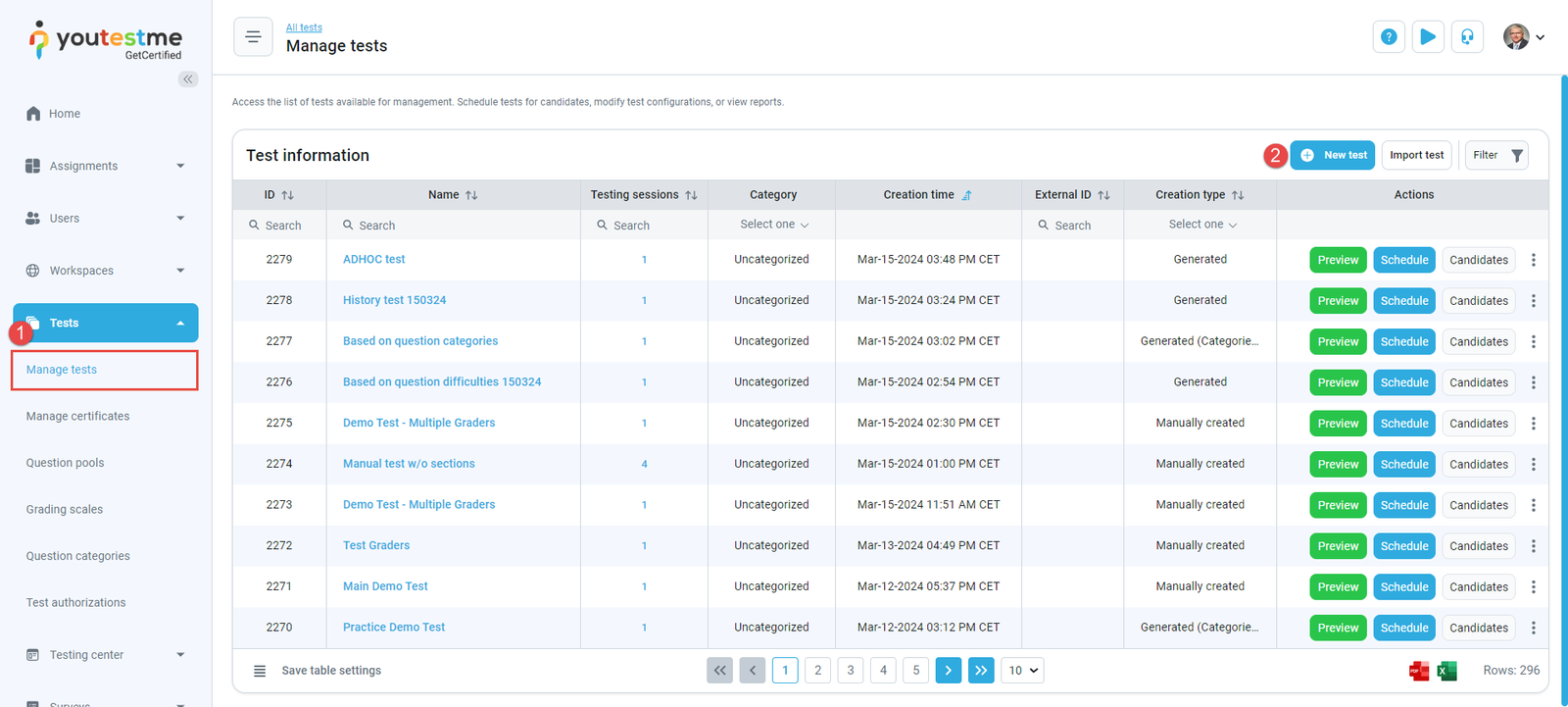
To access the Test Creation Wizard page, do the following:
- In the main menu, click Tests and select the Manage Tests sub-menu.
- Click the New Test button.
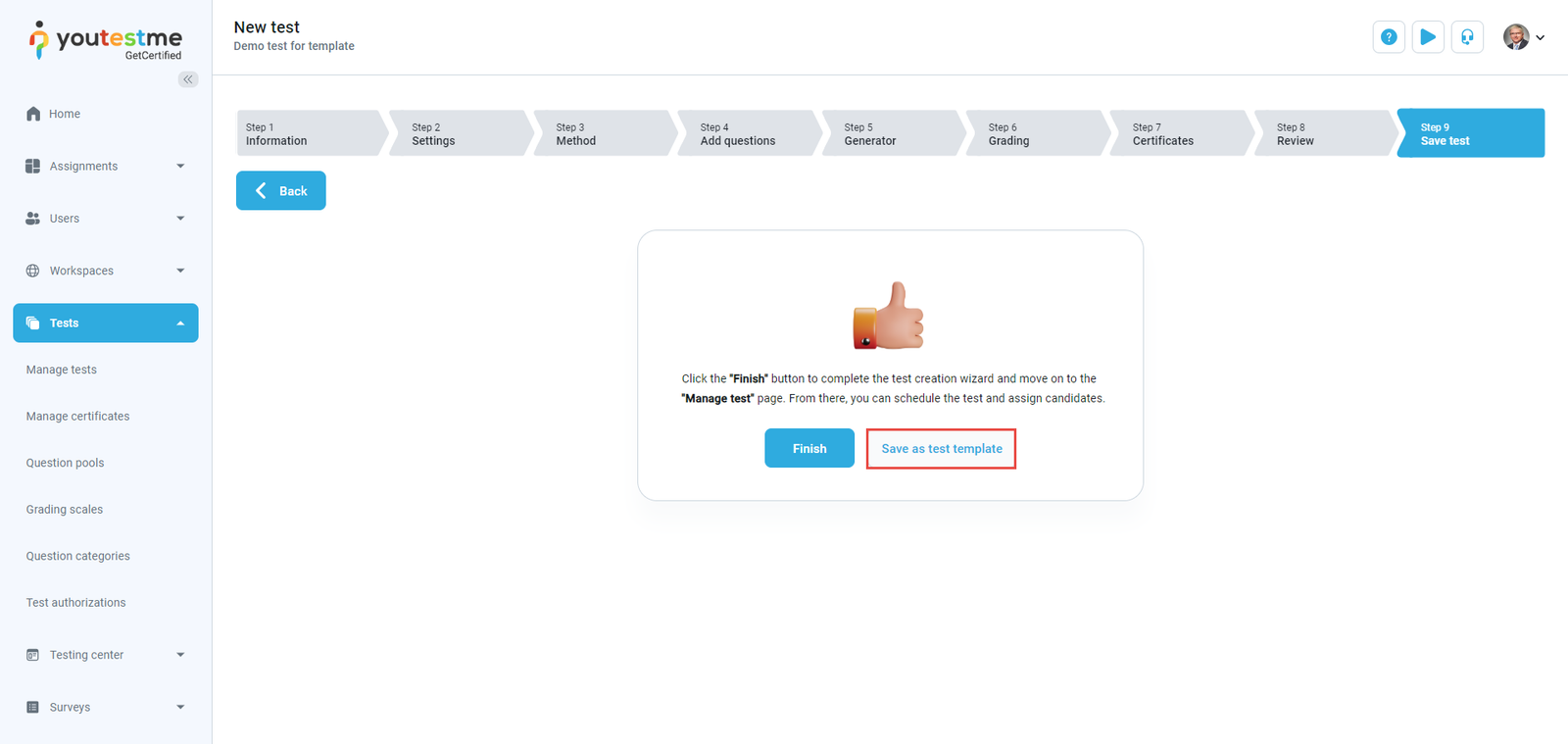
In the New Test Wizard, finish setting up the test, and at the last step, click the Save As a Test Template button.
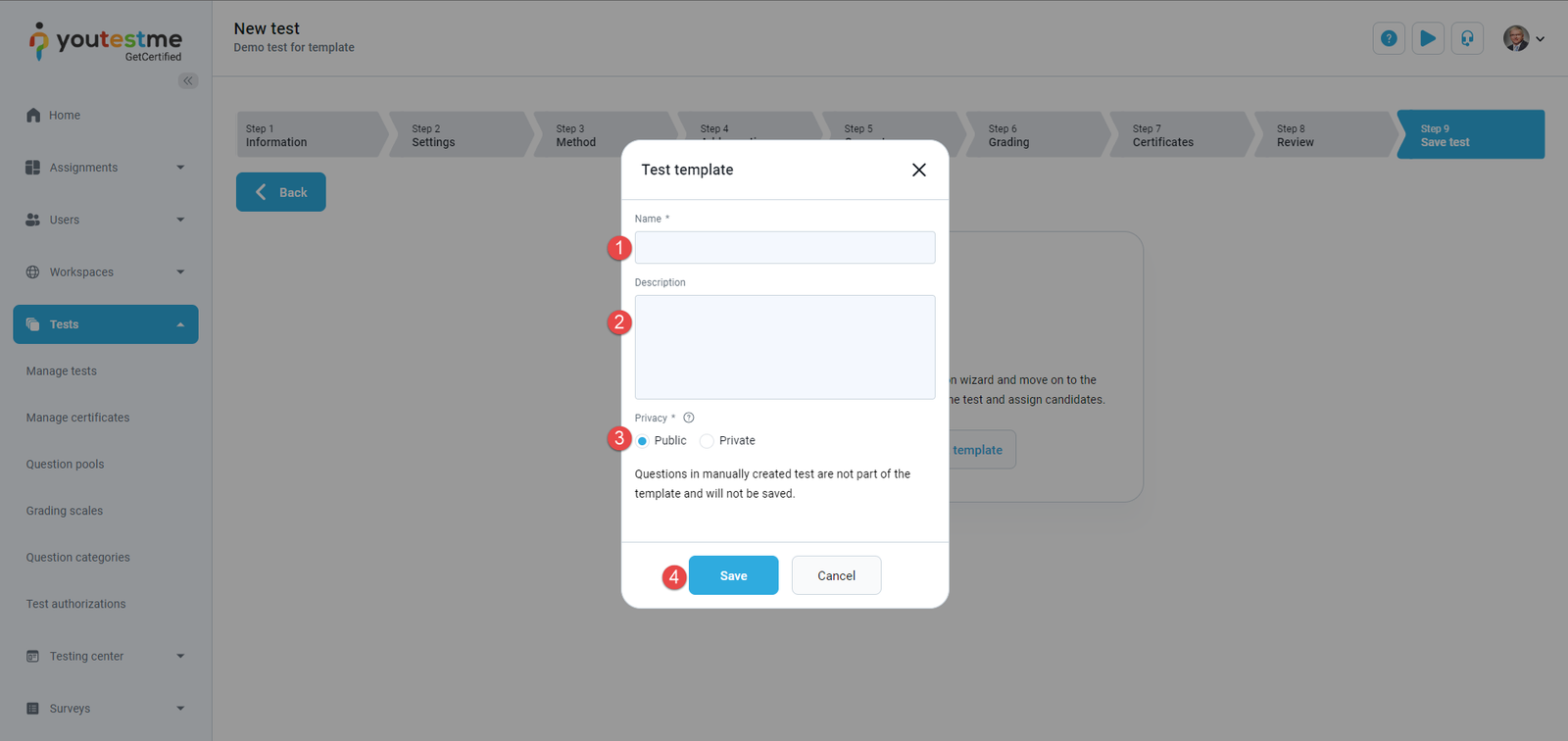
In the Test Template dialog:
- Enter the template name
- Optionally enter a description
- Define the template privacy settings:
Public: Any user with the appropriate role can use this template
Private: Only the user who created the template can use it - Click the Save button to save the new template
Using the test template
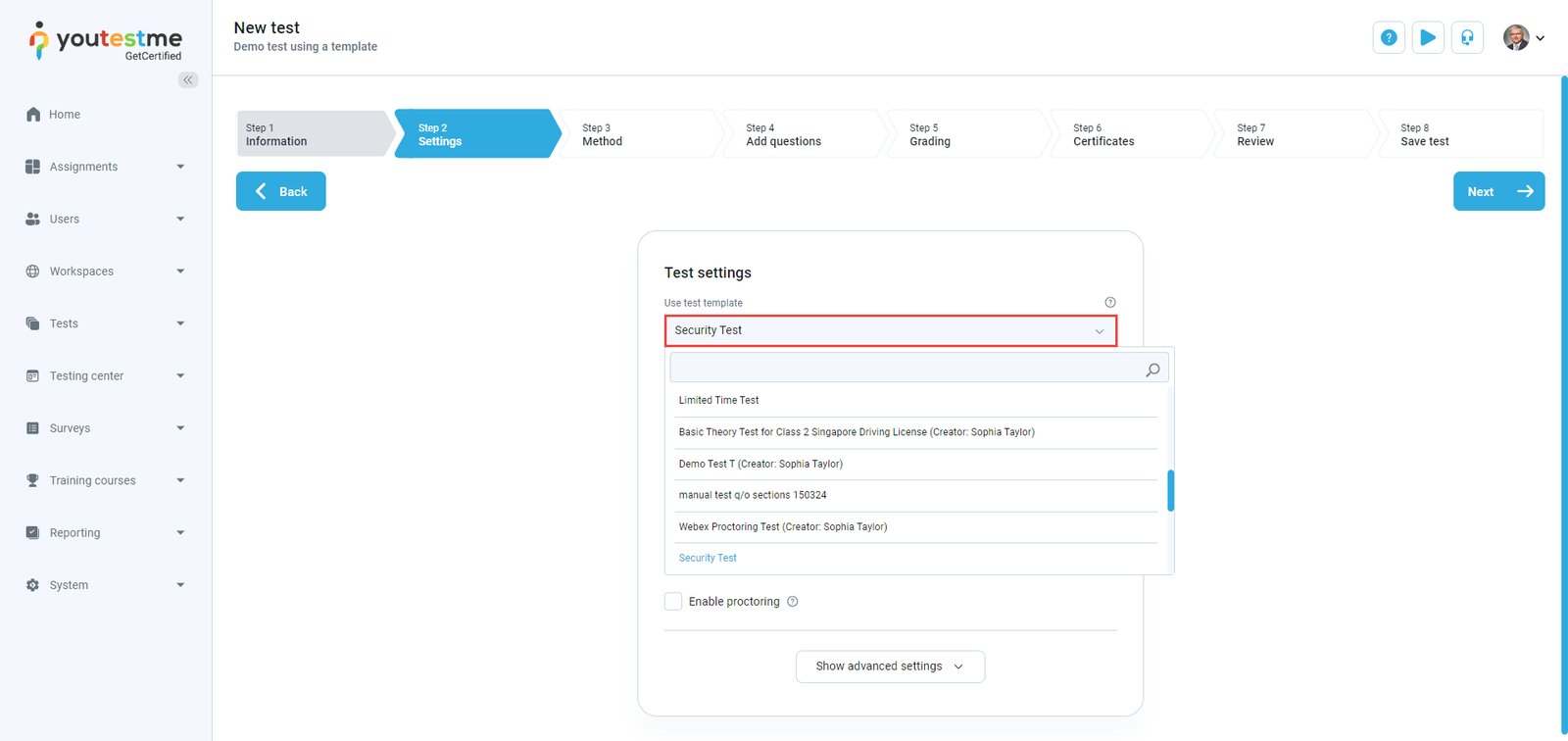
Once a test template is created, you can use it each time when creating a test with the same settings. You can choose the test template in the Create test wizard’s second step (Settings).
Once you choose a test template, all settings are automatically configured, requiring you only to select the method and question pools for generating the test.
Related instructional materials:





