

Article verified for Release 16.1 on June 12, 2026.
This article explains how to use the AI Grading feature for Essay and Fill in the Blanks (FIB) question types. This feature introduces AI-assisted evaluation as a scoring option, enabling automatic grading of answers.
Note: This feature is included in the EE package. If you are unsure whether your environment includes this package, please contact sales@youtestme.ca or your designated account manager for confirmation.
Configure the Integration
The first step is to configure the integration on your application.
- Navigate to the System page.
- Open the Integrations section.
- Select the AI Model tab.
- Locate the feature you want to configure (in this case, AI Grading) and click the Edit icon.
- In the configuration window:
- Select the AI provider (OpenAI or Local (Llama)).
- Enter the OpenAI API secret key if needed.
- Define the OpenAI API URL if needed.
- Enter the OpenAI API model (for example,
gpt-4).
- Click the Save button to apply the changes.

Precondition when creating a test:
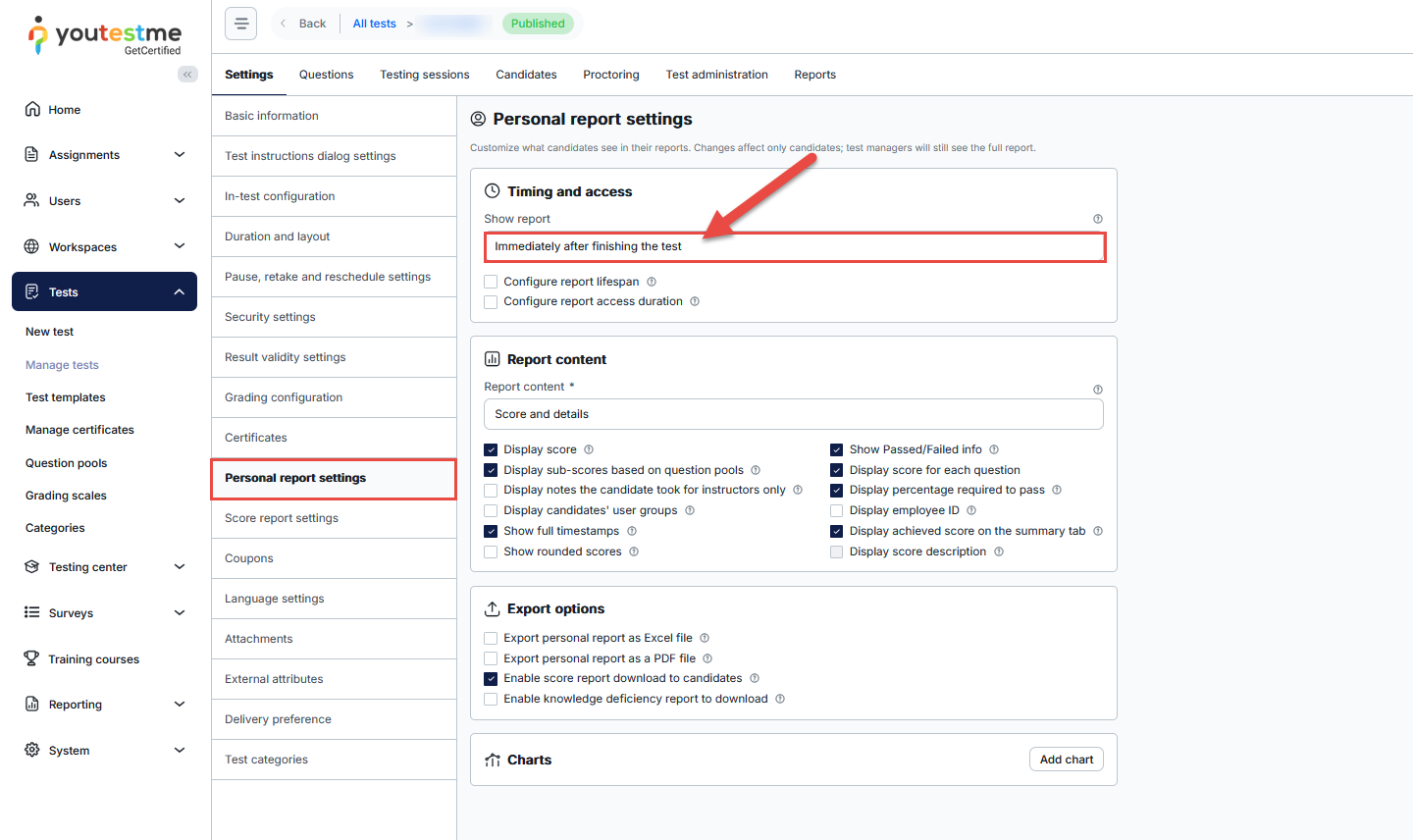
To ensure that students can immediately see their results (including AI-graded responses), the Show report option must be set to Immediately after finishing the test.
Creating a Question
AI Grading can be applied when creating Essay or Fill in the Blanks questions in two ways:
- Through the Question Pool – Navigate to the Question Pool and create a new question. For more information, check this article.
- During Test Creation – Add a new question while creating or editing a draft test. For more information, check this article.
After creating questions to the Question Pool, they become available for reuse during test creation. When creating a test, you can easily select and import these questions from the pool, which helps ensure consistency, saves time, and allows for better organization of content across multiple tests. For more information, check this article.
Configuring AI Grading in Essay Question
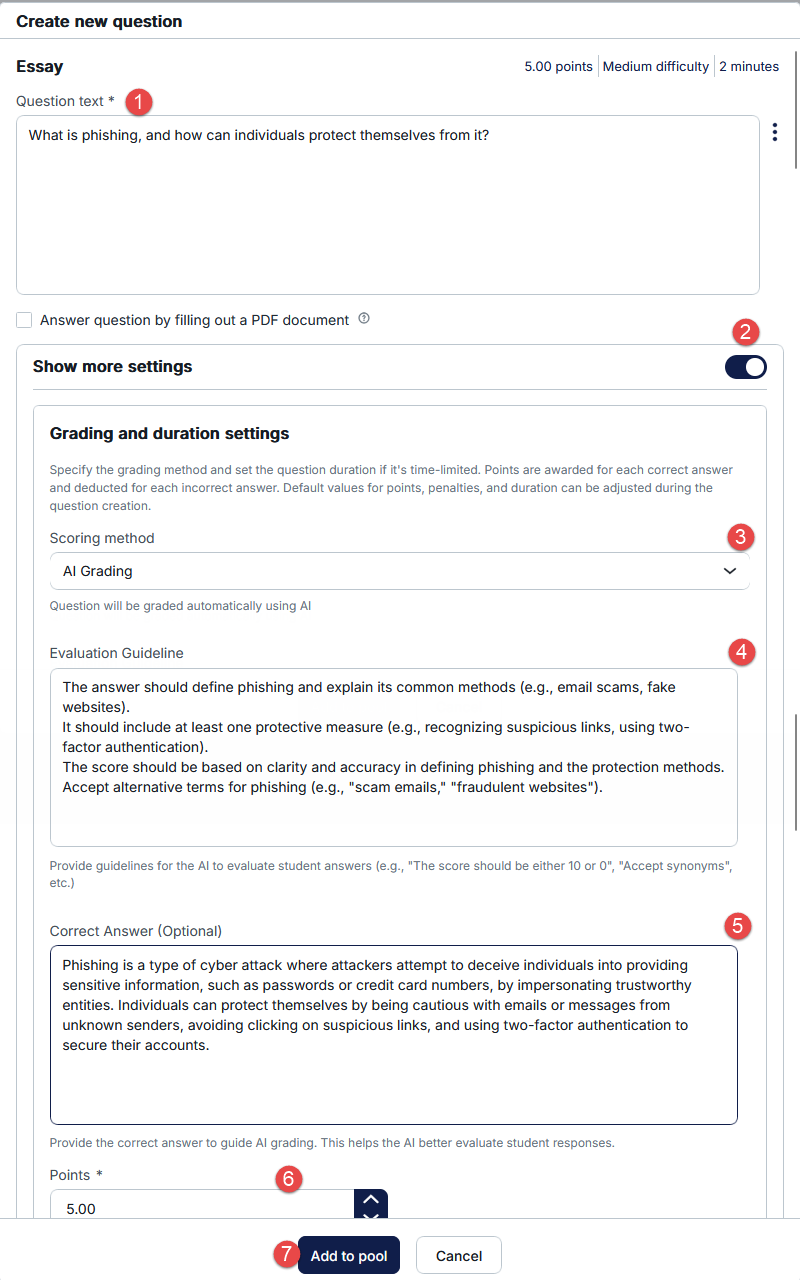
When creating a question:
- Insert the desired text.
- Enable Show more settings option.
- Navigate to the Scoring method section and choose the AI grading.
- Provide guidelines for the AI to evaluate student answers.
- Optionally, provide the correct answer to guide AI grading.
- Add points to question.
- Save the question and add it to the pool.
Configuring AI Grading in Fill in the Blanks questions
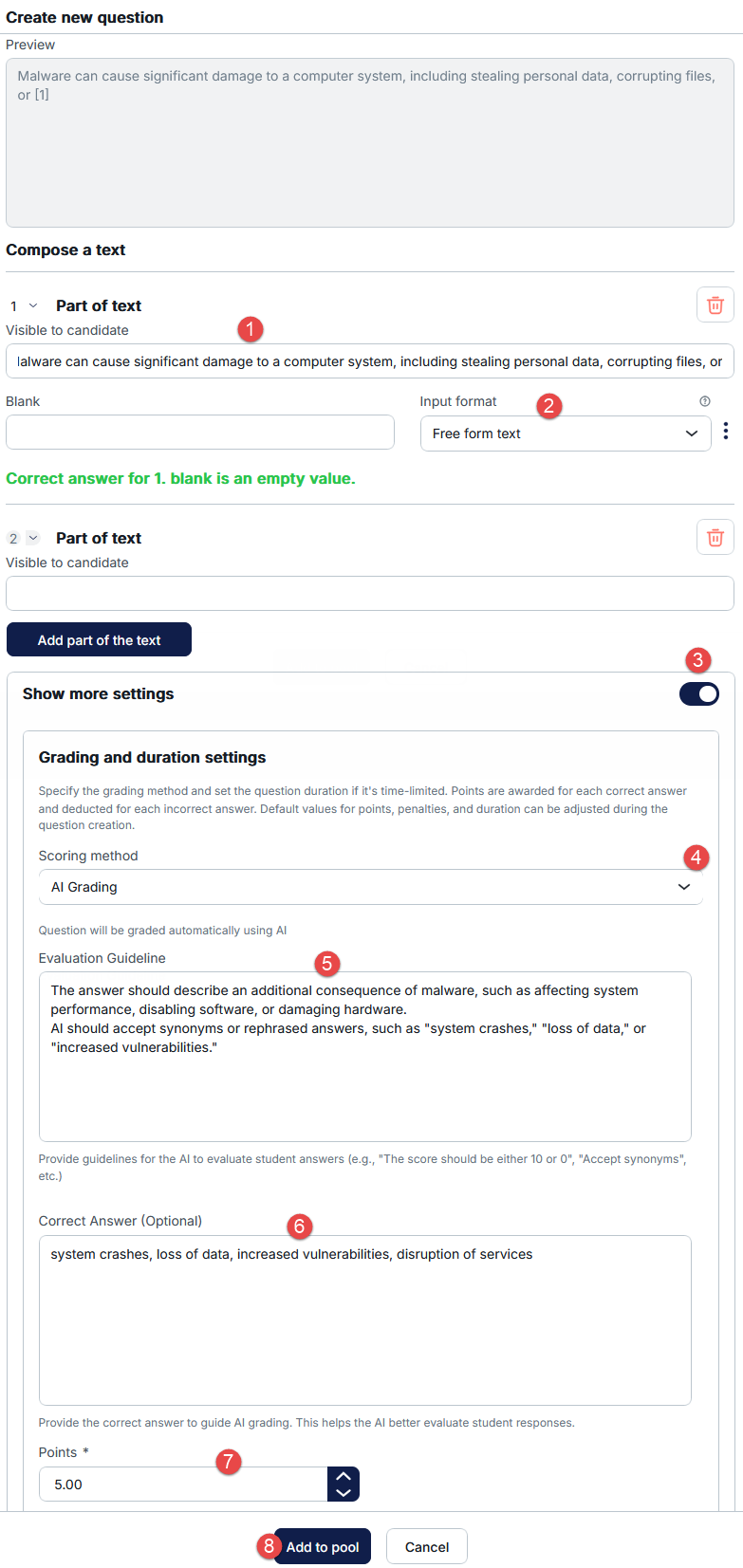
When creating a question:
- Insert the desired text – visible for the candidate.
- Choose input format to be Free form text so candidate can write the answer.
- Enable Show more settings option.
- Navigate to the Scoring method section and choose the AI grading.
- Provide guidelines for the AI to evaluate student answers.
- Optionally, provide the correct answer to guide AI grading.
- Add points to question.
- Save the question and add it to the pool.
Evaluation Guideline
This is a mandatory field where you define how the AI should evaluate answers.
Purpose:
- Guide the AI on scoring logic
- Ensure consistency across responses
Examples:
- “Accept synonyms and contextually correct answers”.
- “Evaluate based on accuracy, completeness, and clarity”.
- “Accept synonyms and rephrased answers”.
Best practice:
- Be clear and specific.
- Mention whether synonyms or rephrased answers are acceptable
Correct Answer (Optional)
- Provide a reference answer to guide the AI.
Purpose:
- Improves grading accuracy.
- Helps the AI understand expected responses better.
Expected behavior:
- The AI uses this as a benchmark but still evaluates flexible, contextually correct answers (especially for Essay questions).
How It Works (Runtime Behavior)
When a student submits an answer:
- The system sends:
- Question content.
- Student response.
- Evaluation Guideline.
- Correct Answer (if provided).
- The system evaluates student responses based on predefined guidelines and returns:
- A numeric score.
- An AI-generated evaluation summary/feedback.
- The platform:
- Saves the score as the final result.
- Stores and displays the feedback in the results view.
Current Limitations
- Export of questions with AI Grading is supported. However, Evaluation Guideline and Correct Answer (Optional) fields are not included in the export/import process. These fields must be manually reconfigured after importing the questions.
- AI graded functionality has a known limitation on Microsoft Edge browser; using Google Chrome is recommended for best performance and stability.
Student Perspective
From the student’s point of view:
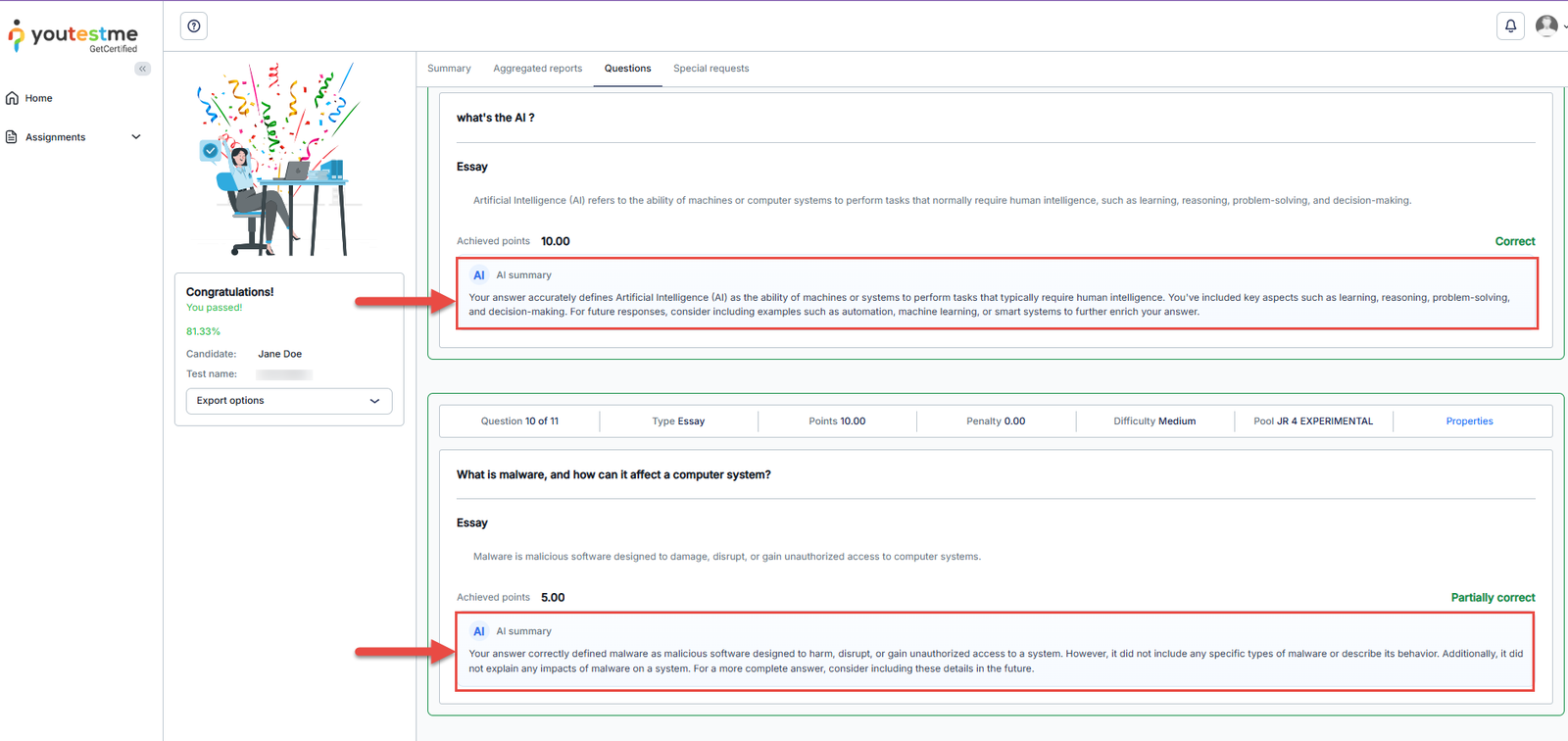
- After submitting the test, results are available immediately (if the precondition is met).
- For AI-graded questions, students can see:
- Their score and achieved points.
- AI-generated feedback explaining the evaluation.
This provides instant insight into their performance, especially for subjective answers like essays.
Conclusion
AI Grading enhances the evaluation of Essay and Fill in the Blanks questions by automating subjective assessment. By defining clear Evaluation Guidelines and optionally providing Correct Answers, admins can ensure accurate and consistent grading.
This feature reduces manual effort, speeds up result delivery, and improves the overall assessment experience for both admins or test creators and students.




